






This guide will show you how to resolve internet browsing issues when connected to the ExpressVPN app. Examples of this issue include:
- Failing to browse the internet immediately after connecting to the VPN
- Failing to browse the internet after being connected to the VPN for a short period of time
The likely causes for these issues include:
- An outdated version of the ExpressVPN app
- Poor connectivity at the chosen VPN server location
- Network restrictions or filtering affecting certain VPN protocols
- Interference from your antivirus or online security application
- Proxy settings are interfering with the VPN connection
Initial check
Before you proceed, check whether you have an active internet connection.
- Disconnect from ExpressVPN.
- On your web browser, access a website of your choice.
If you are able to access the website, the VPN connection issue is not caused by your internet connection. Follow the troubleshooting steps below to resolve the issue.
If you are unable to access the internet even when disconnected from ExpressVPN, there is likely an issue with your internet connection. Check whether your internet connection is active or has underlying issues. (If you are on Windows, try these steps to restore your internet connection.)
Troubleshooting steps
Follow the troubleshooting steps below to resolve the connection issue. After each step, check if the issue is fixed. If the issue is fixed, you can skip the rest of the steps.
- Download the latest version of ExpressVPN
- Save your diagnostic file
- Connect to a different VPN server location
- Change your VPN protocol
- Add ExpressVPN as an exception to your antivirus or online security application
- Disable your proxy settings
- Contact the ExpressVPN Support Team
1. Download the latest version of ExpressVPN
Check whether you are using the latest version of the ExpressVPN app. If not, download the latest app version.
Set up your ExpressVPN app:
- Setup instructions for Windows
- Setup instructions for Mac
- Setup instructions for iOS
- Setup instructions for Android
- Setup instructions for Linux
- Setup instructions for routers
2. Save your diagnostics file
If your issue persists after updating to the latest version of the ExpressVPN app, create and save a diagnostic file:
- In the left sidebar, click Help.
- Under Diagnostic Tools, turn on Enable debug logging.
- Click Send debug report.
- In the ExpressVPN Support Tool window, click Save as .ZIP and choose where to save the file.
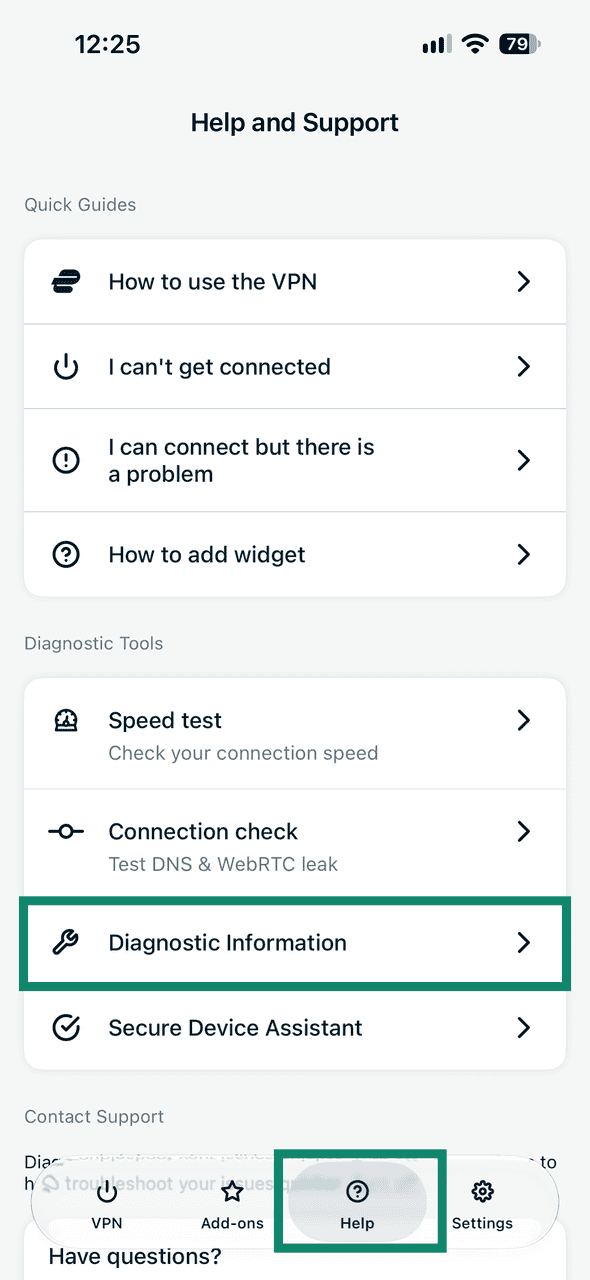
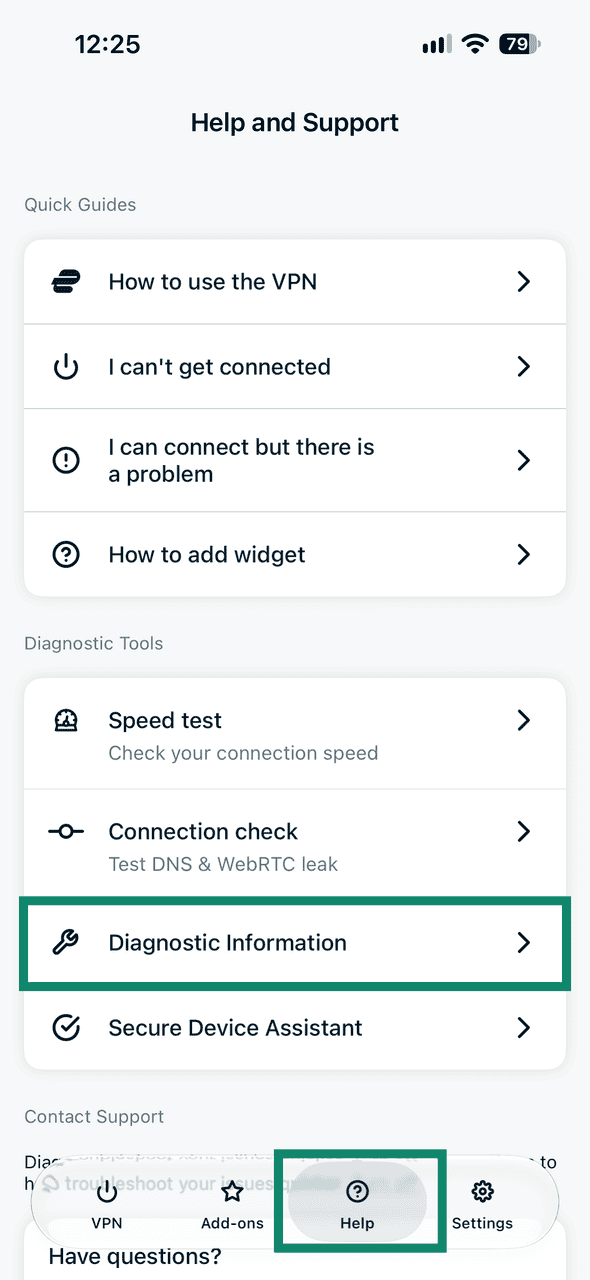
- Go to the Help tab, and under Diagnostic Tools, tap Diagnostic information.

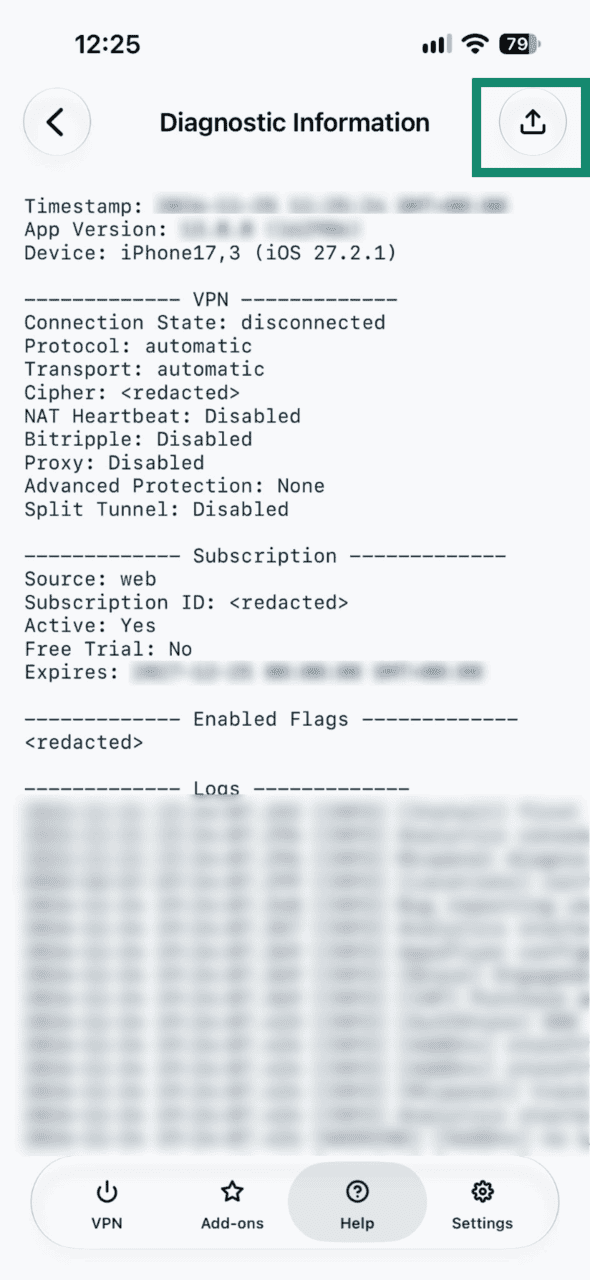
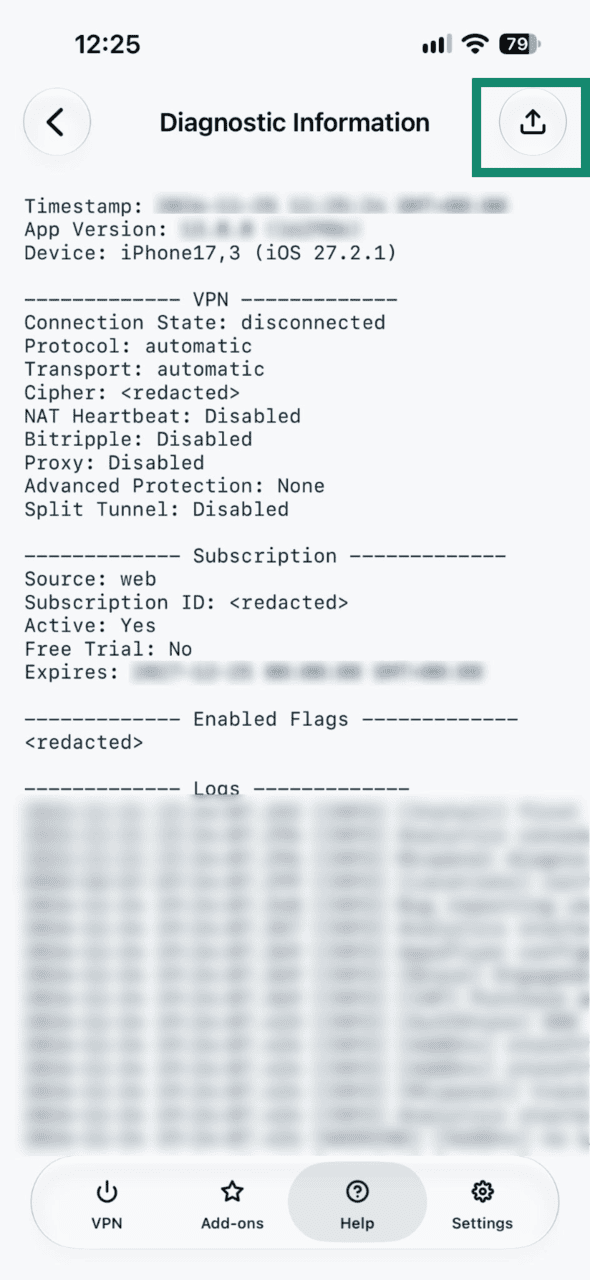
- Tap the sharing icon in the top-right corner and save the file to your device.
- Sign into your router running ExpressVPN.
- Select Help & Support > Diagnostic Information.
- Select Download All Logs.
Proceed with the troubleshooting steps below. If you cannot resolve your issue with these steps, the log file you just created will later help the ExpressVPN Support team identify and resolve it.
Note: If you are using Android TV, Apple TV, or Fire TV, skip this step. You’ll be able to include diagnostic information when you open a support ticket from the TV app, if you need to do so.
3. Connect to a different VPN server location
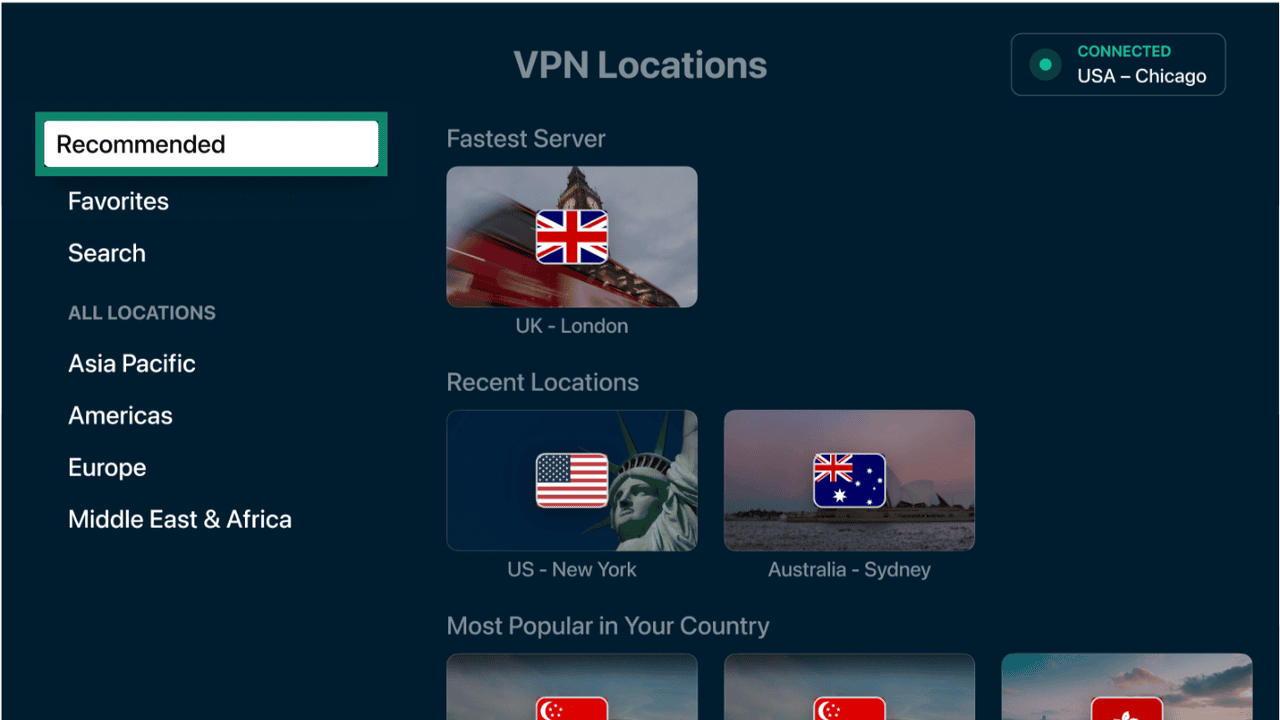
Connect to a different VPN server location. We recommend connecting to your Fastest Location (on the ExpressVPN apps for Android and iOS) or Smart Location (ExpressVPN apps for Windows, Mac, and Linux).
How to connect to a different server location on each of our apps:
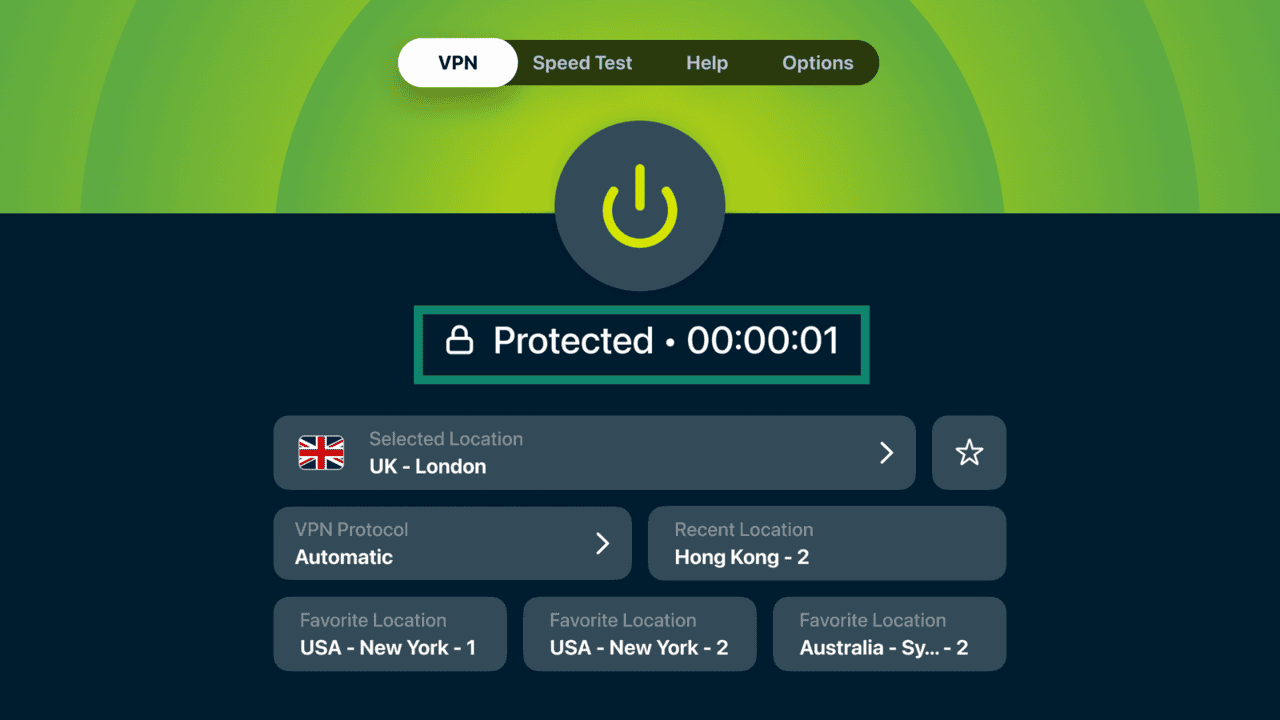
- Click > next to Selected Location to access the list of VPN locations.
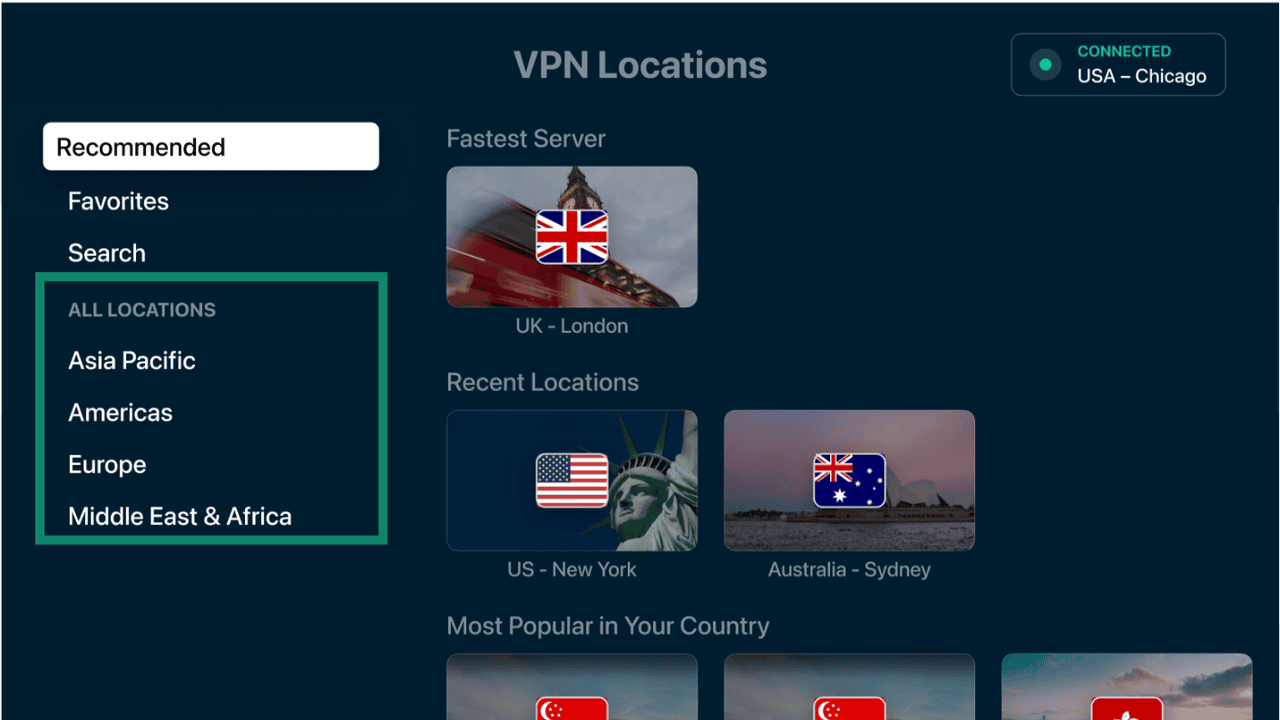
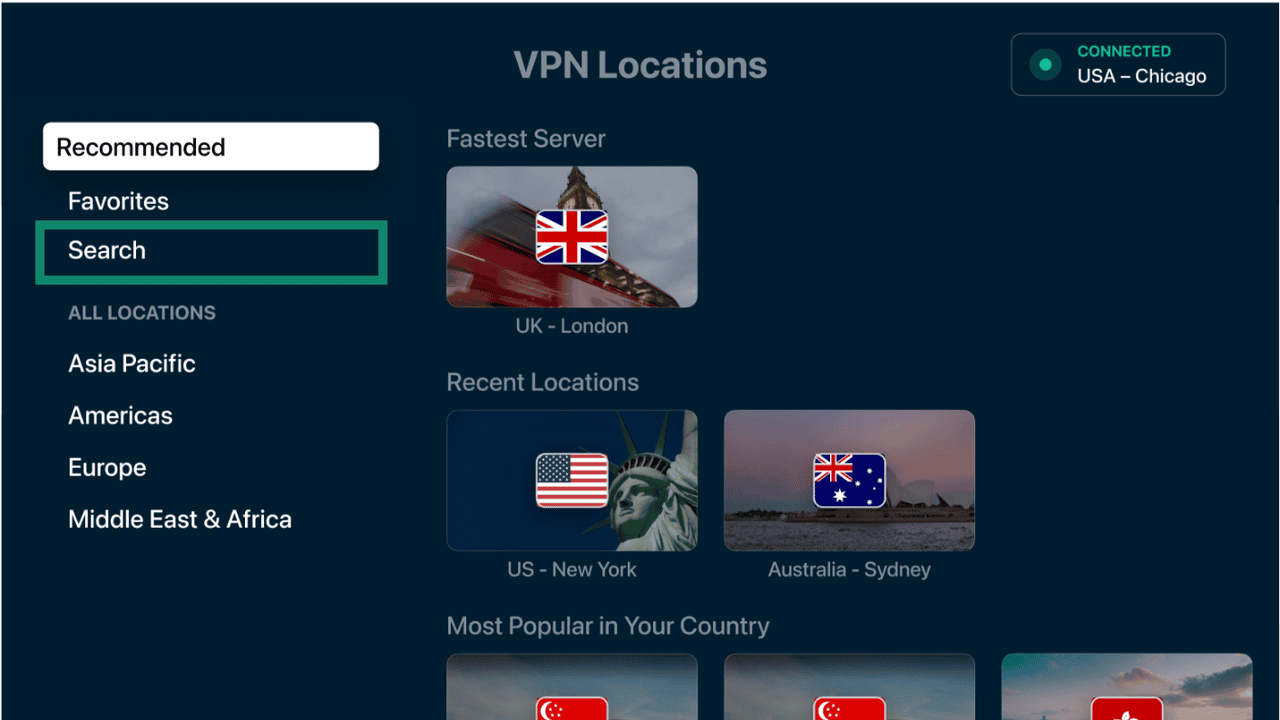
- Scroll through the Recommended or All Locations server lists to find a specific location, or use the search bar to find the location you want to connect to.
- Click on your desired server location, and ExpressVPN will automatically connect to it and return you to the VPN tab.
- In the VPN tab, tap the location picker widget below the power button.
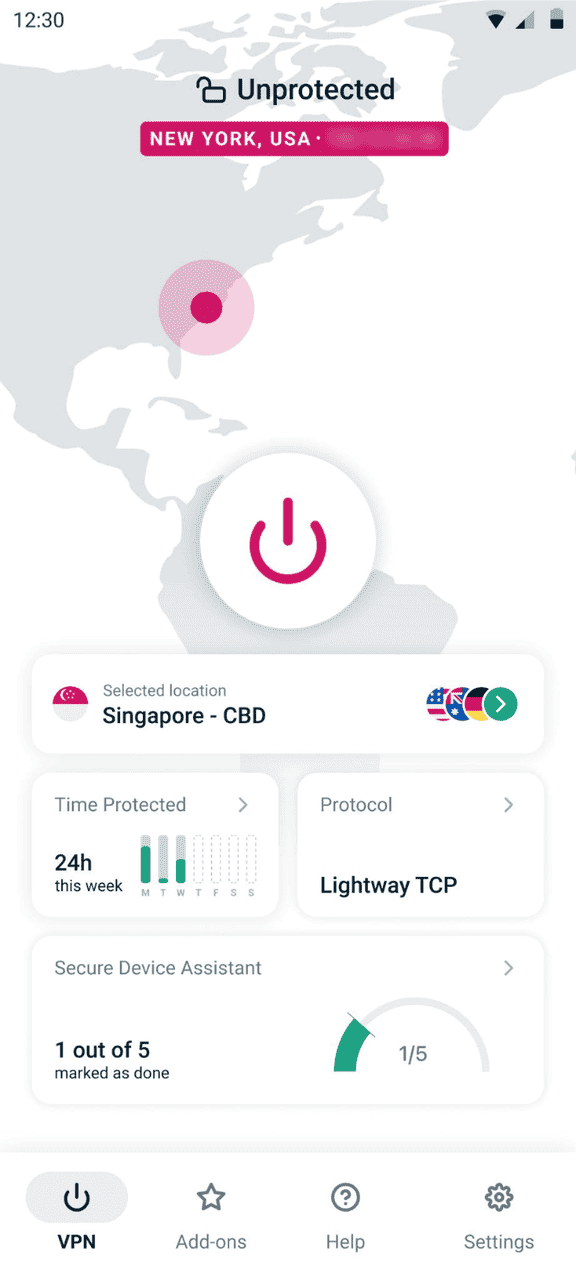

- You will see a list of Recommended server locations. Scroll through the list to find a specific server location.
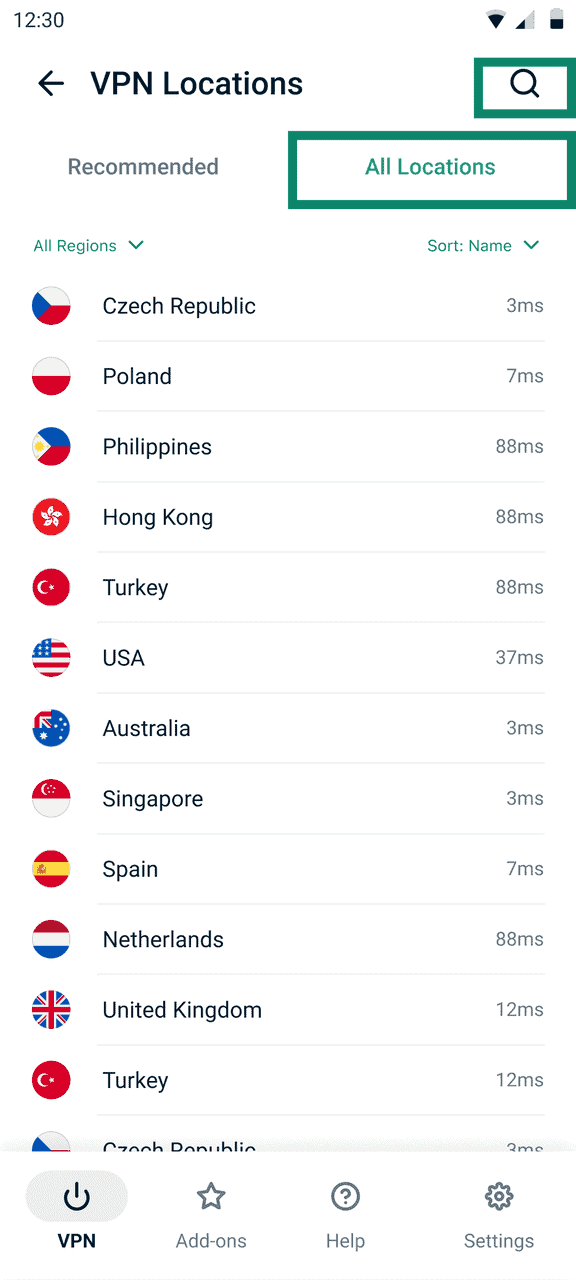
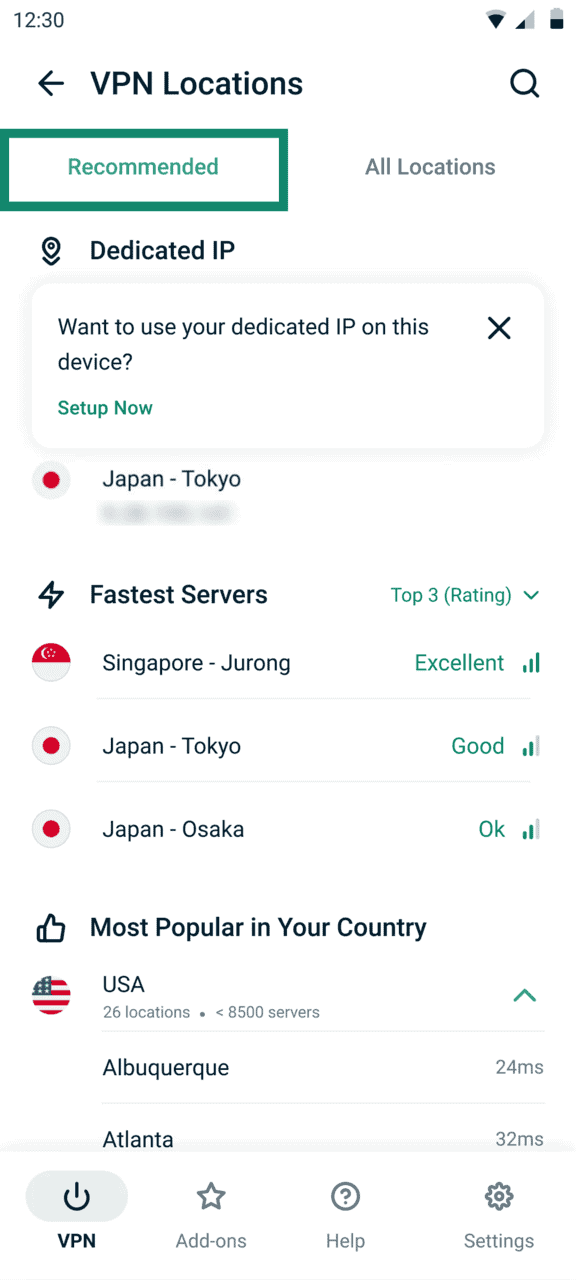 Alternatively, tap the All Locations tab to see all server locations available, or tap the magnifying glass icon at the top to open the search bar and type the server location you’re looking for.
- Once you choose a location, ExpressVPN will automatically connect you to it.
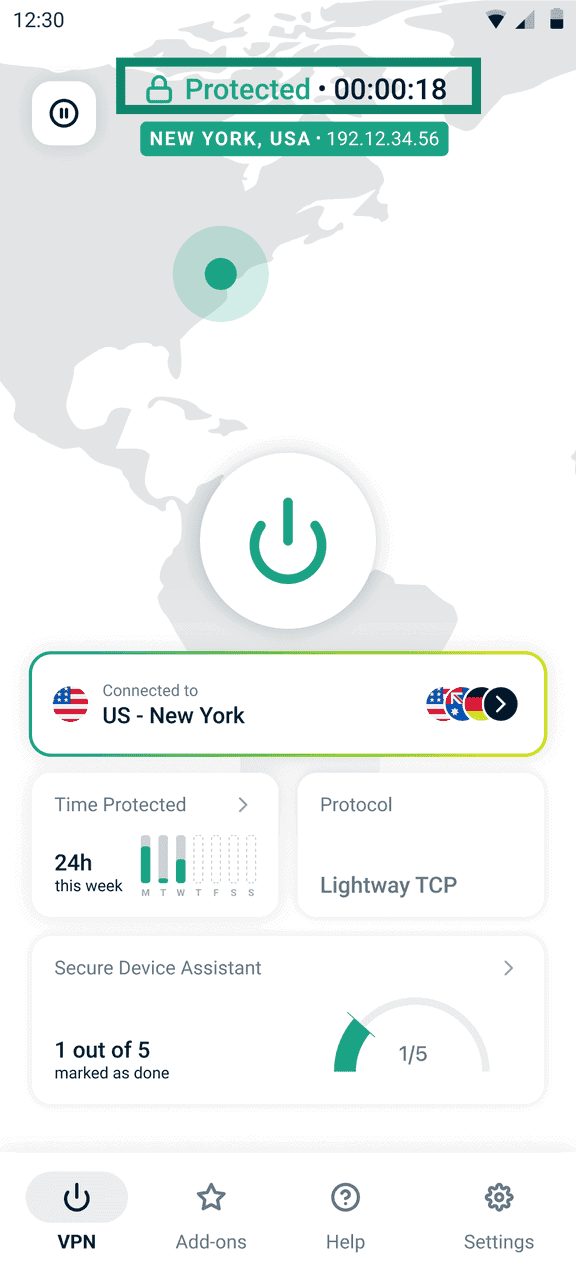
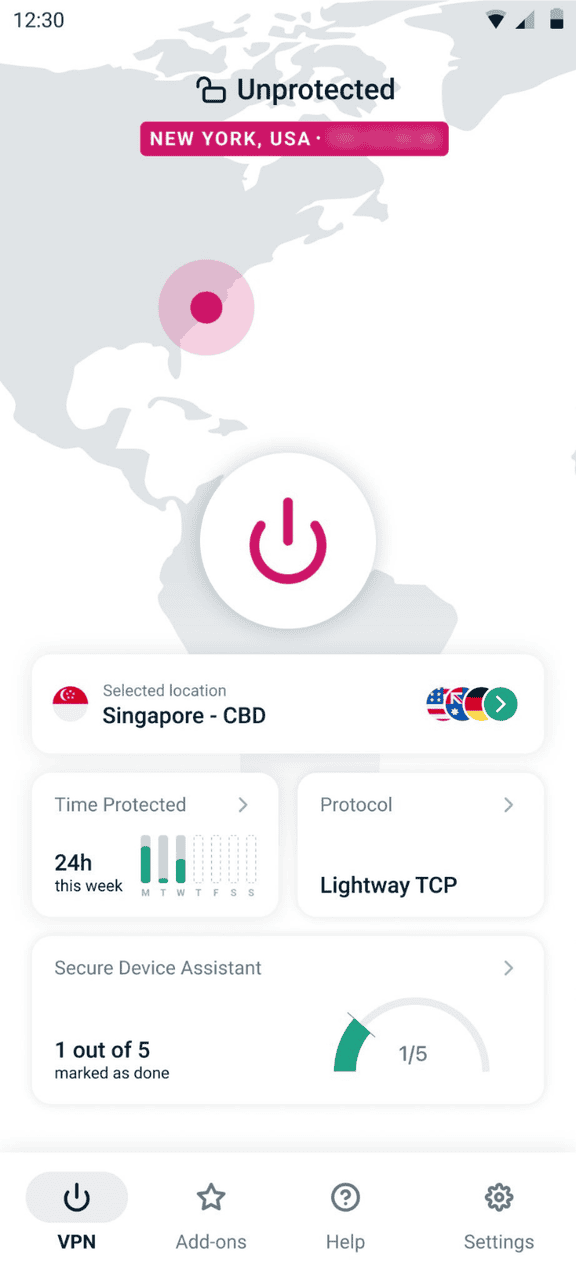
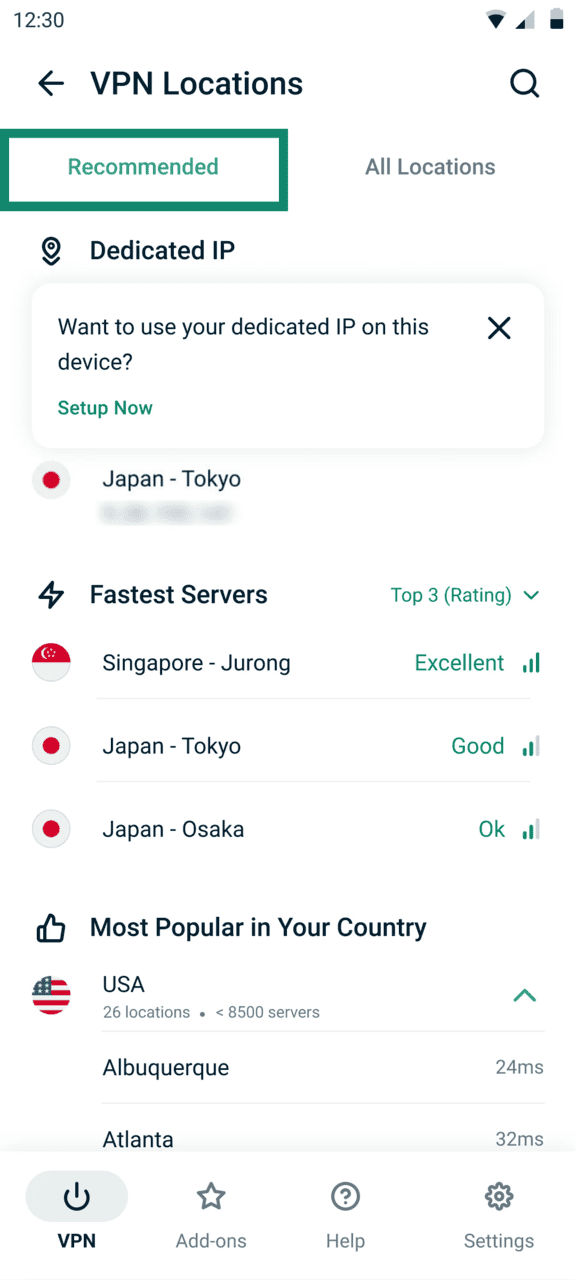
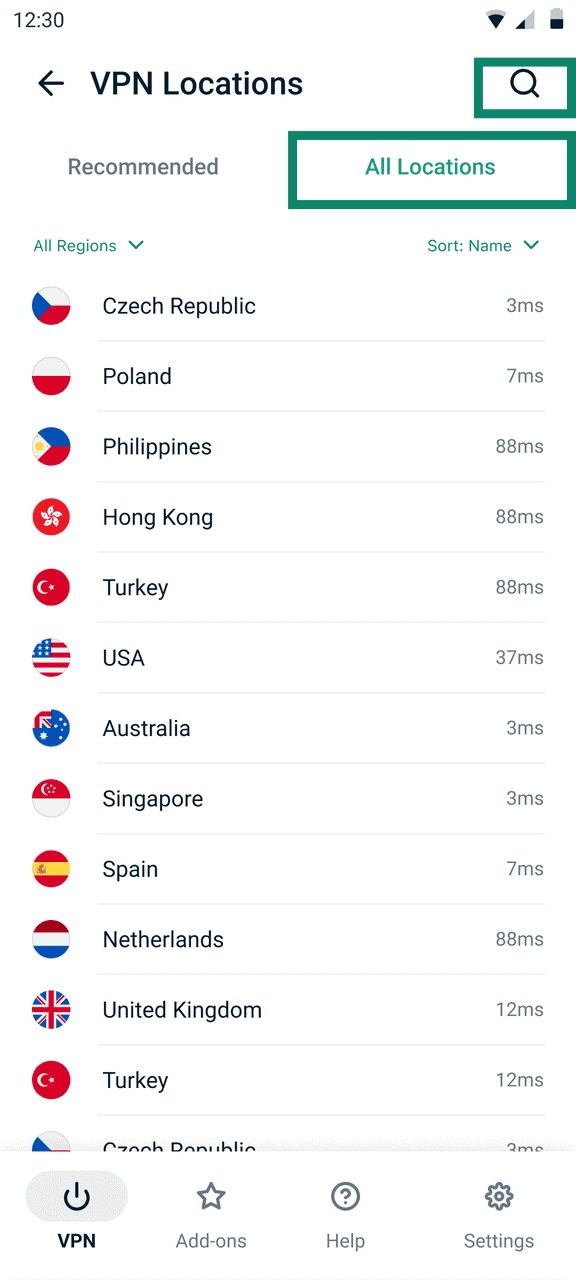
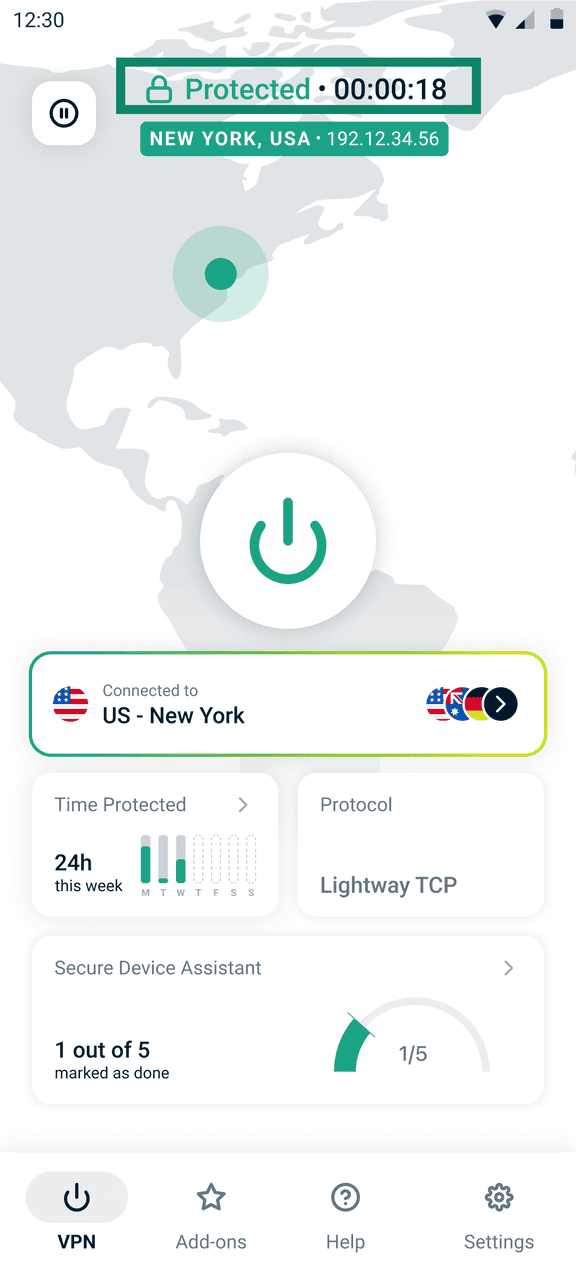
- In the VPN tab, tap the location picker widget below the power button.
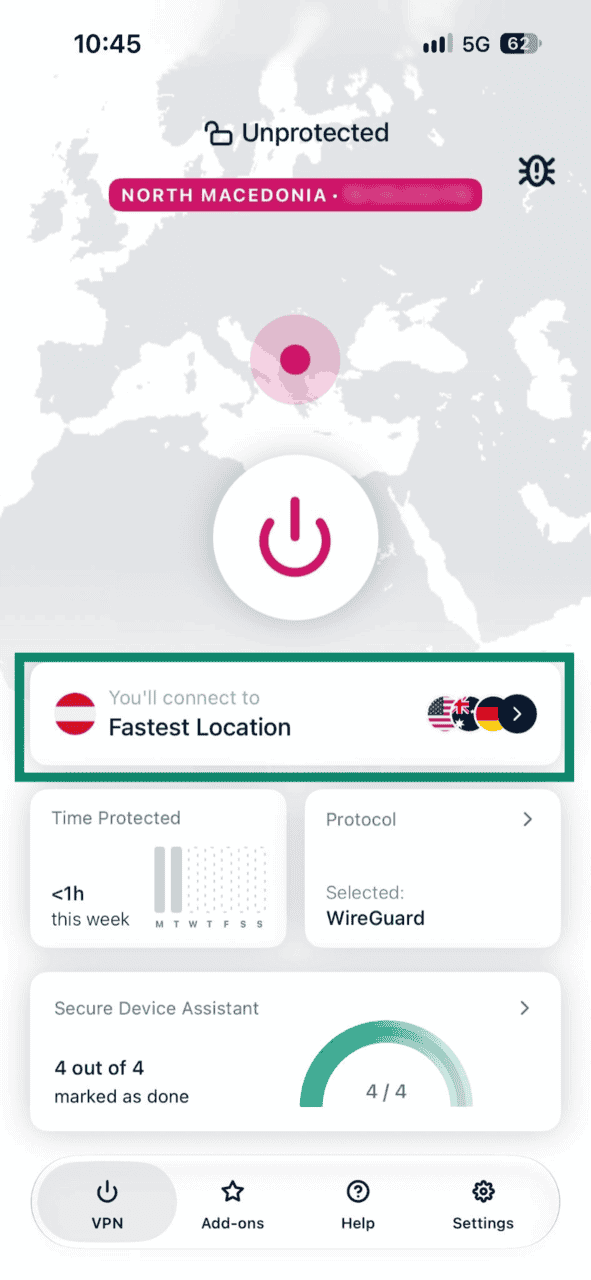
- A list of Recommended server locations will be displayed. Scroll through the lists to find a specific server.
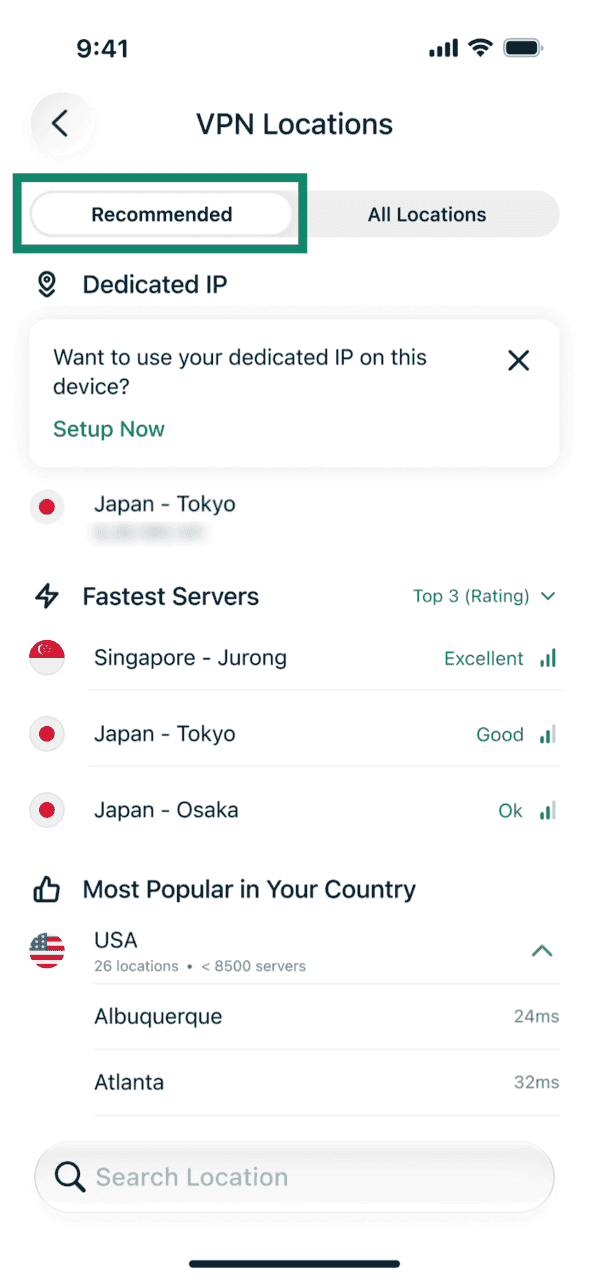
 Alternatively, you can tap All Locations to view all available options, or tap the search bar and type the location you’re looking for.
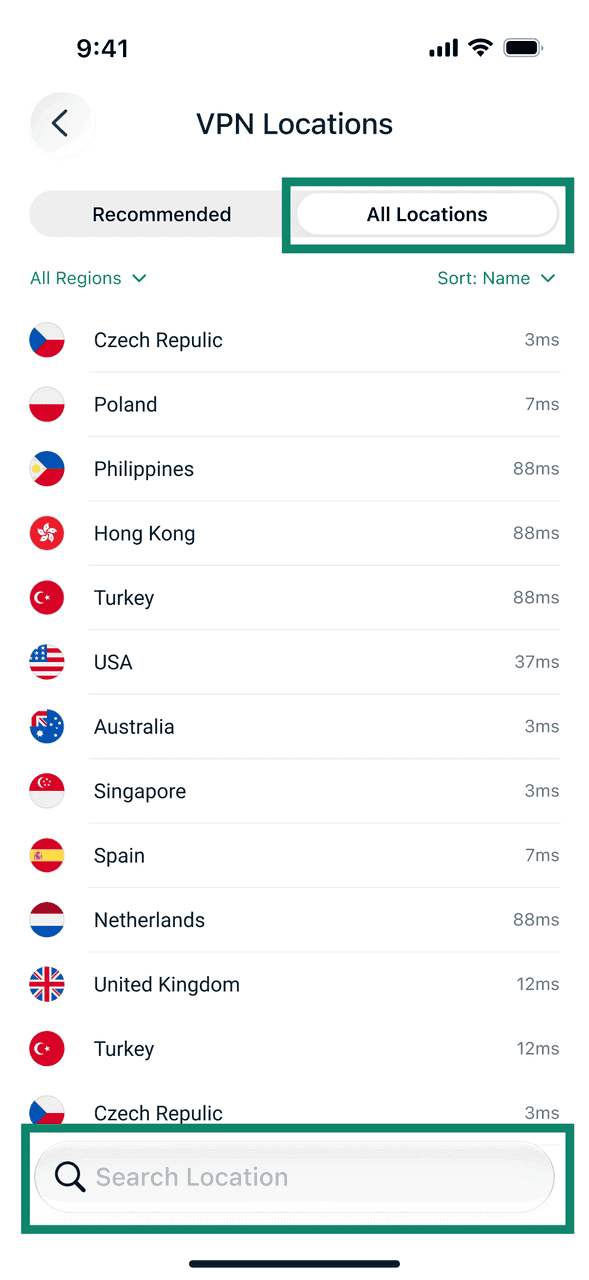
- Tap the VPN server location you want. ExpressVPN will automatically connect to the server and return you to the VPN tab.
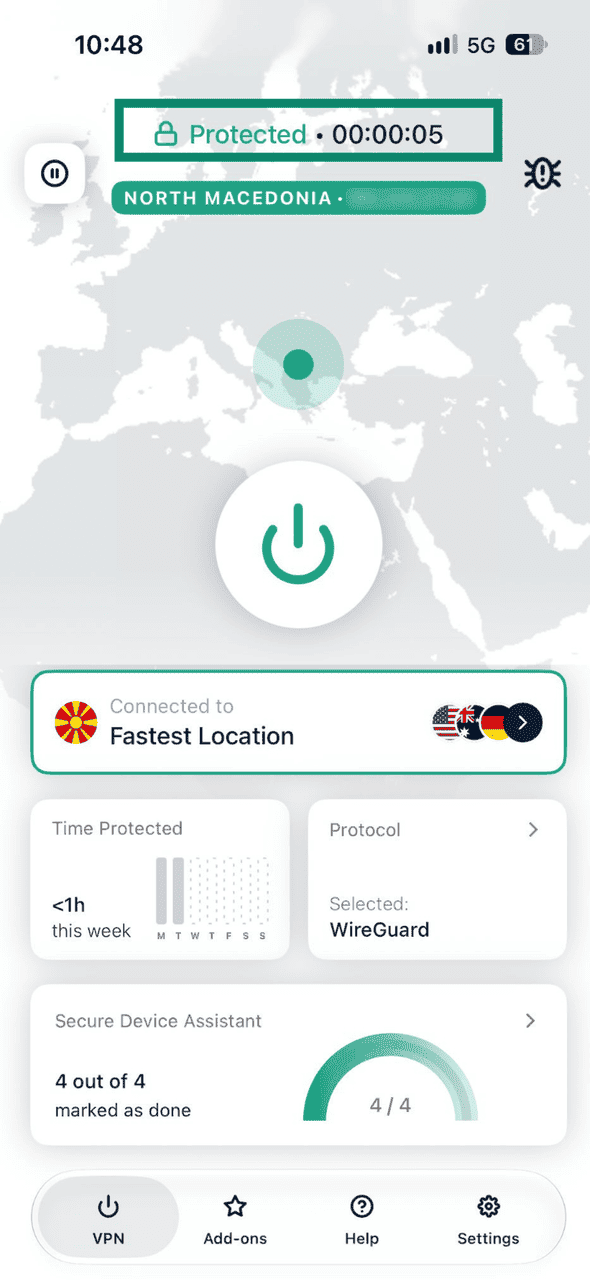
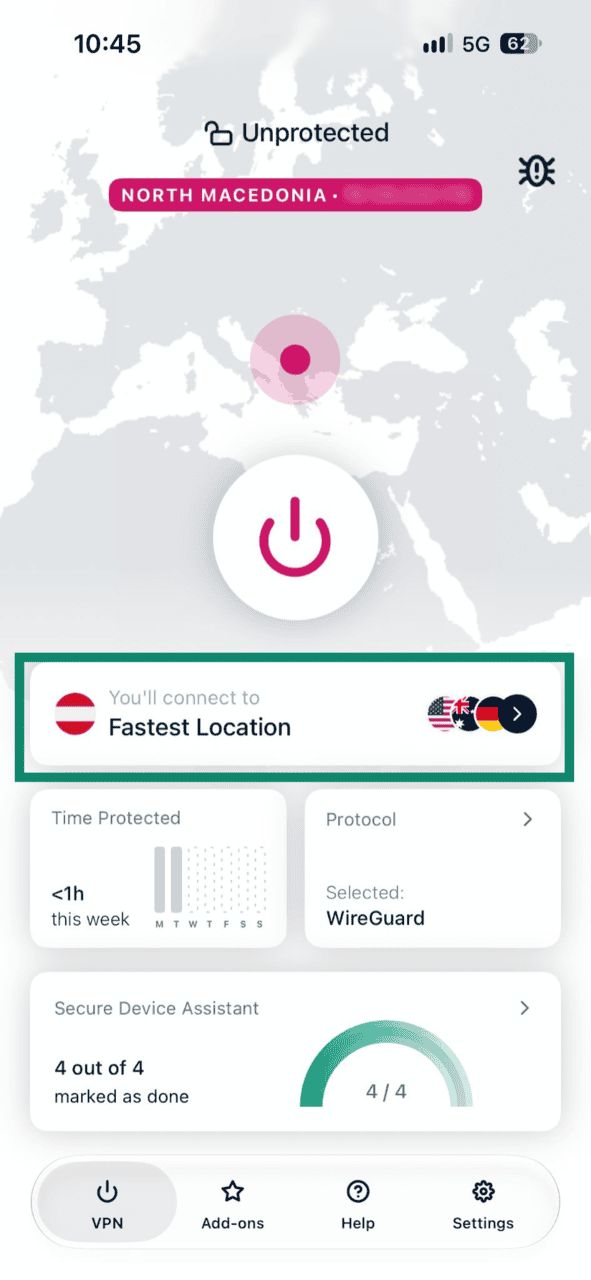
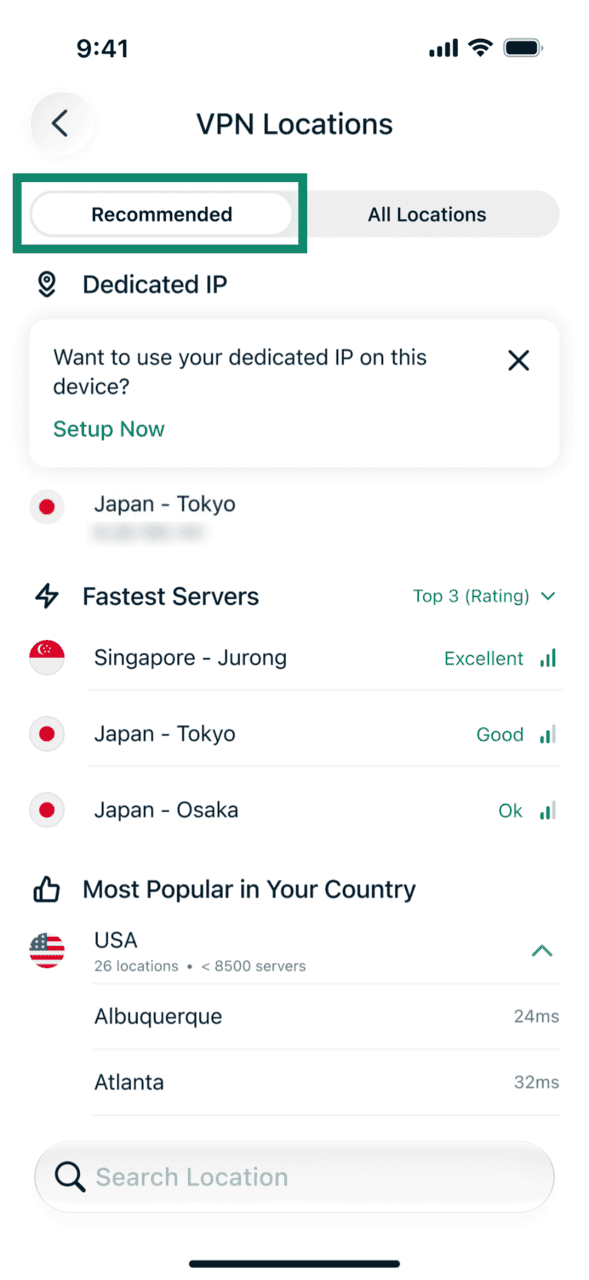
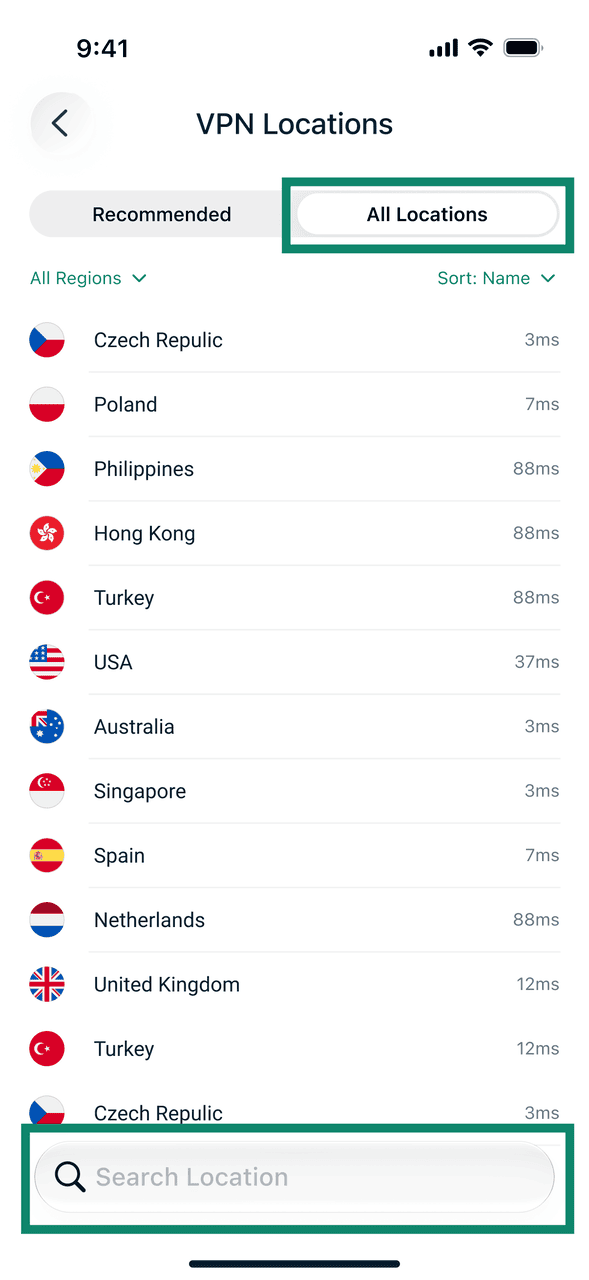
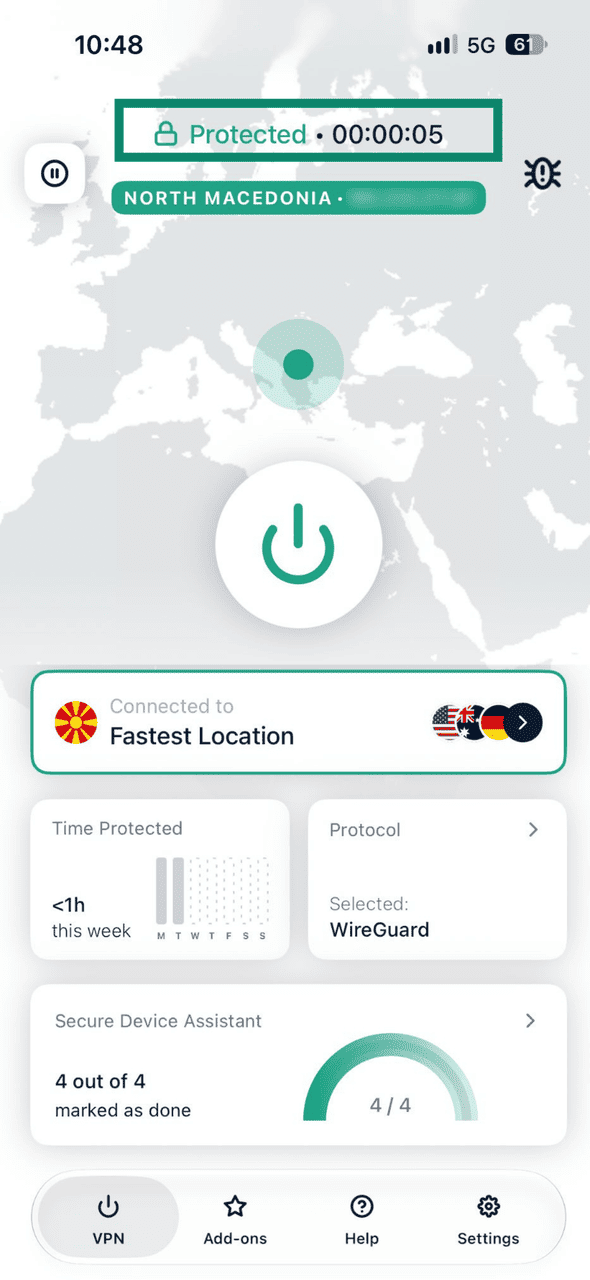
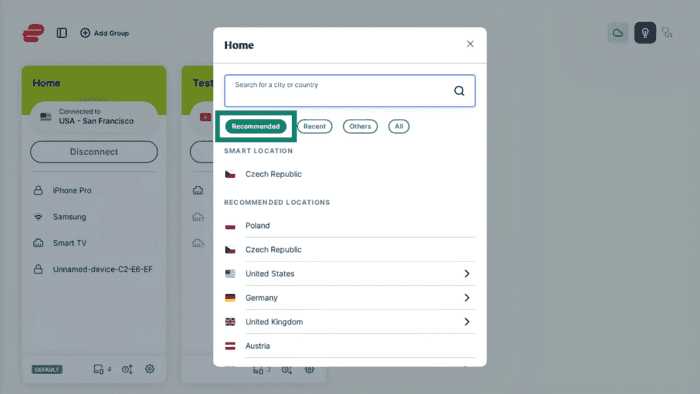
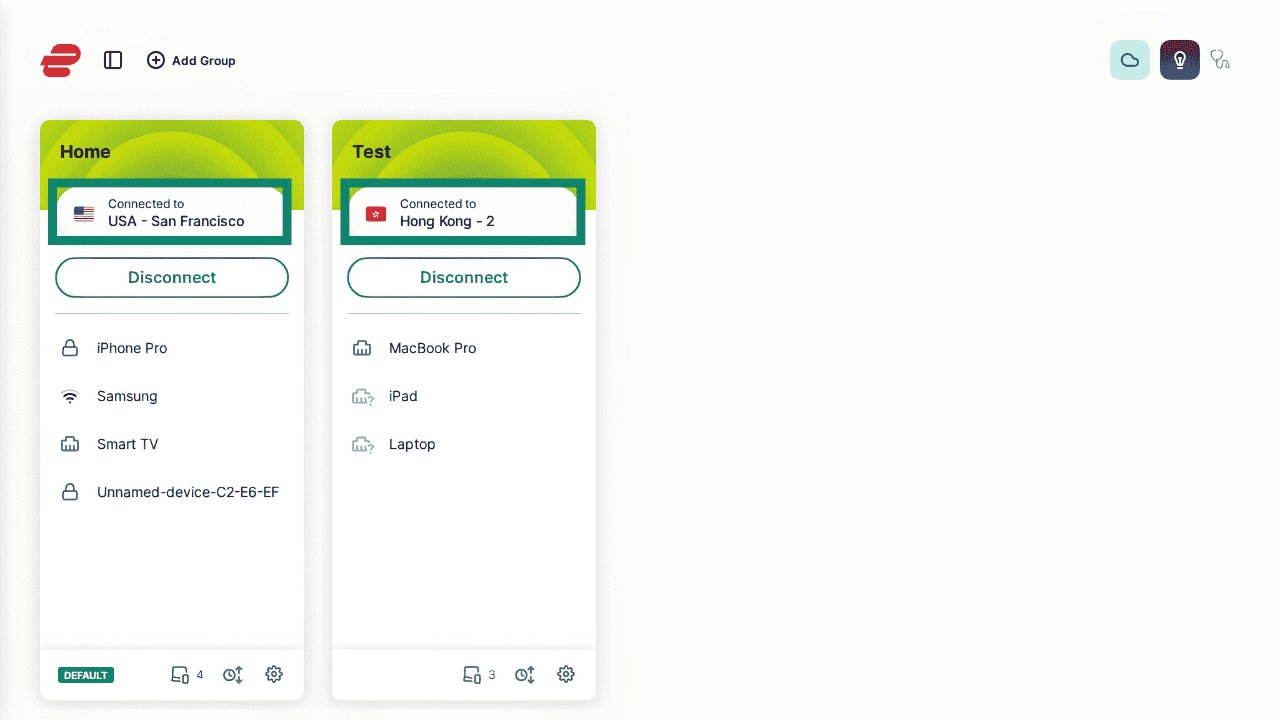
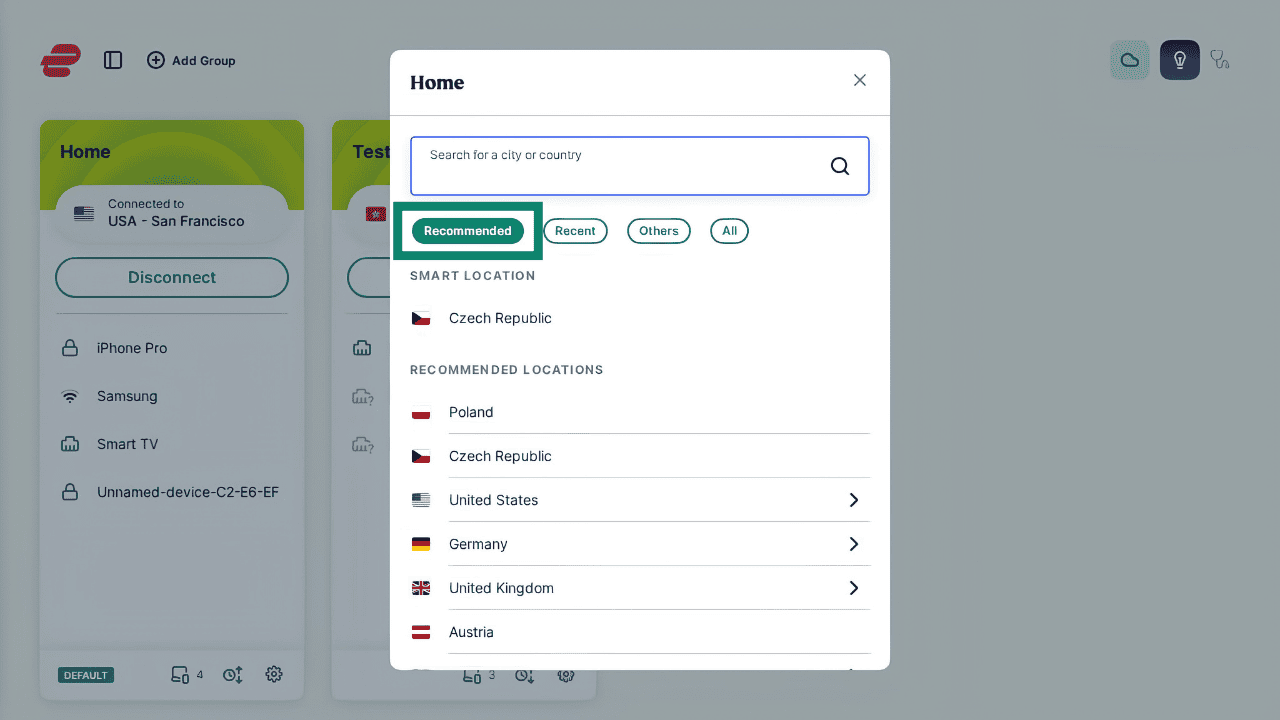
- On the connection screen, select the server location widget for the target device group.
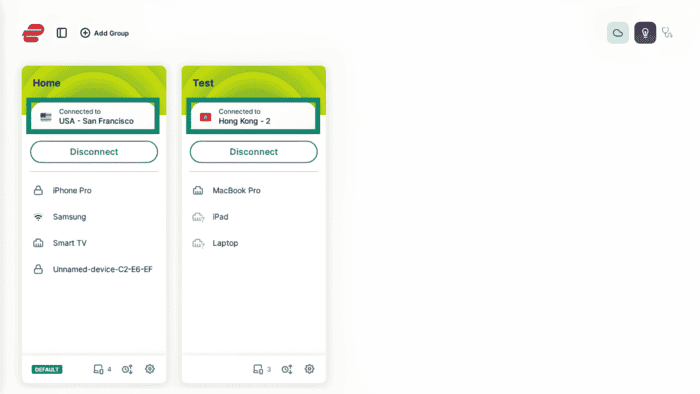

- Select the Recommended tab and choose a different VPN server from the one you were connected to. ExpressVPN will connect to it.
- In the VPN tab, select the location picker widget below the power button.
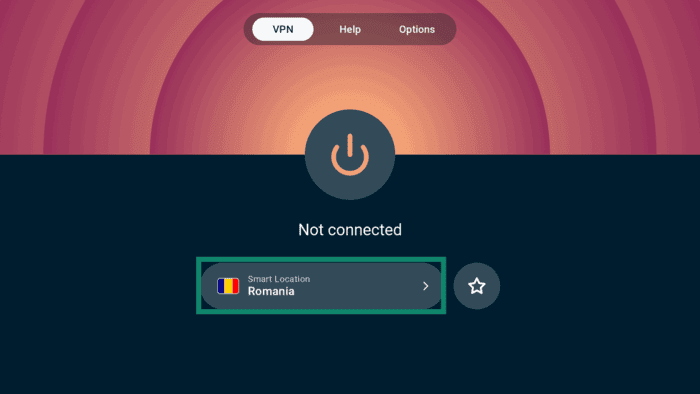
- You’ll see a list of Recommended VPN servers. Scroll through the list to find a server location you want to connect to.
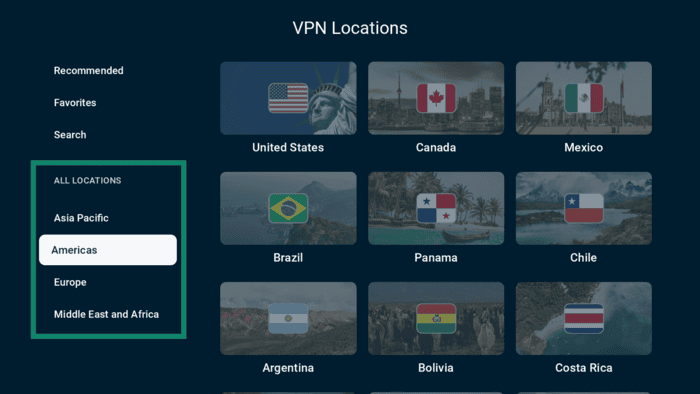
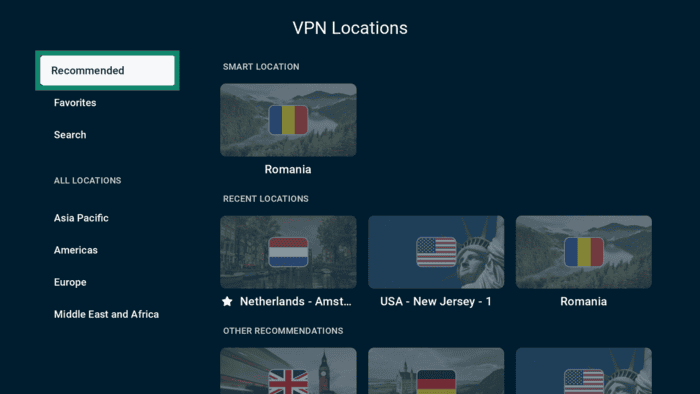 To view all server locations available, go to the All locations tab.
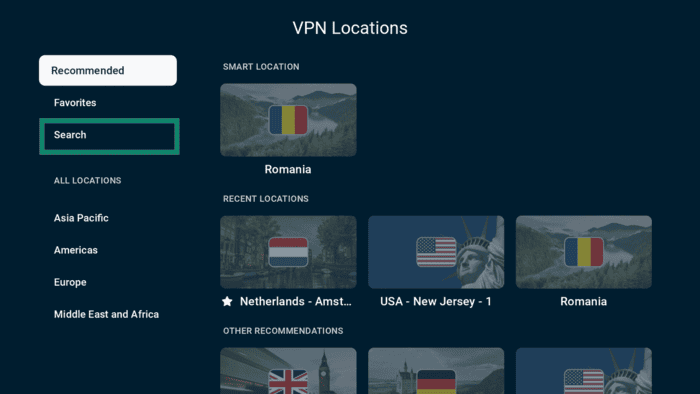
 Alternatively, select Search to look for a specific server location.
- Click on any location you’d like to connect to and select a city, if available. The app will connect you automatically.
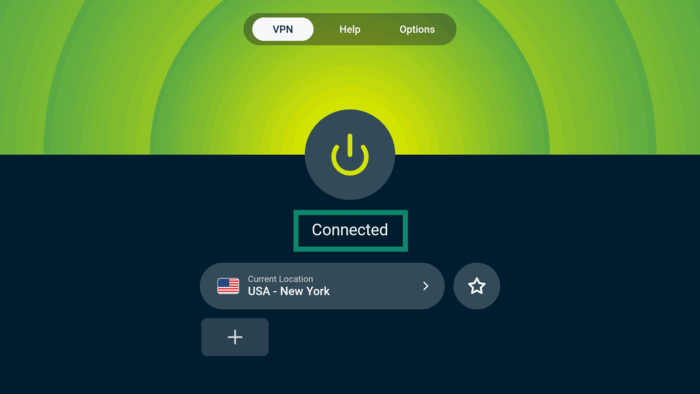
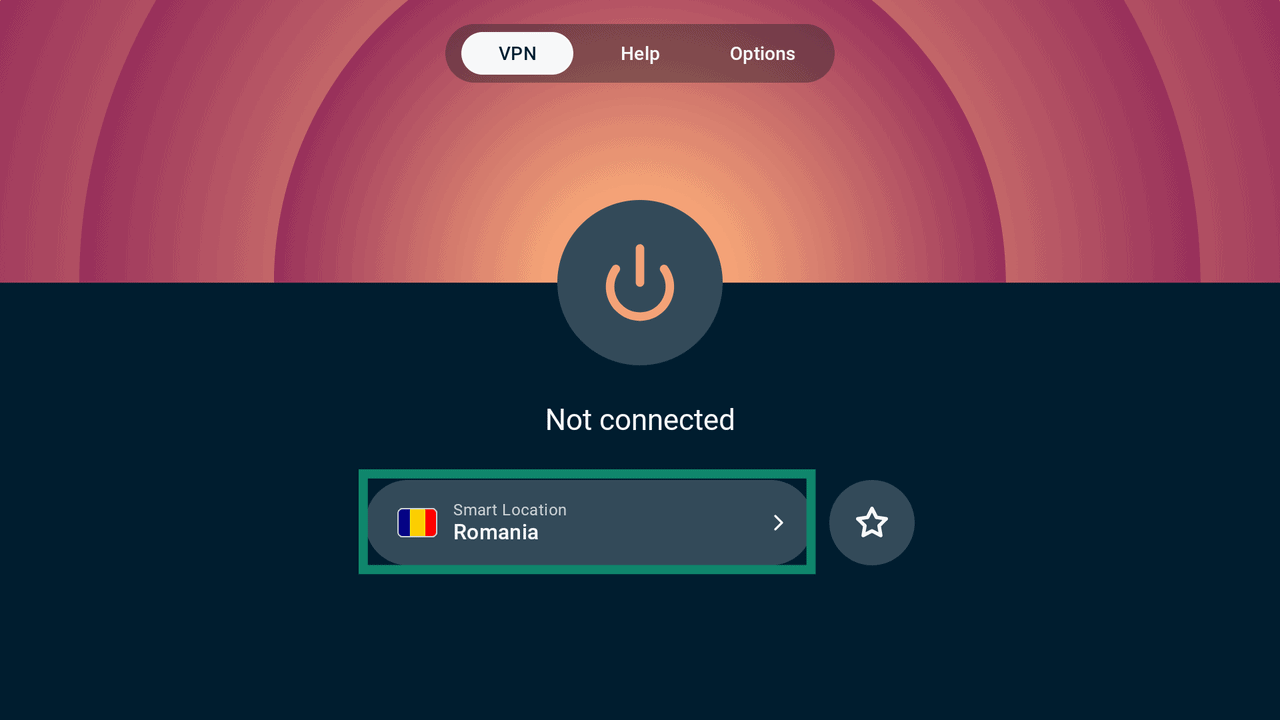
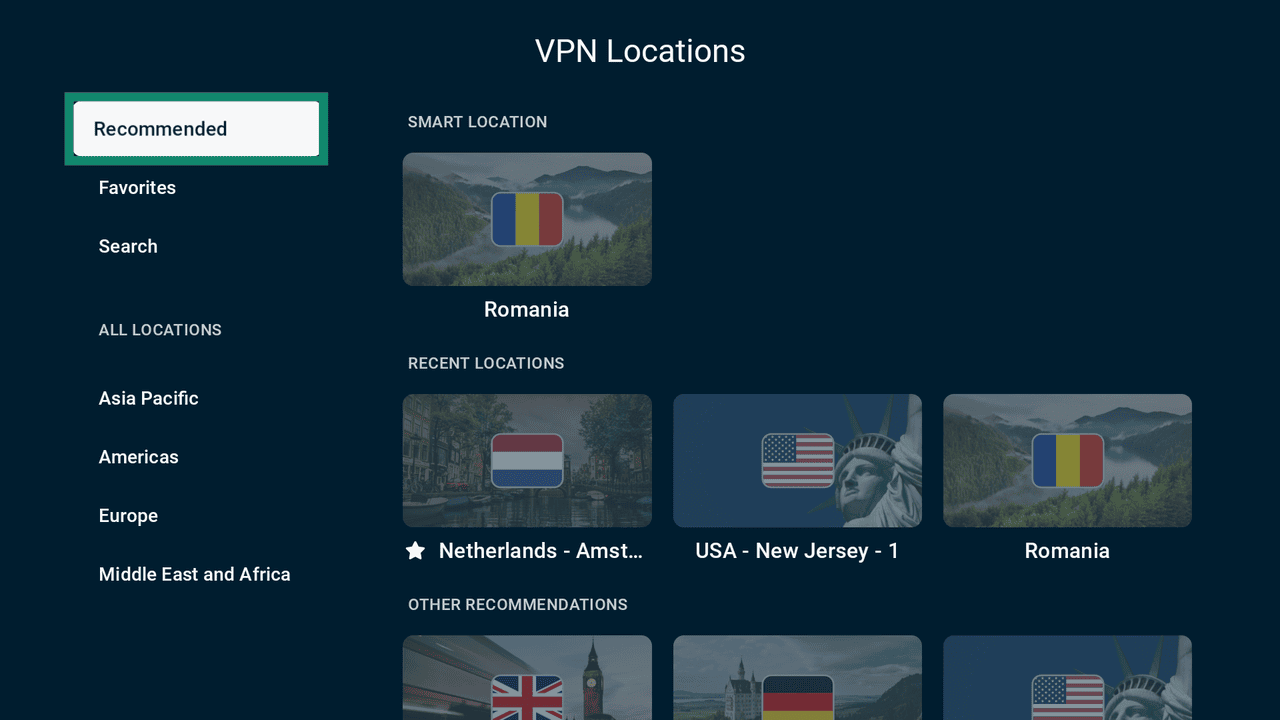
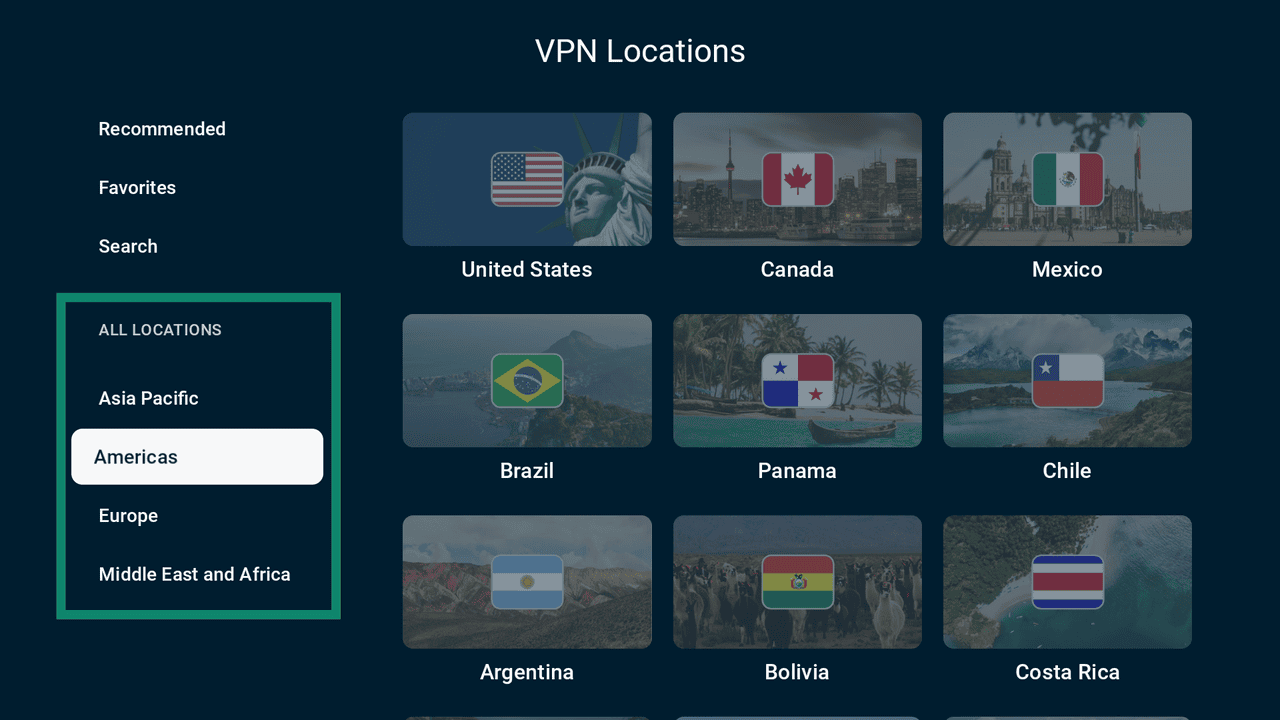
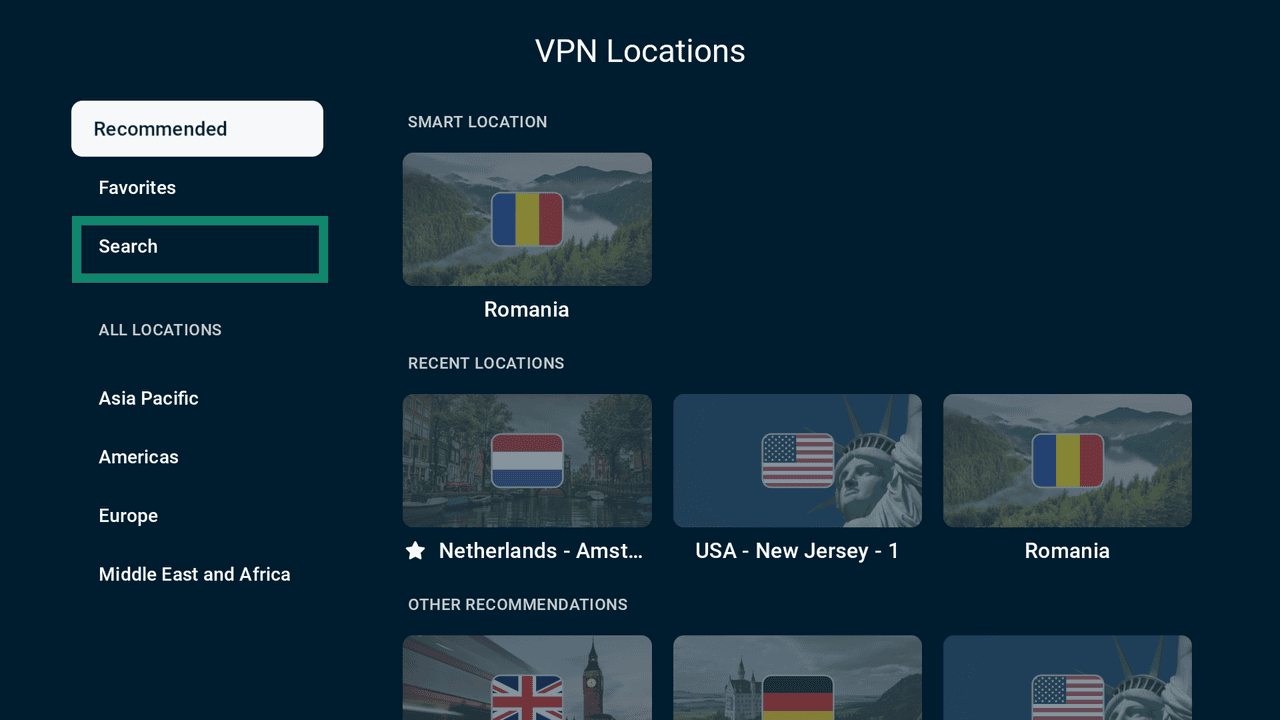
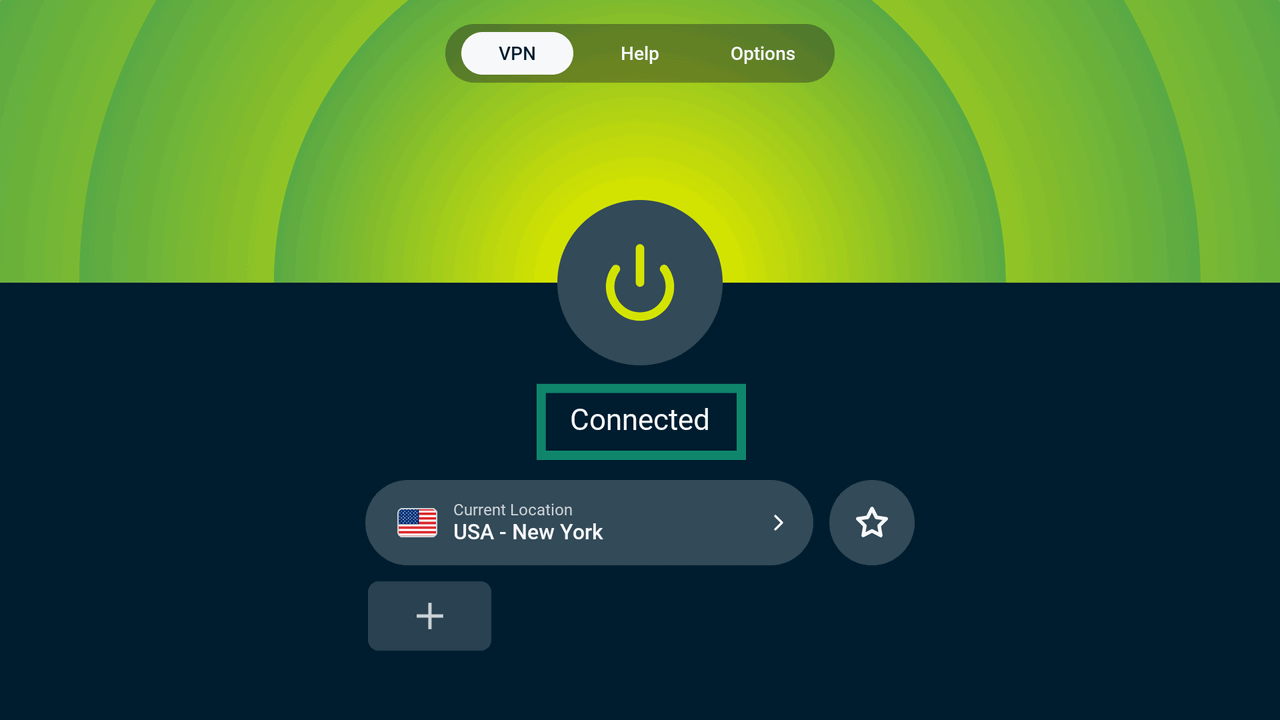
- In the VPN tab, select the Selected Location widget.
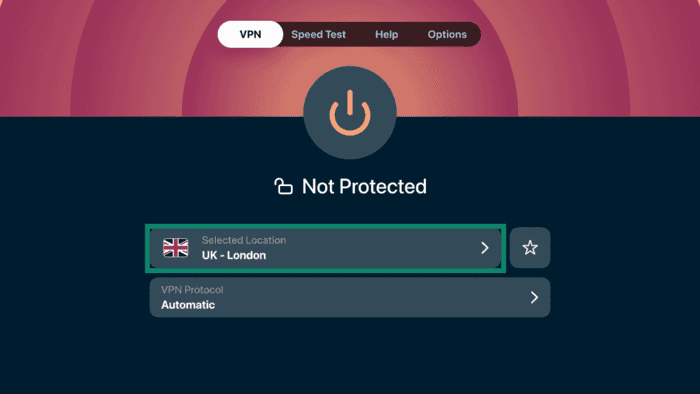
- You’ll see a list of Recommended VPN servers. Scroll through the list to find a server location you want to connect to.
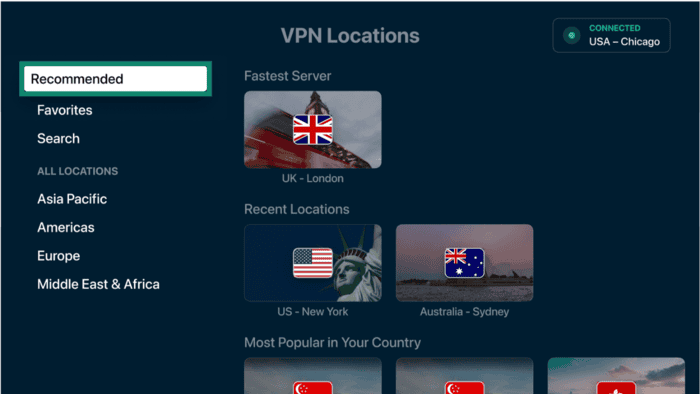 To view all server locations available, go to the All locations tab.
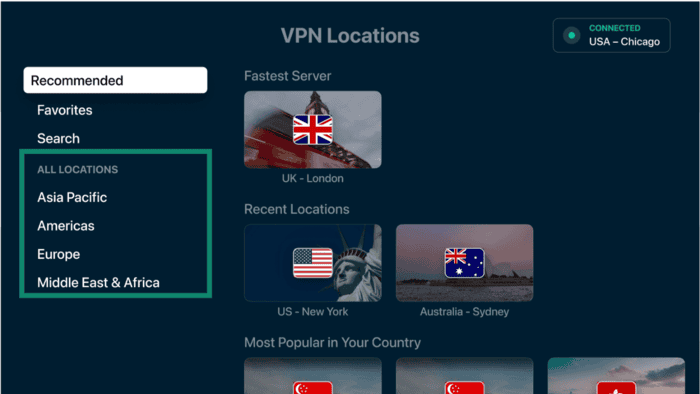 Alternatively, select Search to look for a specific server location.
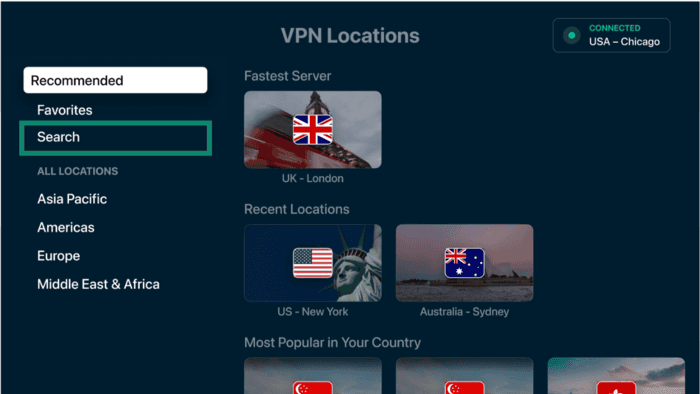
- Click on any location you’d like to connect to and select a city, if available. The app will connect you automatically.
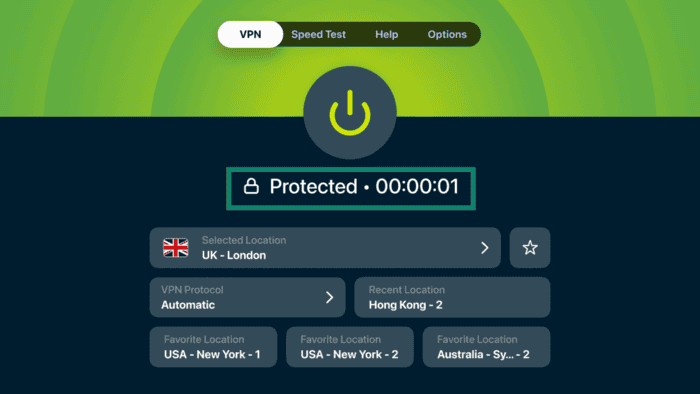
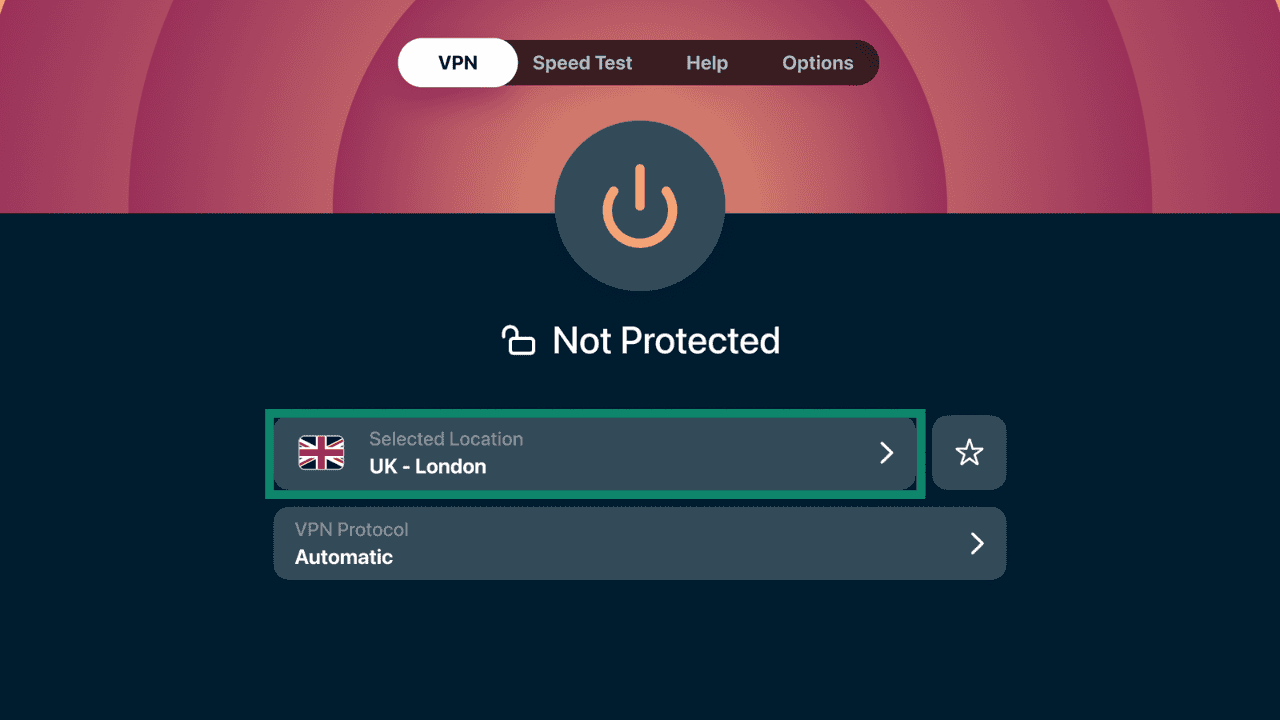
If you are able to browse the internet again after connecting to a different VPN server location, there may be a temporary issue with the VPN server location you were previously trying to connect to. Contact the ExpressVPN Support Team about the issue and use other VPN server locations in the meantime.
4. Change your VPN protocol
VPN protocols are the methods by which your device connects to a VPN server.
For the best experience, ExpressVPN recommends using the Automatic protocol option, which is selected by default. With the protocol set to Automatic, ExpressVPN will choose the best option for your network, which is usually Lightway.
If you are unable to connect with the Automatic protocol, try the other protocols in the following order (if available):
- Lightway – UDP
- Lightway – TCP
- WireGuard
- OpenVPN – TCP
- OpenVPN – UDP
Note: If you are using a dedicated IP address, it will only work when using the Lightway protocol.
How to change the protocol on each of our apps:
- On the VPN tab, click the VPN Protocol widget.
- A list of available protocols will be displayed. Click the protocol you want to use.
- When switching from Automatic to other protocol options, you will see a pop-up asking if you are sure. Click Change Anyway to continue.
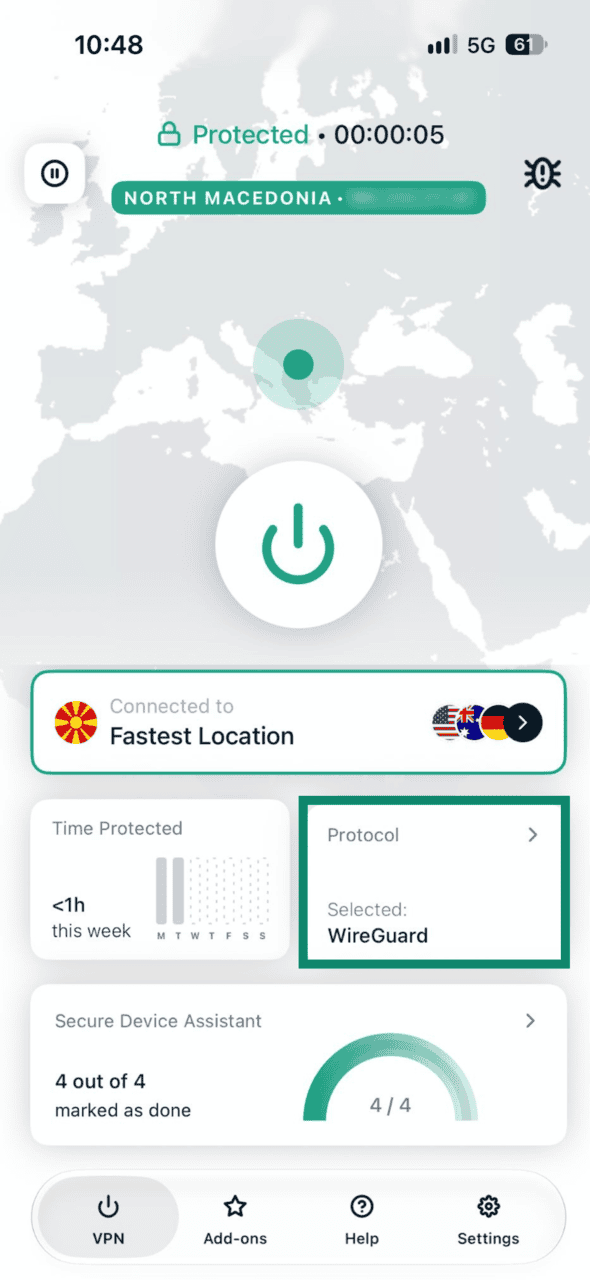
- On the VPN tab, tap the Protocol widget.
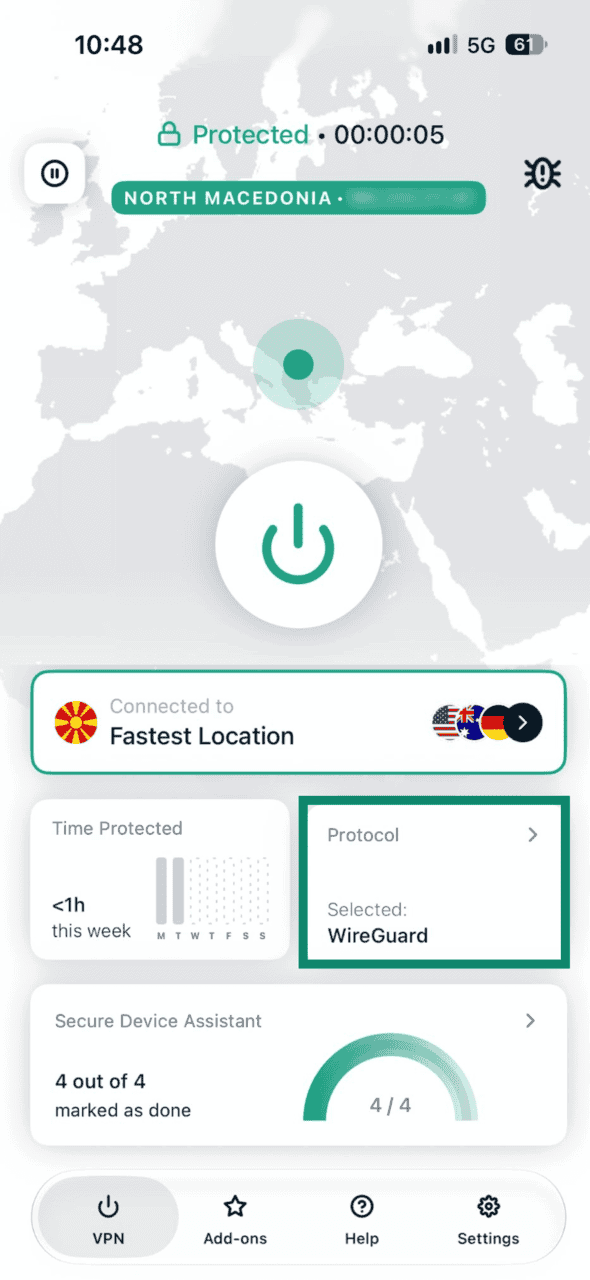
- Tap your desired VPN protocol.
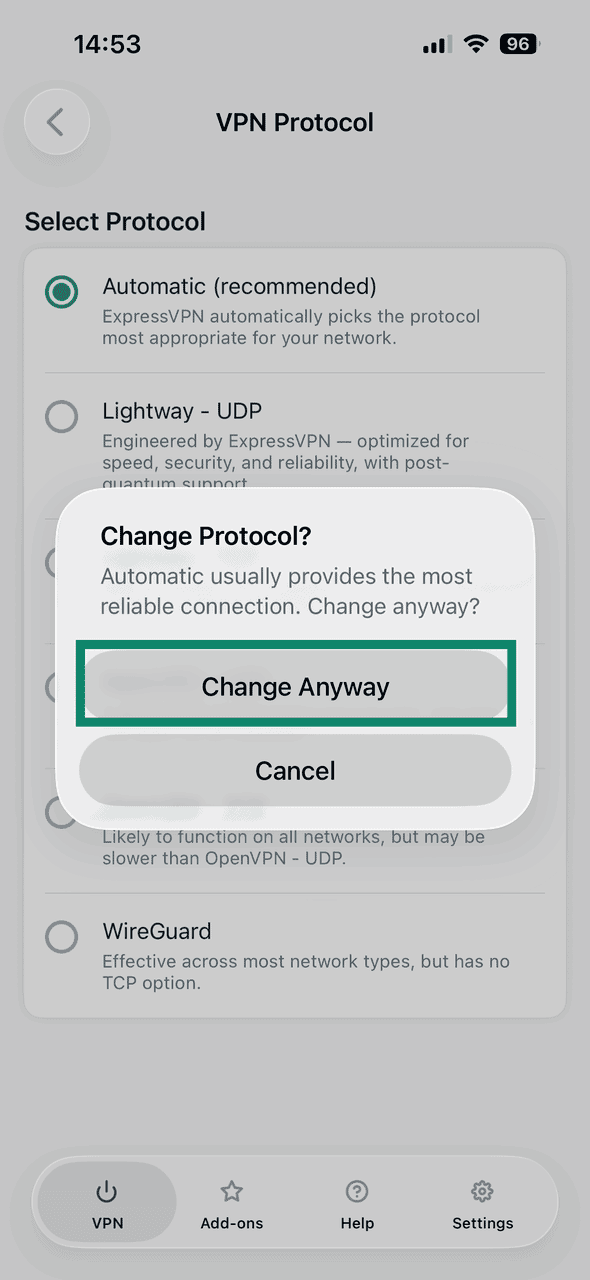
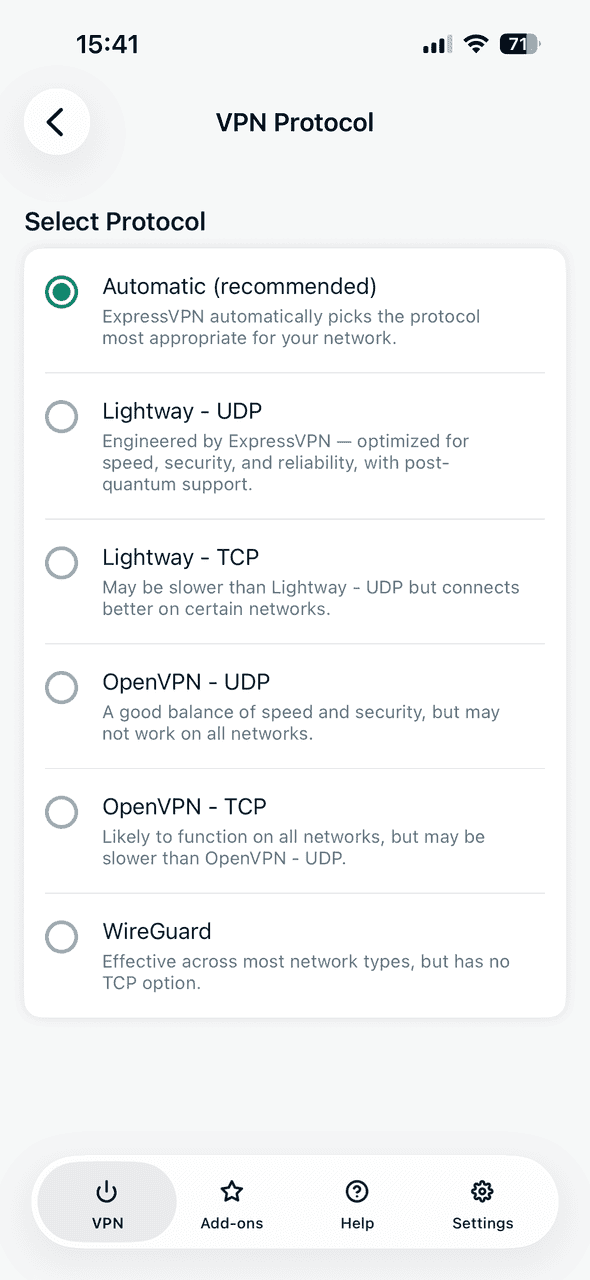 If switching from Automatic to other protocol options, you might see a pop-up message asking if you are sure. Tap Change Anyway to proceed.
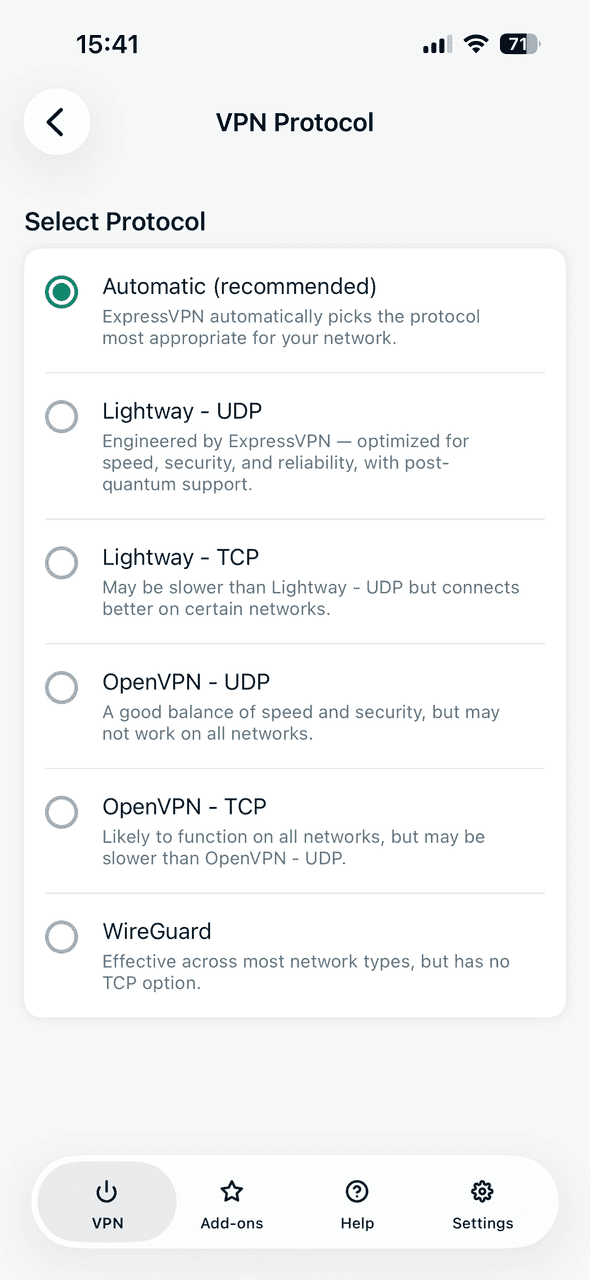
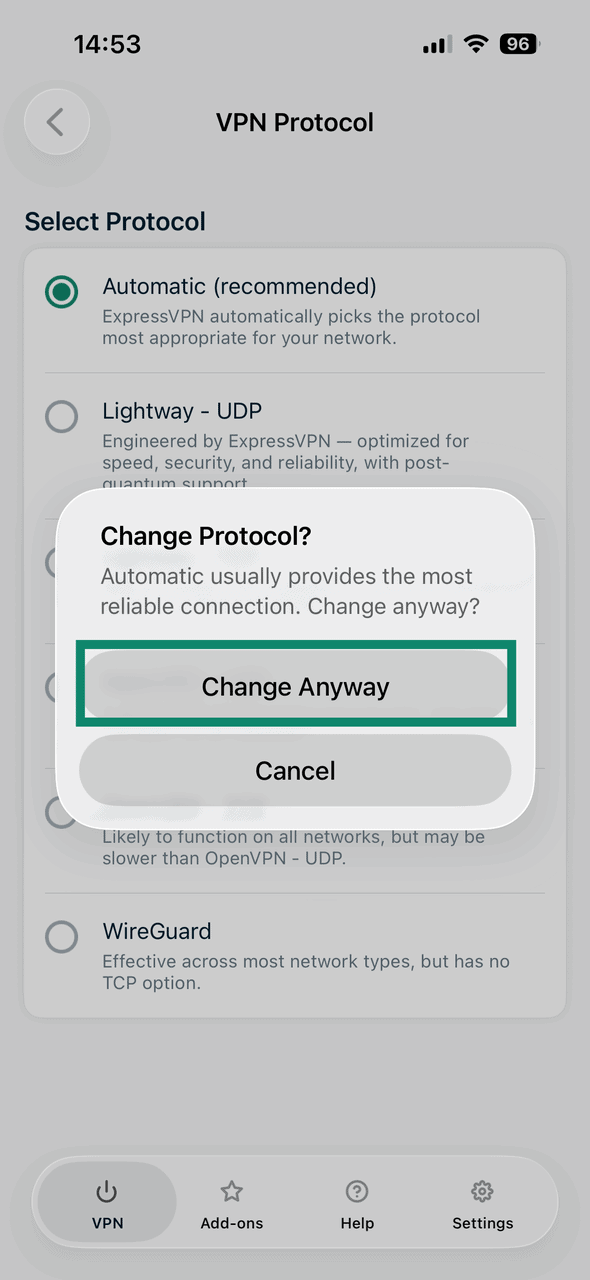
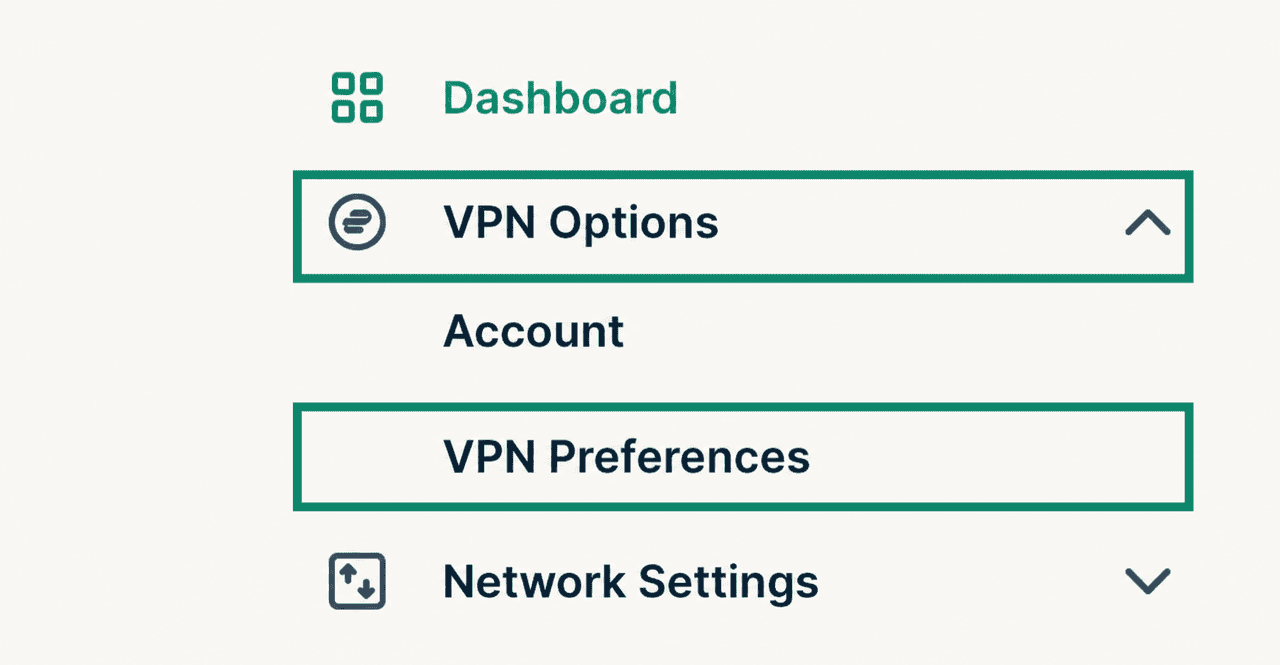
- Sign into your router running ExpressVPN.
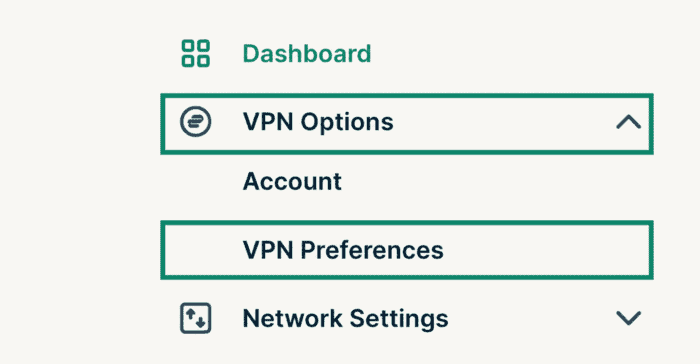
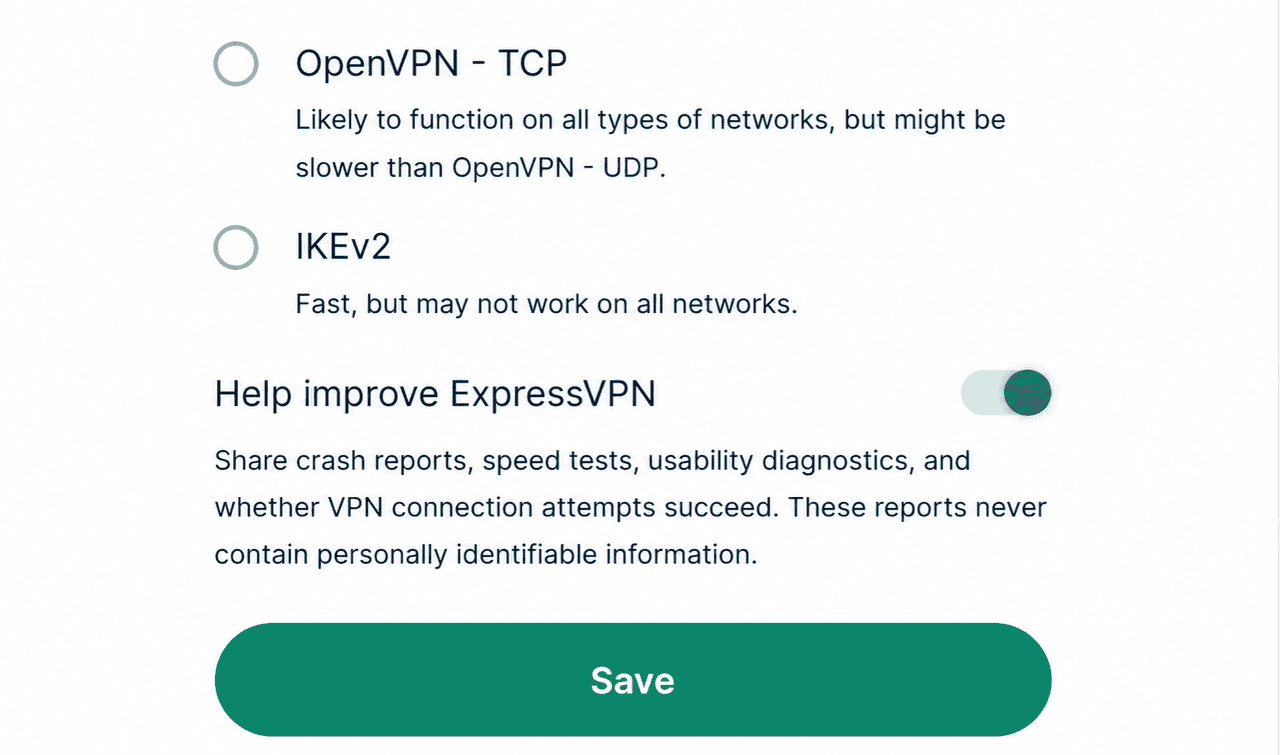
- Select VPN Options > VPN Preferences.

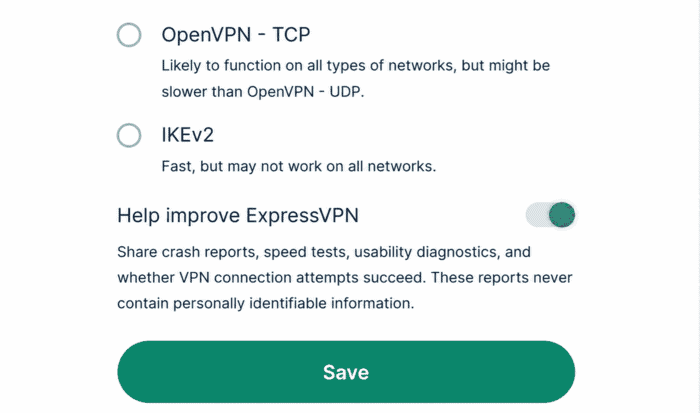
- Select your preferred protocol, then select Save.

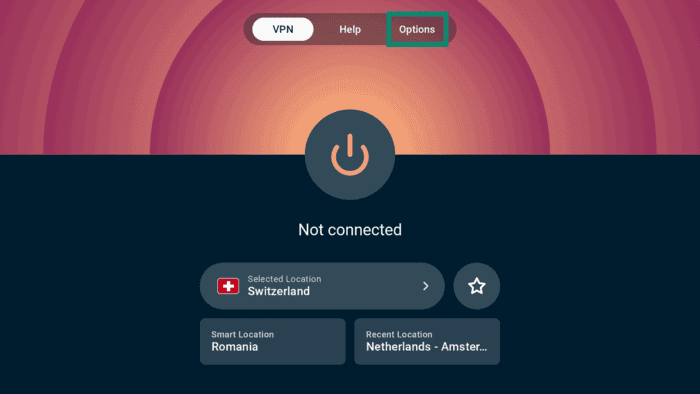
- In the top menu bar, select Options.
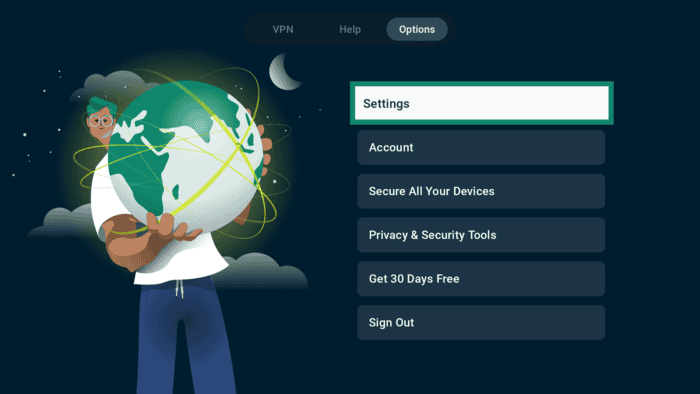
- Next, select Settings.
- Select VPN protocol.
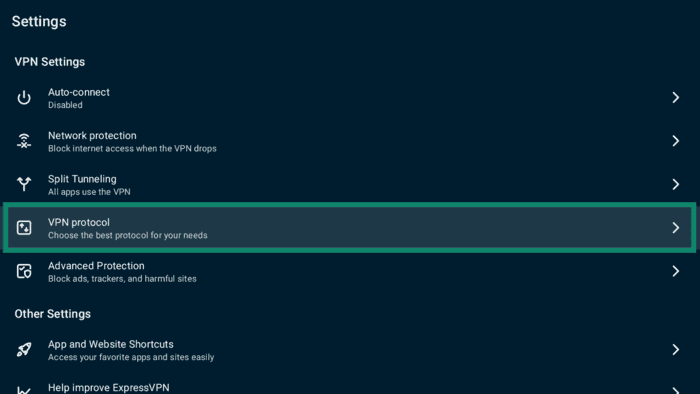
- Select your desired VPN protocol.
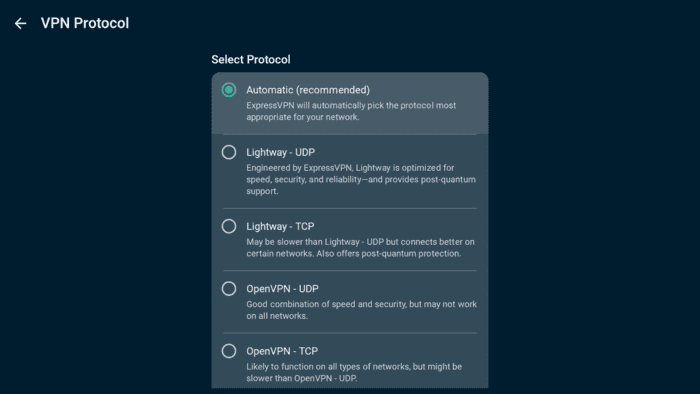 When switching from Automatic to OpenVPN or WireGuard, ExpressVPN will ask you to confirm the choice. Select Change Anyway to proceed.
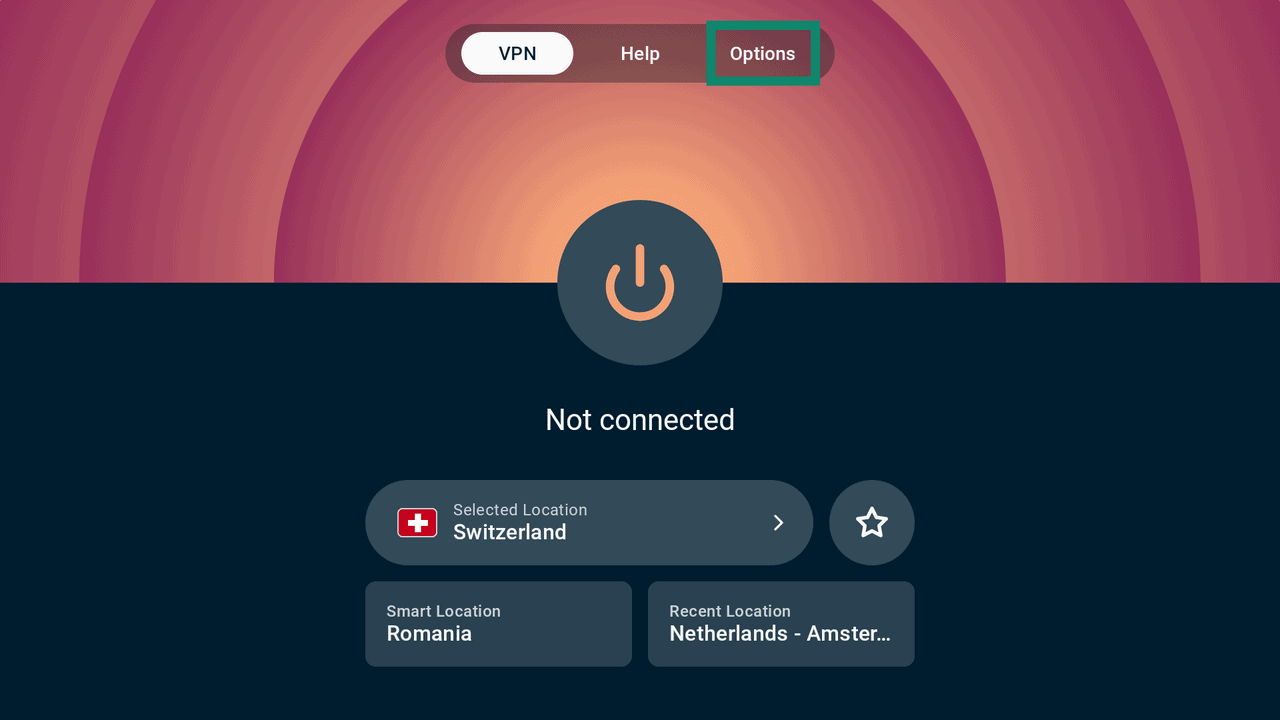
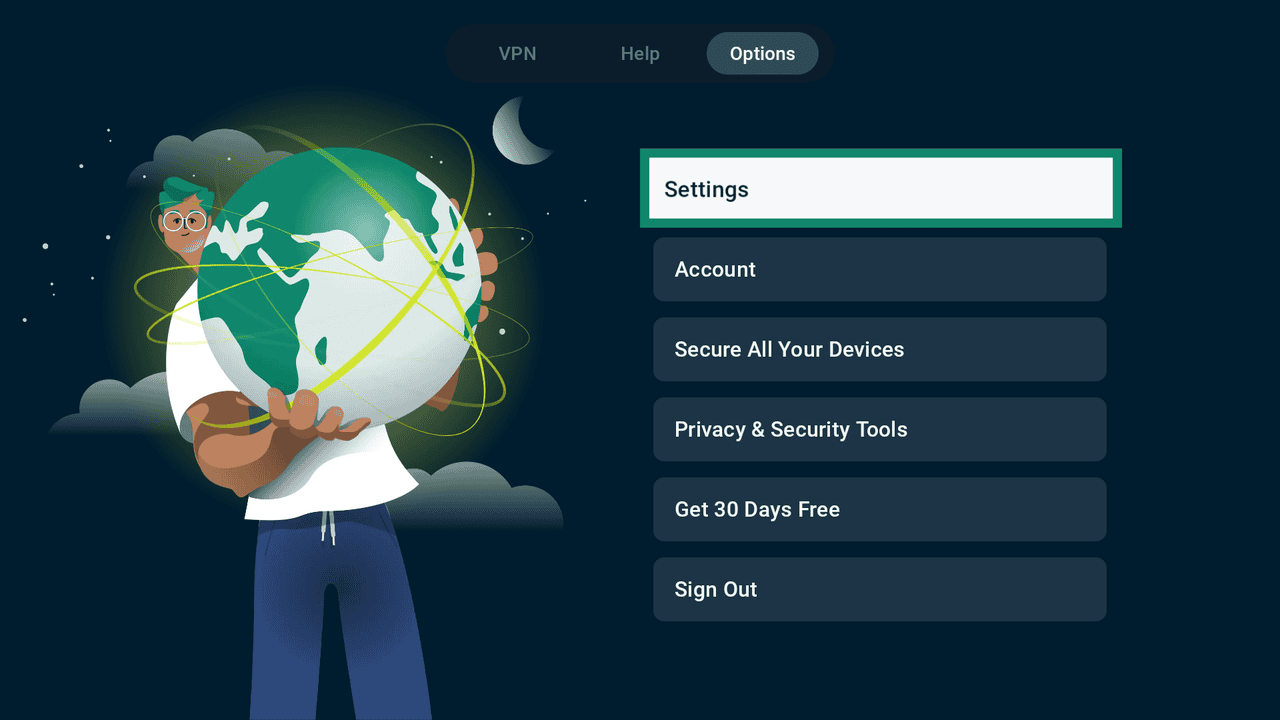
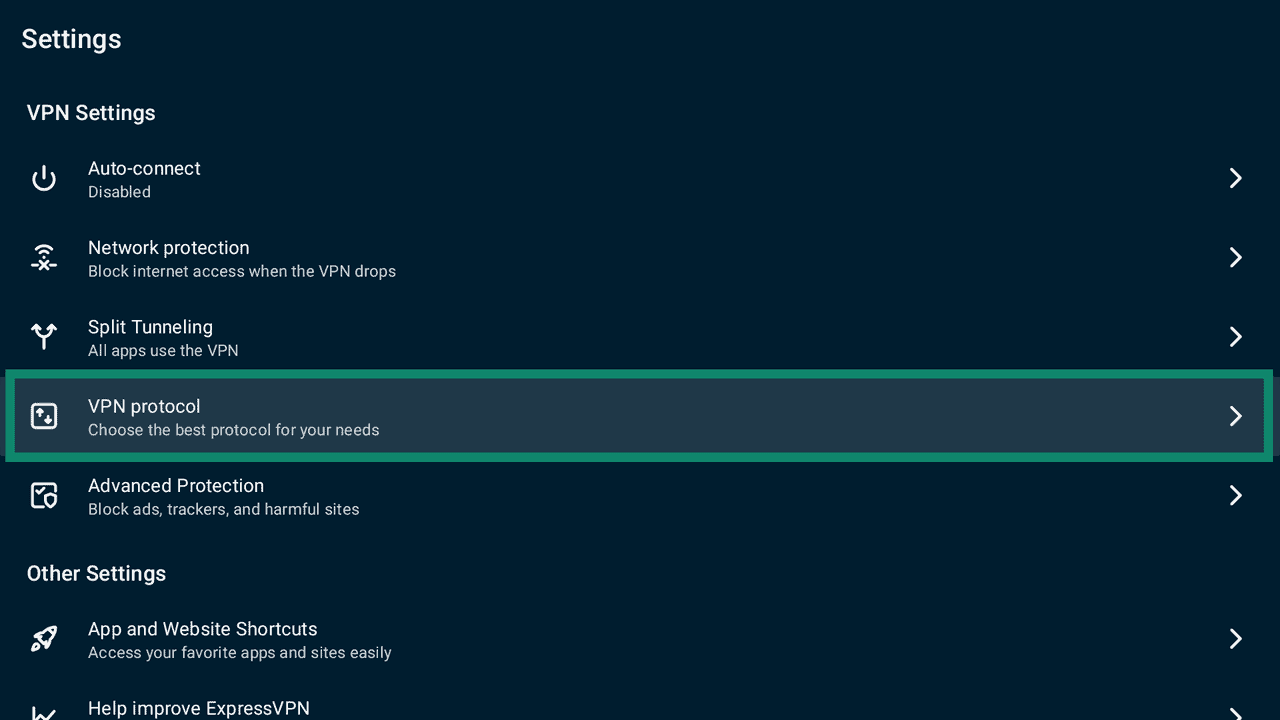
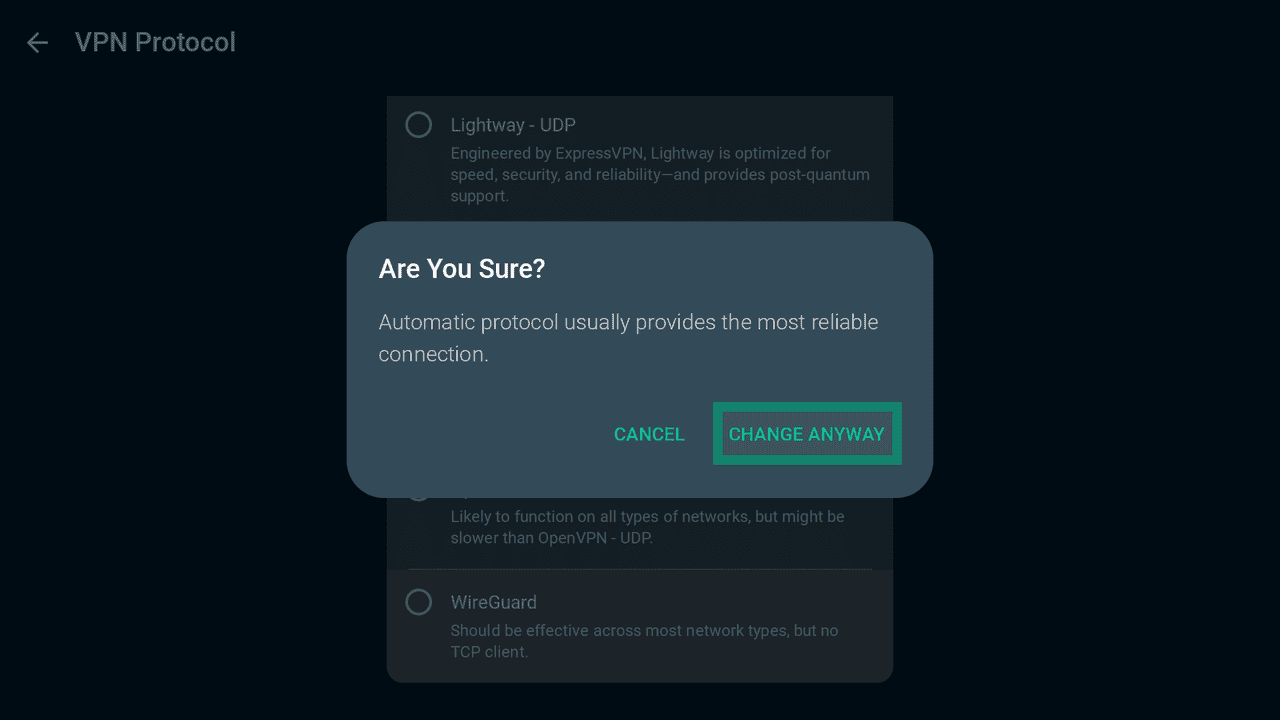
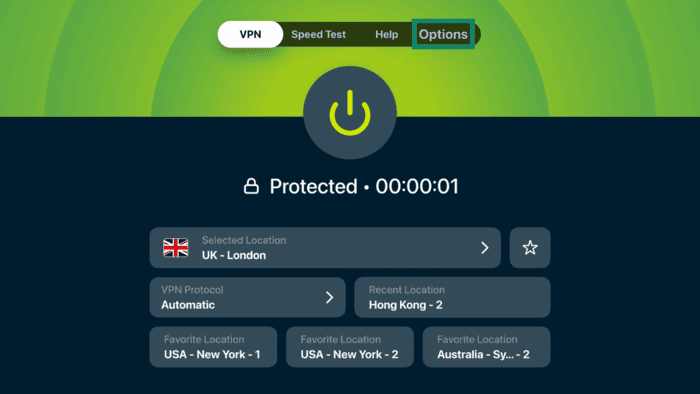
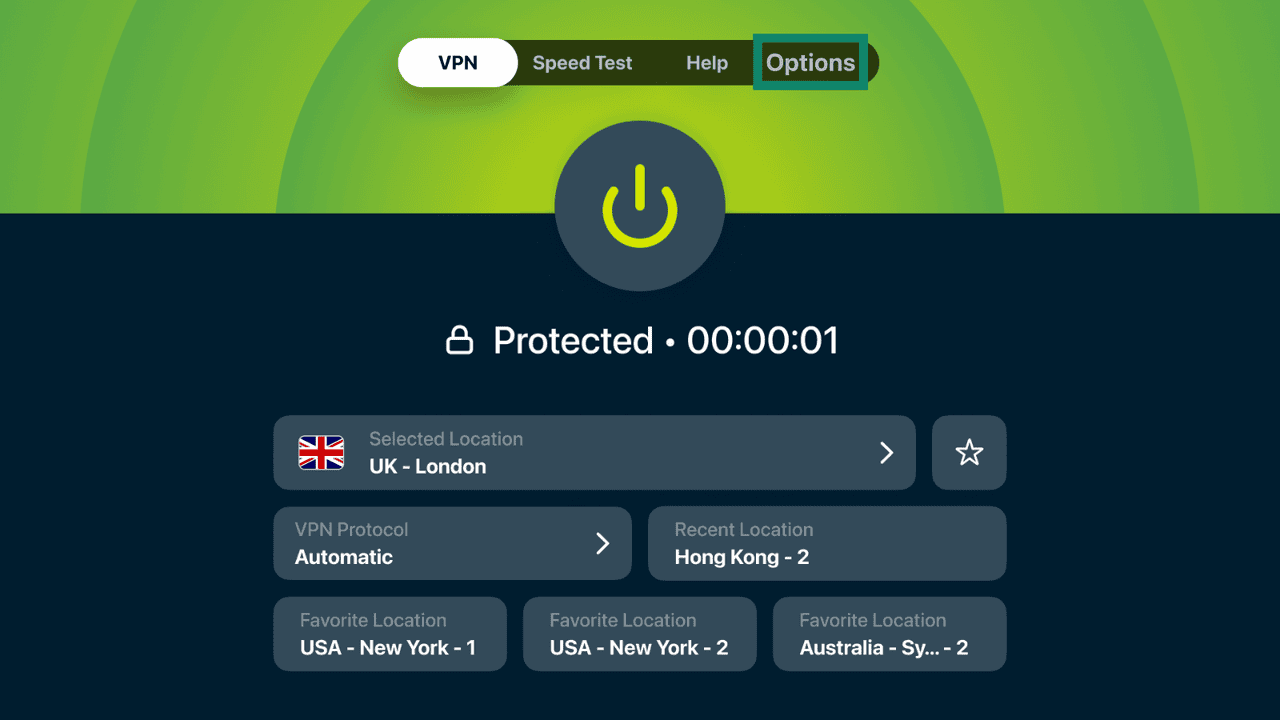
- Select Options from the top navigation bar.
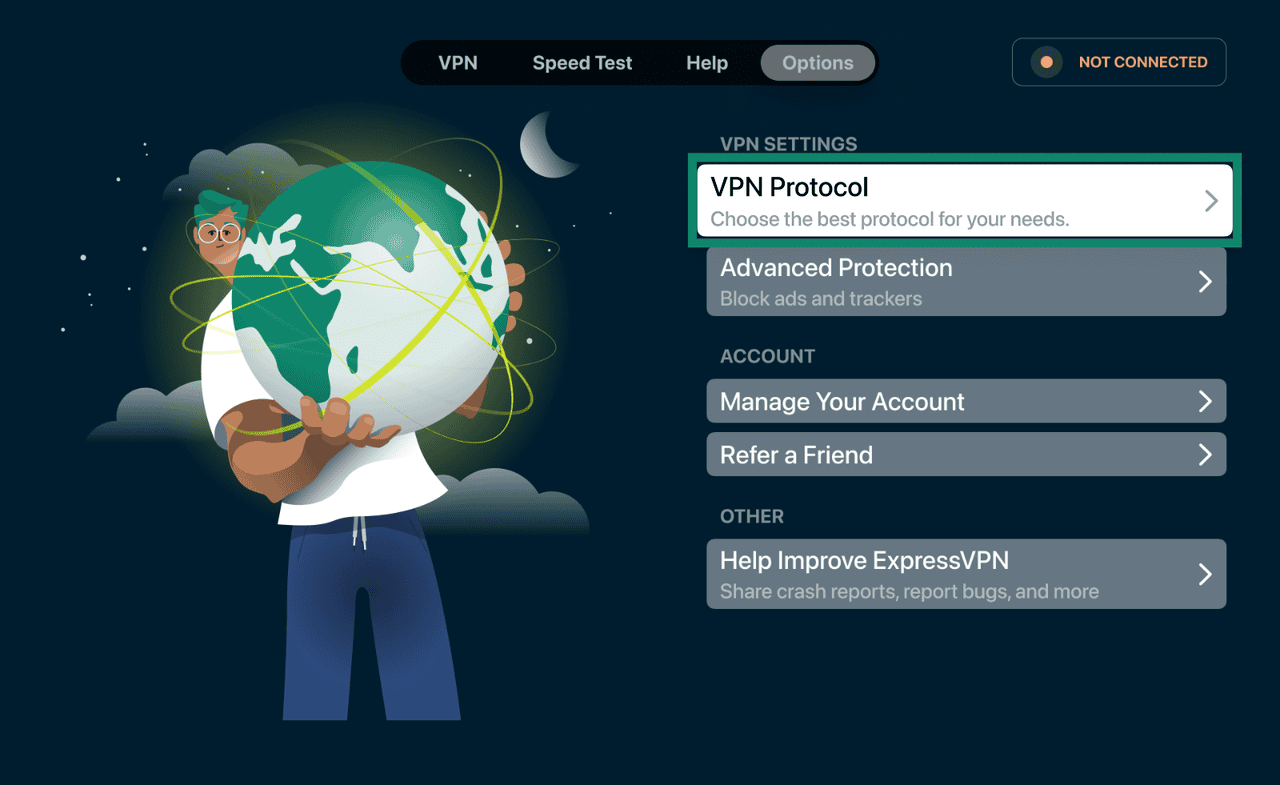
- Select VPN Protocol.
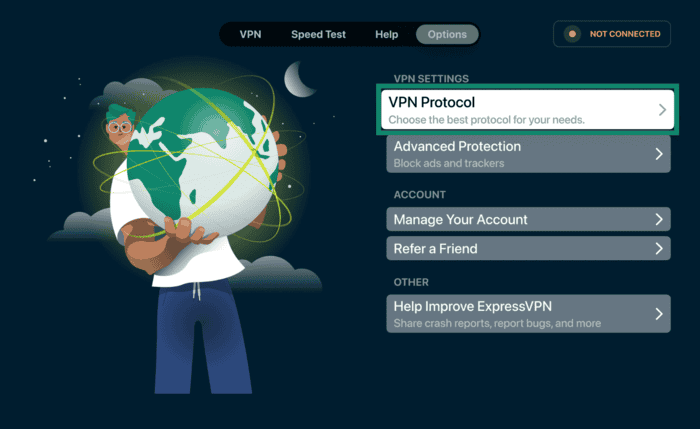

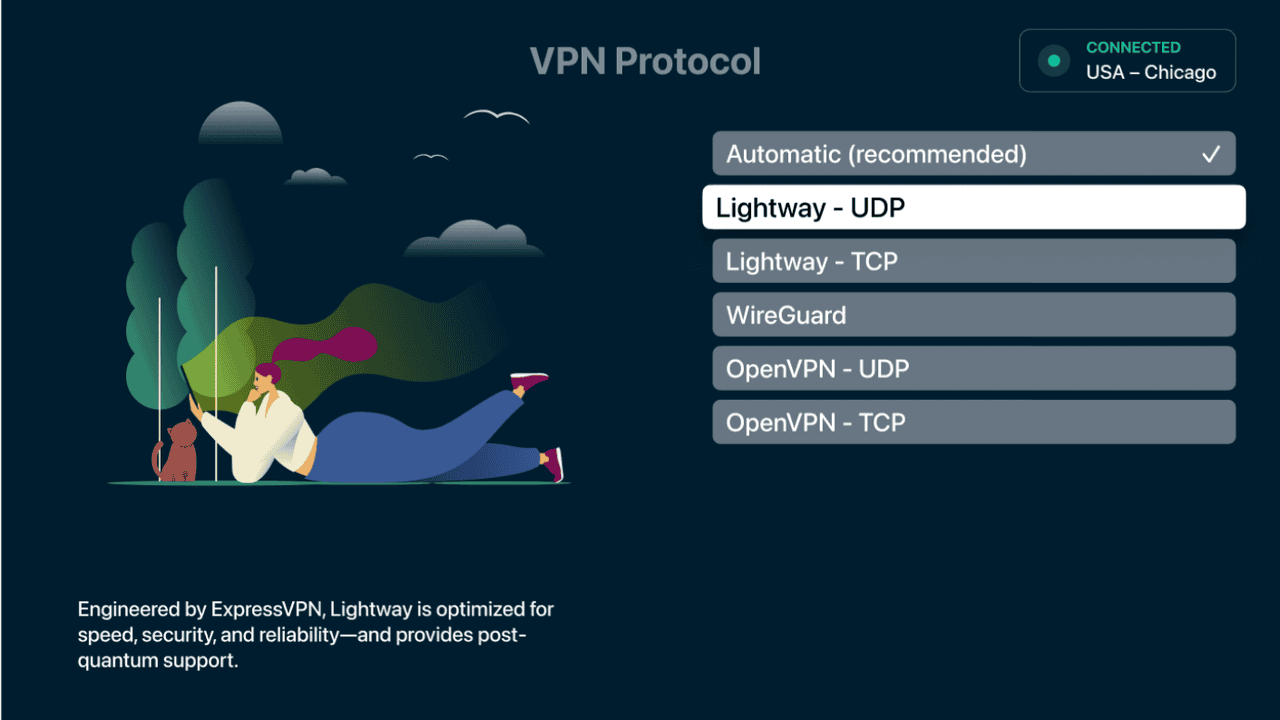
- Select the VPN protocol you want to use.
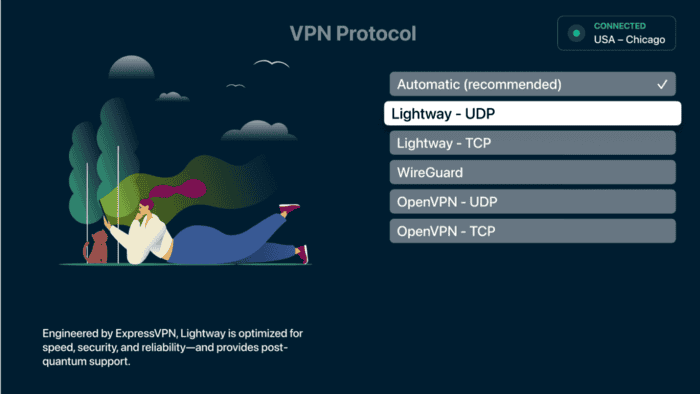 The app will save your changes automatically.
5. Add ExpressVPN as an exception to your antivirus or online security application
If you use the ExpressVPN app while an antivirus or online security application is running, your antivirus or online security application may block the VPN connection.
To test whether your antivirus or online security application is blocking your VPN connection:
- Disable the antivirus or online security application on your device. (For specific instructions, contact your antivirus or online security application provider.)
- On your ExpressVPN app, connect to any VPN server location.
If you are able to connect to the VPN while your antivirus or online security application is disabled, your antivirus or online security application is blocking your VPN connection.
To resolve this, add ExpressVPN as an exception to your application. For other applications, you may need to:
- Change the security level from High to Medium
- Grant an exception to UDP ports 1194 to 1204
- Set it to Trust ExpressVPN
Different antivirus or online security products have different steps for adding applications as exceptions. For specific instructions, contact your antivirus or online security application provider.
After adding ExpressVPN as an exception to your antivirus or online security application,
- Restart the ExpressVPN app.
- Connect to a server location.
6. Disable your proxy settings
A web browser’s proxy settings may block internet access when a VPN connection is detected. Disabling proxies may resolve these issues.
How to disable your proxy for…
7. Contact the ExpressVPN Support Team
If you have tried all the steps above but are still unable to browse the internet, contact the ExpressVPN Support Team for immediate assistance.
In your browser, you can open live chat, fill out your information, and submit your diagnostic information, which may help us identify the cause of your connection issue.
Alternatively, follow the steps for your device below to contact support within the ExpressVPN app:
- Click Help > Contact Us.
- Click Issues with the VPN service > Connection Issues.
- Fill in the form and click Submit.
- Wait for a response from the ExpressVPN Support Team via email.
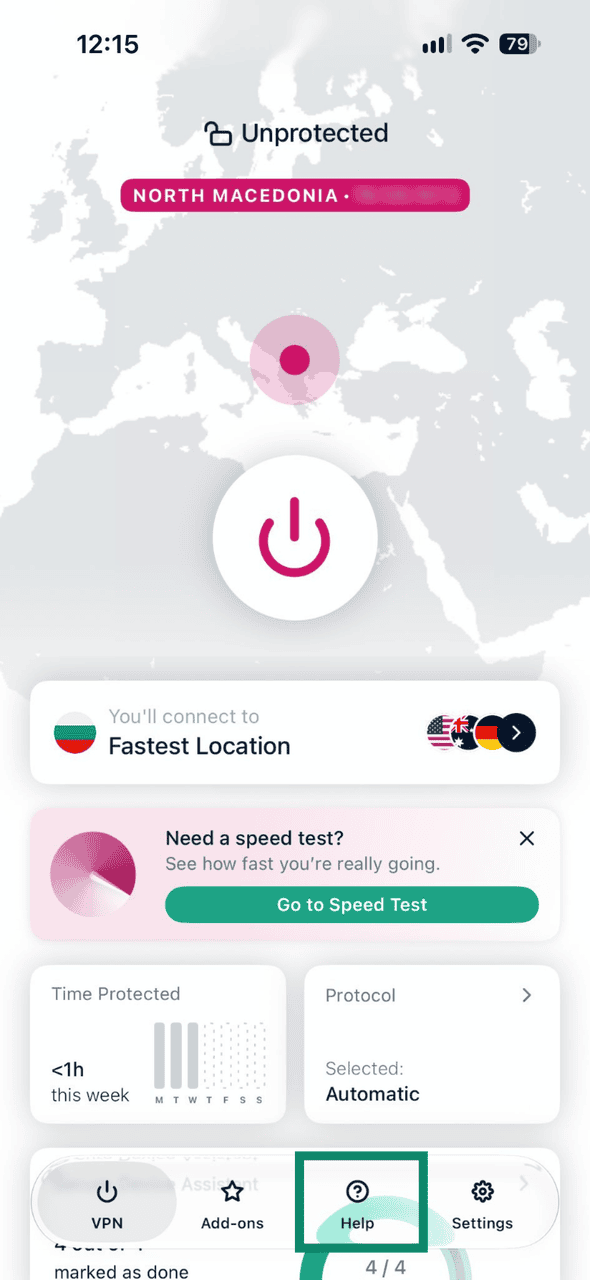
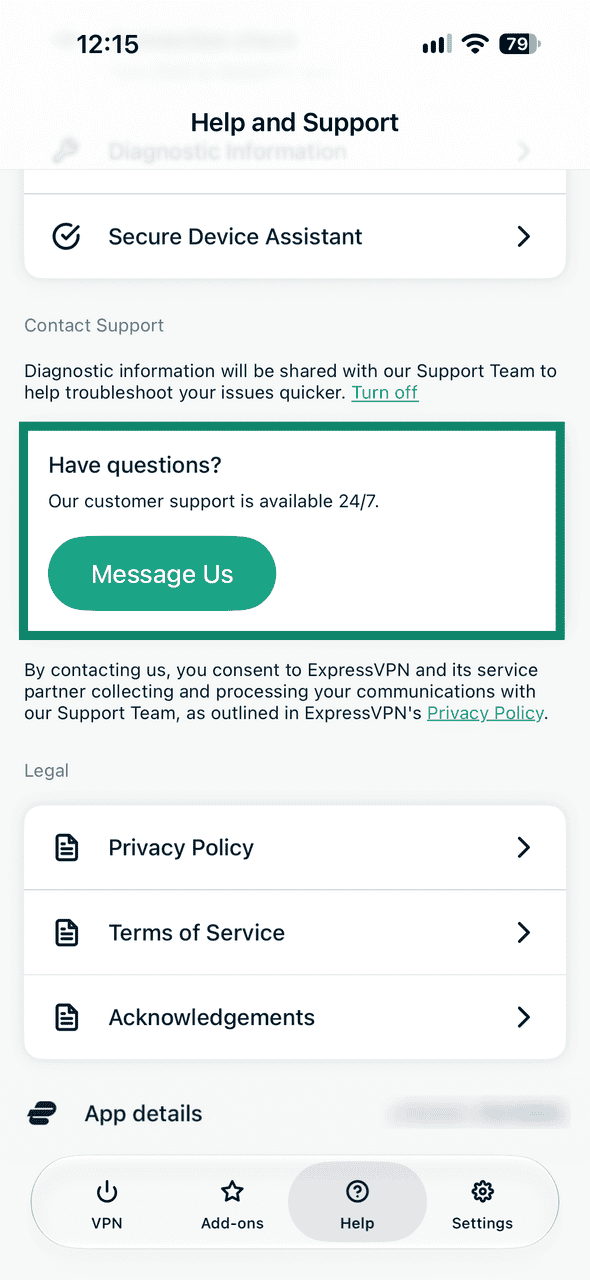
- Locate the diagnostics file you downloaded earlier.
- Send the diagnostic information in the ExpressVPN Support Chat.
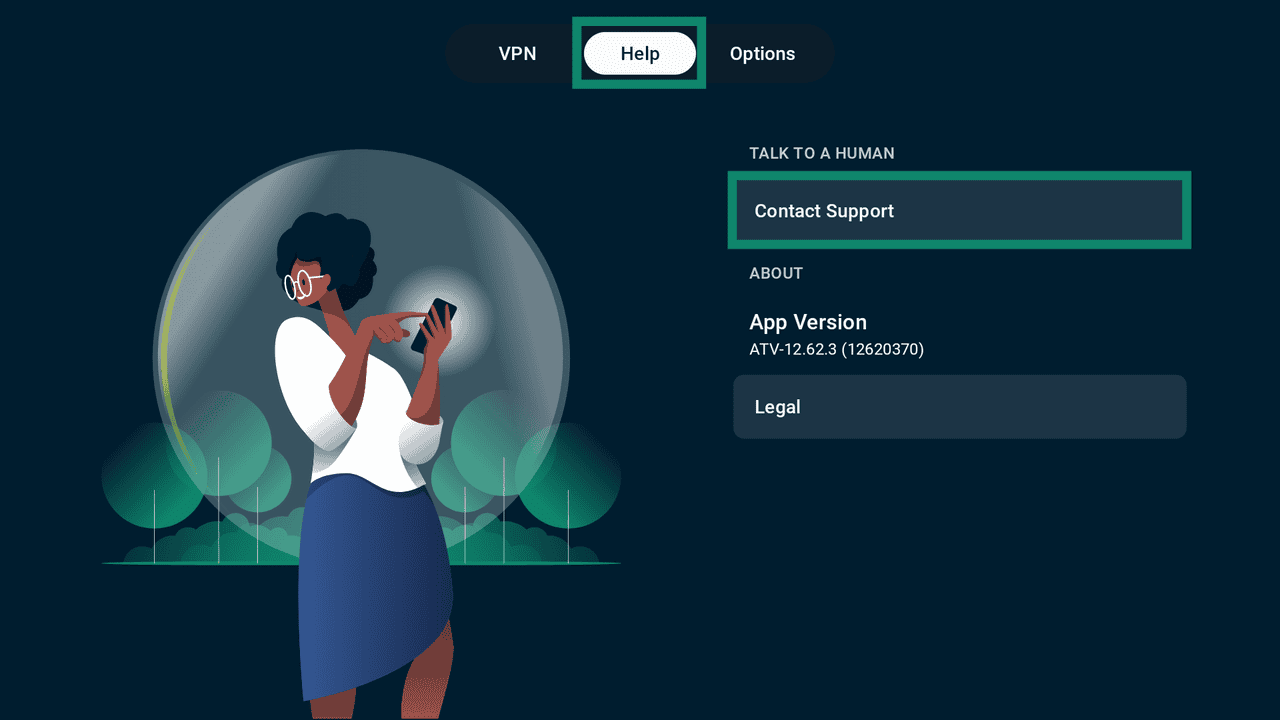
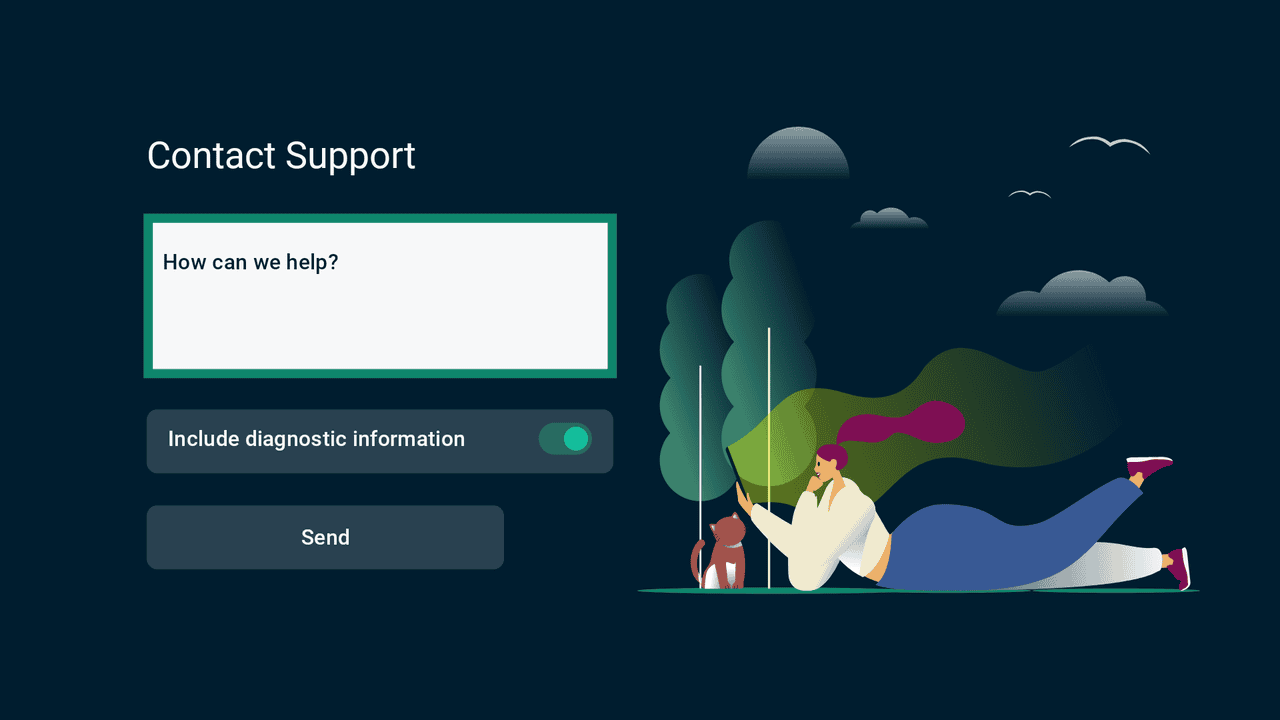
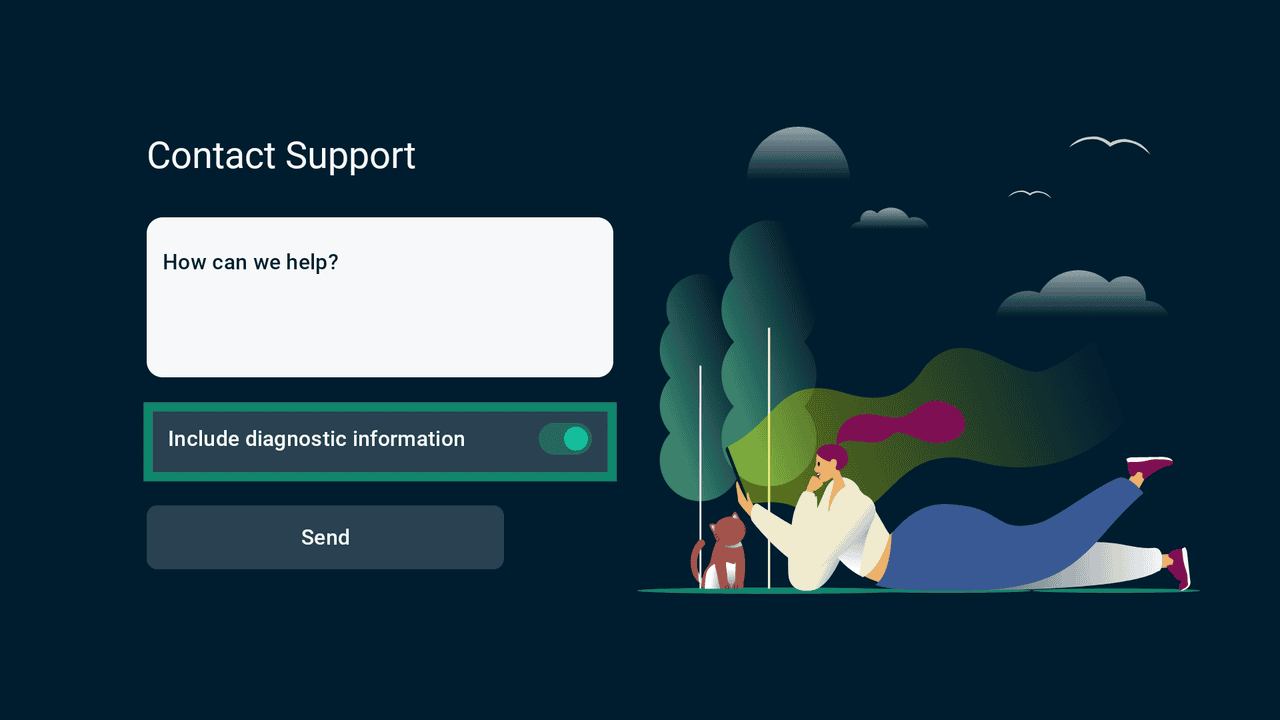
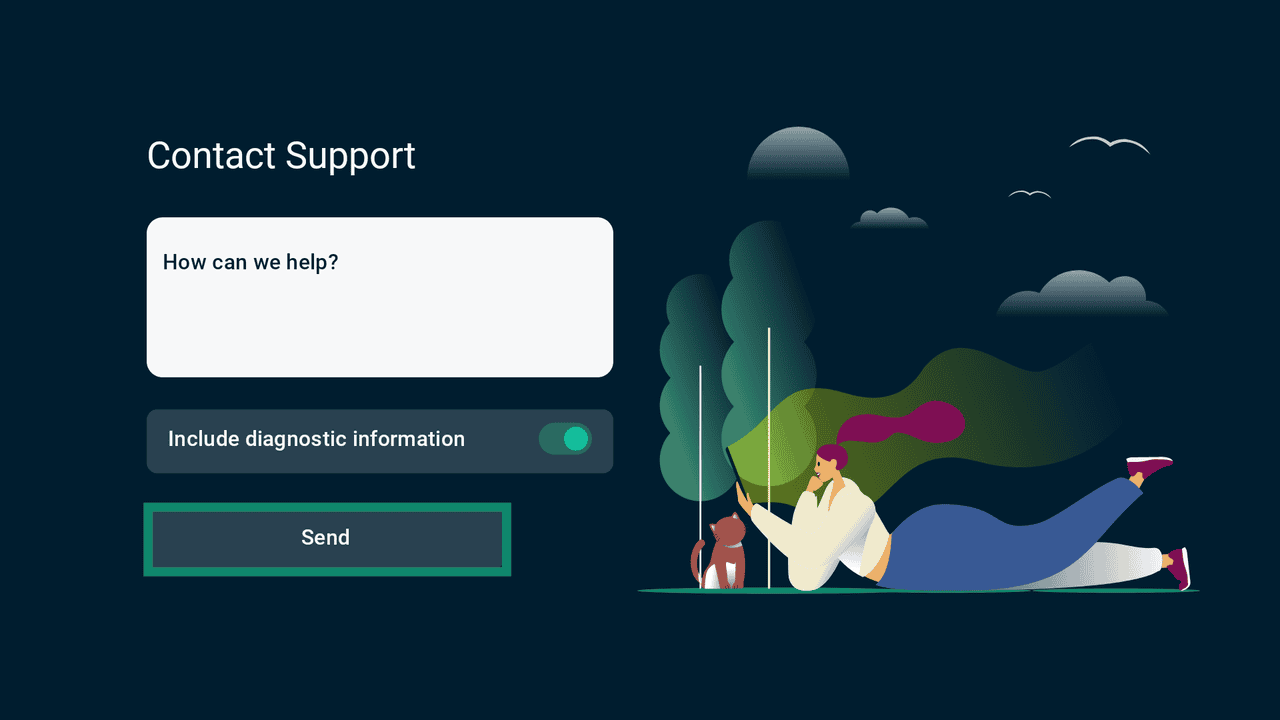
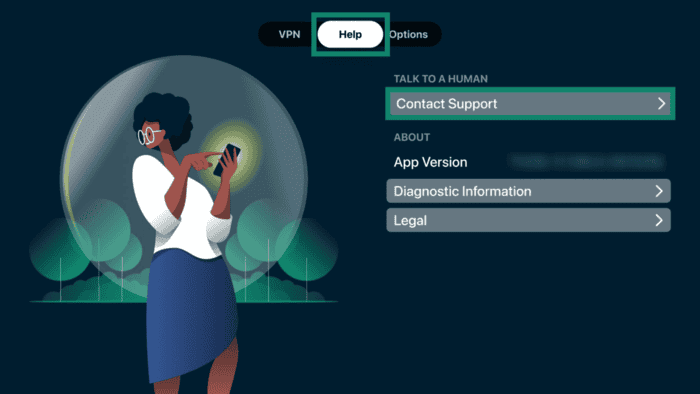
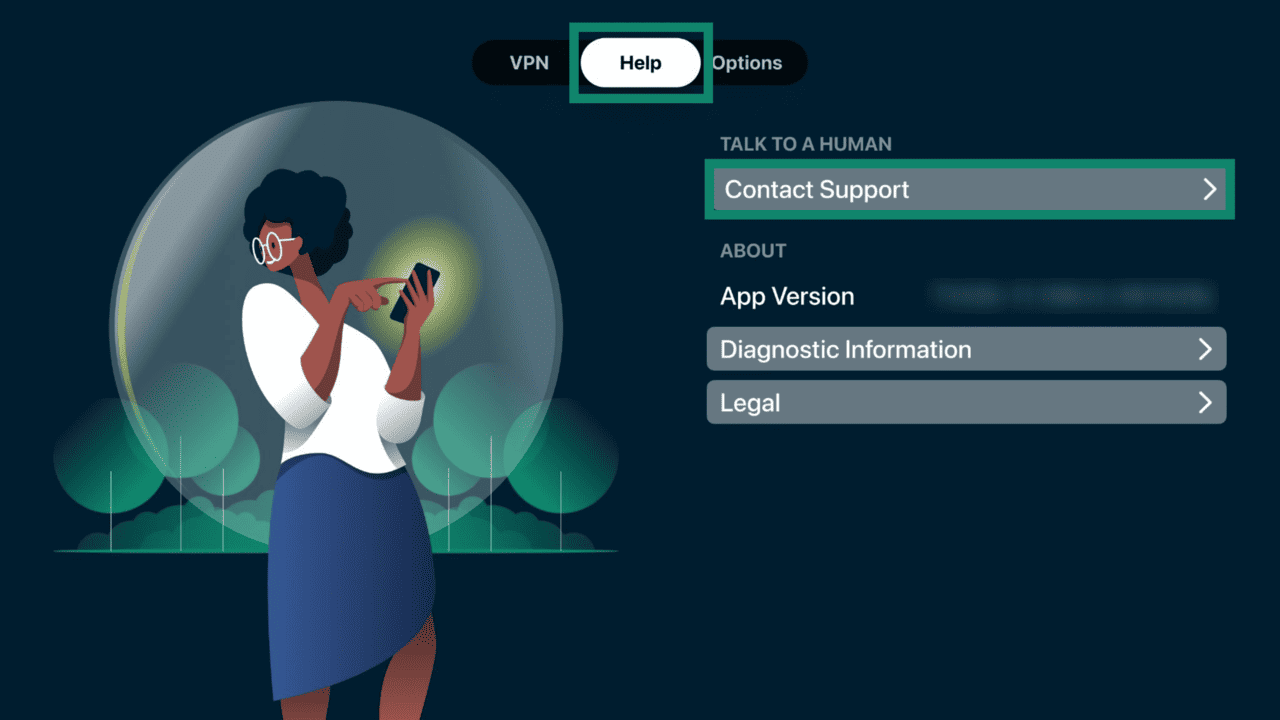
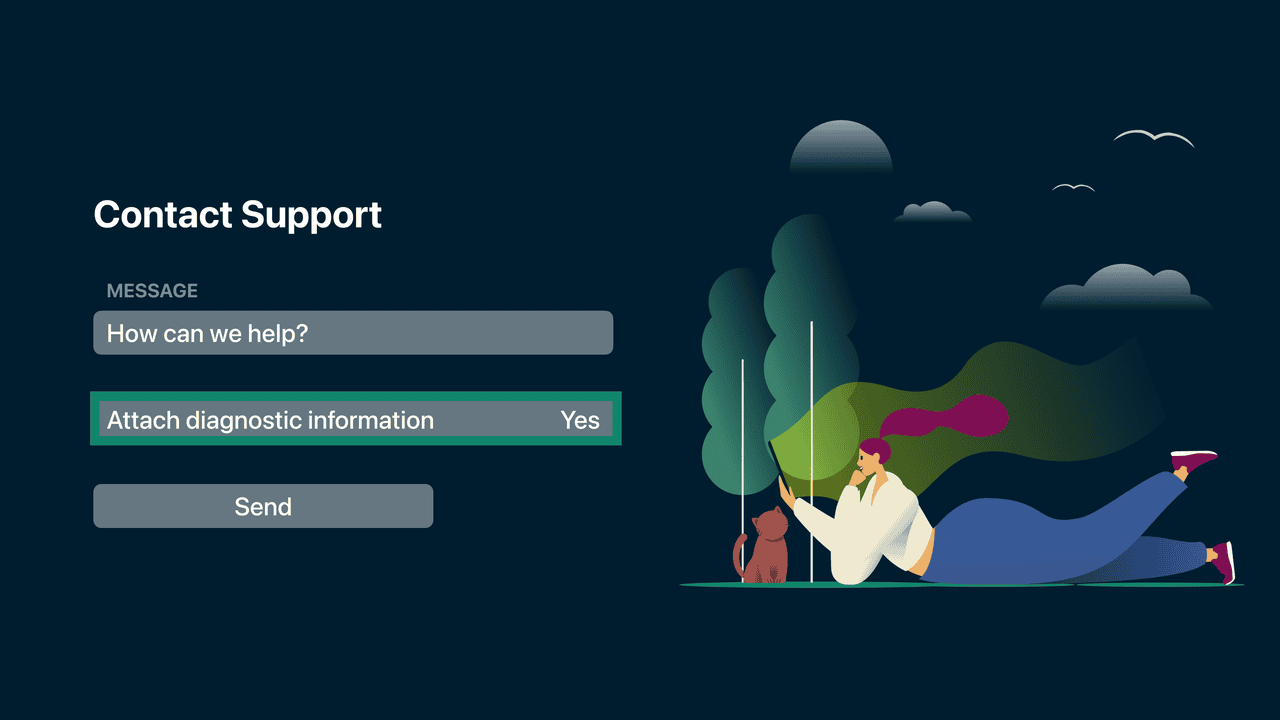
- Go to the Help tab and select Contact Support.
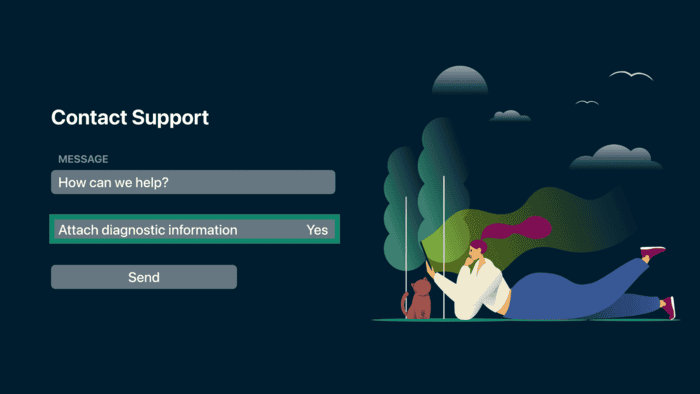
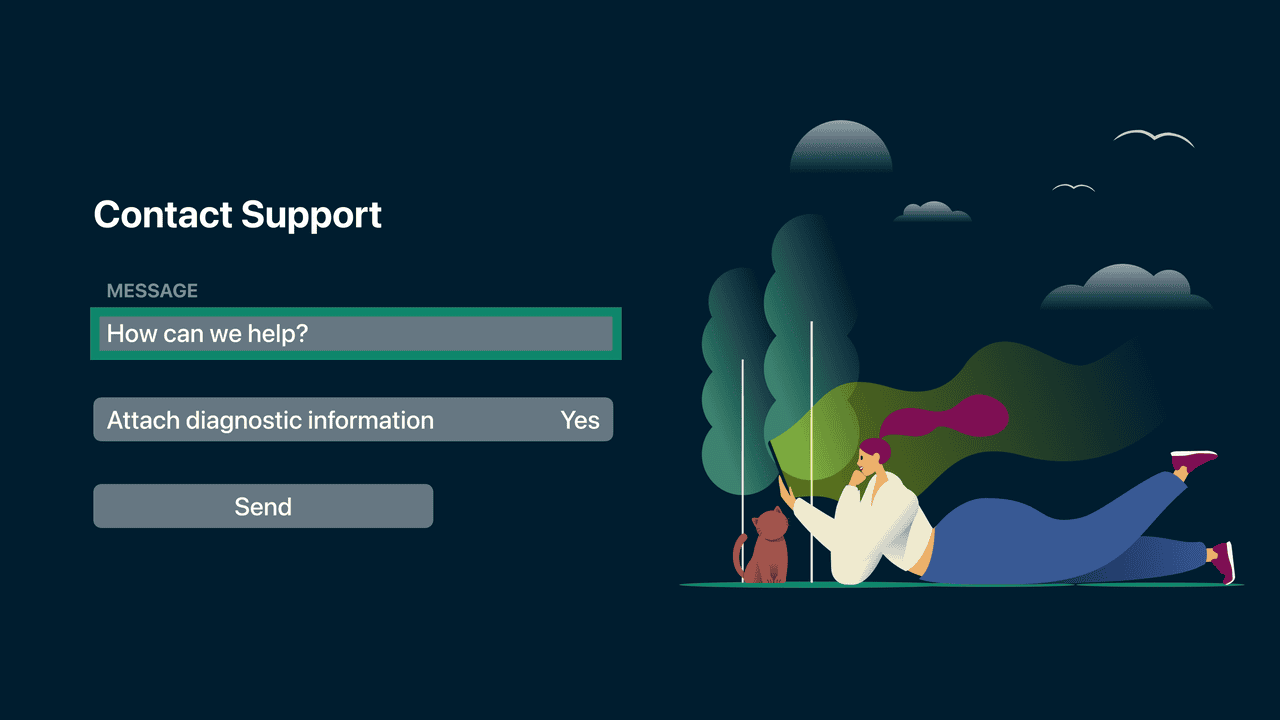
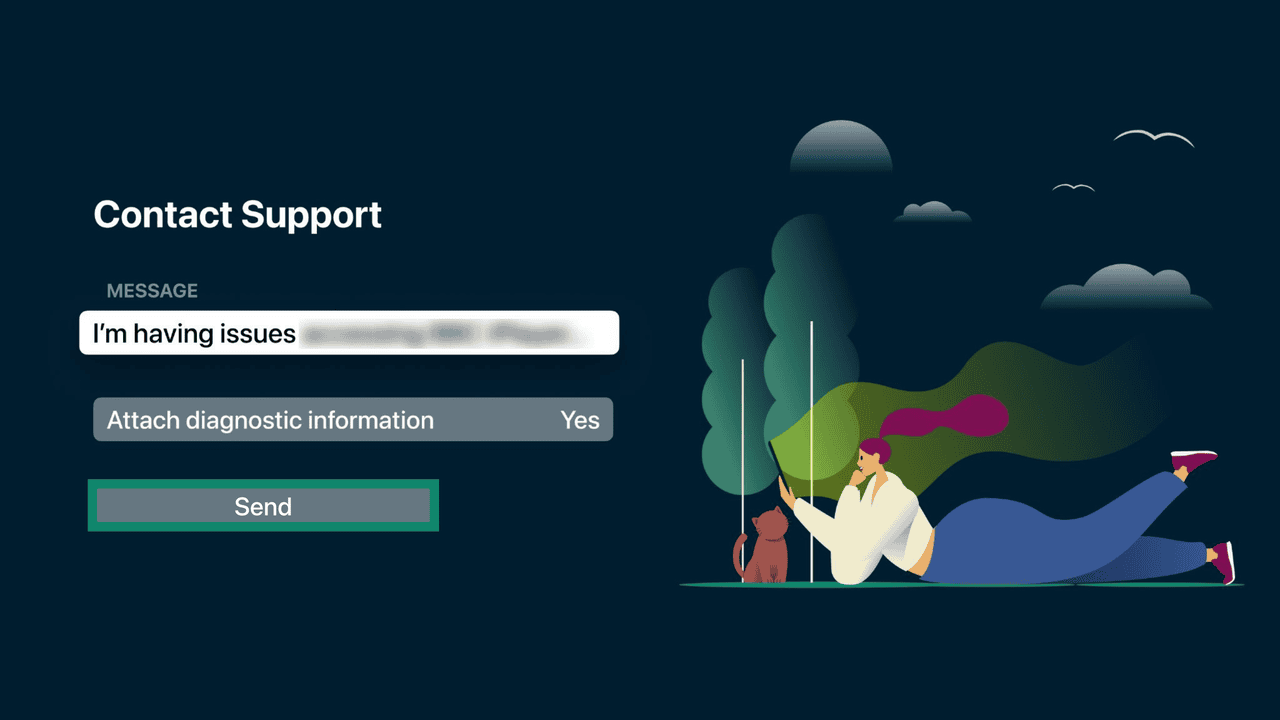
- Describe your issue in the Message field.
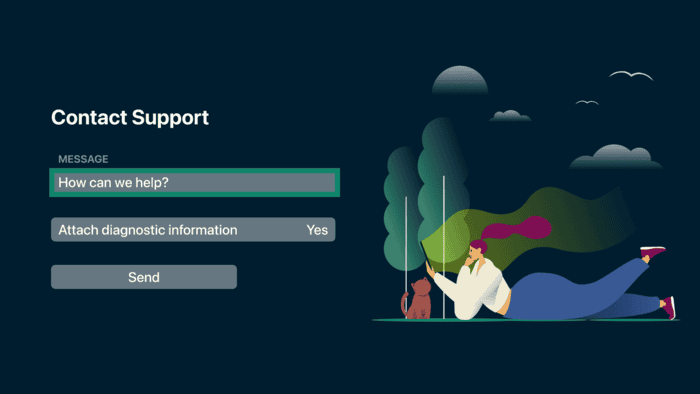
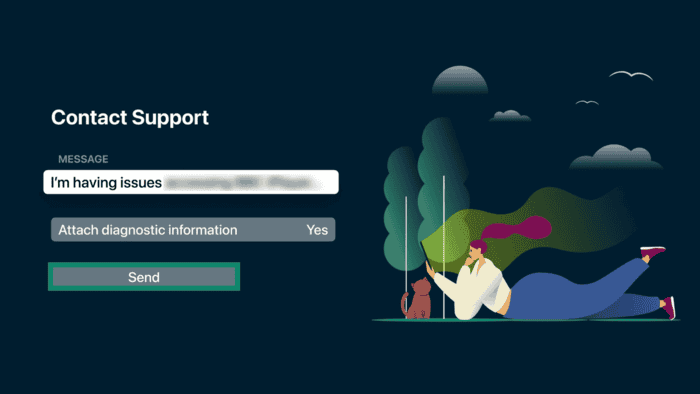
- Under Attach diagnostic information, select Yes.
- Choose a relevant topic on the Select a Topic screen.

- Select Send.

Need help? Contact the ExpressVPN Support Team for immediate assistance.