What is PPPoE? A complete guide to Point-to-Point Protocol over Ethernet


Got a new router to set up, and your internet service provider (ISP) is asking for a PPPoE username and password? Why do some internet connections start working as soon as you plug in the cable, while others require login details before anything happens?
Point-to-Point Protocol over Ethernet (PPPoE) is the reason for that difference. It’s a method some ISPs use to create a login-based session between your router and their network before giving you internet access.
This article explains what PPPoE is, how it works, and why it still shows up in modern internet connections.
What is PPPoE?
PPPoE is a network protocol that some ISPs use to identify users and manage connections over an Ethernet network.
To understand it, it helps to break it down:
- Point-to-Point Protocol (PPP): Developed in the early 1990s and was originally used for dial-up internet. It supported usernames, passwords, and per-user settings.
- Ethernet: It's the standard technology used in modern local networks and broadband infrastructure. It’s fast and efficient but doesn’t include built-in user authentication.
PPPoE combines the two. It allows ISPs to run account-based authentication over Ethernet so that multiple customers can share the same physical network while still having separate controlled sessions.
The protocol appeared in the late 1990s when providers moved from dial-up to broadband services like Digital Subscriber Line (DSL). Broadband networks were faster, but since they were shared among many users, providers needed a way to authenticate customers individually. PPPoE allowed them to keep that login-based model.
Today, PPPoE is still widely used in DSL networks and some fiber deployments, depending on how the ISP designed its infrastructure.
How does PPPoE work?
PPPoE works by setting up a temporary, session-based connection between your router and ISP over an Ethernet link. This session must be created before your ISP assigns an IP address.
You can think of it like checking into a hotel. First, your router finds the front desk (discovery). Then it confirms your reservation details (session). Only after that does it receive a room key, which in this analogy is your IP address.
Discovery stage
Before anything else can happen, your router needs to find the ISP’s PPPoE server (often called an access concentrator). This process uses PPPoE discovery packets.
- Your router sends out a broadcast message asking for a PPPoE service.
- One or more ISP servers respond to say they’re available.
- Your router picks one of those responses and requests a session.
- The ISP confirms and assigns a unique session ID, which tracks your specific connection while you’re online.
At this point, a session exists, but it’s not yet authenticated.
Session and authentication stage
Once discovery is complete, authentication can begin.
- Your router sends the ISP-provided username and password.
- If the credentials are valid, the ISP authorizes the session and assigns an IP address.
- Internet traffic starts flowing.
If the router restarts or the line drops, the session ends, and the whole process begins again automatically.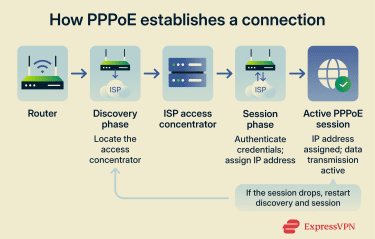
How to set up PPPoE
To set up PPPoE, you’ll need the username and password your ISP provided. These are different from your Wi-Fi password or router admin credentials.
Steps to set up PPPoE on a router
Most home networks use the router to manage PPPoE. Here are the general setup steps:
- Connect your modem to the router’s wide area network (WAN) or internet port using an Ethernet cable.
- Open your router’s admin page in a browser (commonly 192.168.1.1 or 192.168.0.1) and log in.
- Go to the WAN or internet settings section. Select PPPoE as the connection type. Enter the username and password provided by your ISP and click Apply to confirm the settings.
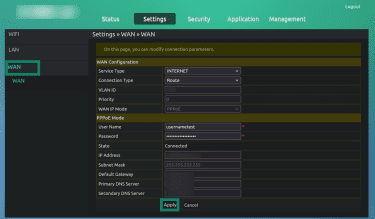
Once configured, the router will automatically manage the PPPoE session.
Some providers also require a virtual local area network (VLAN) ID in the WAN settings. If your connection fails, even with the correct credentials, it’s worth checking this in your ISP’s documentation.
Some ISPs configure PPPoE to work only on the router they supply. In which case, you may need to enable bridge mode before using your own router.
Steps to set up PPPoE on Windows
- Open Settings. Go to Network & internet and select Dial-up.
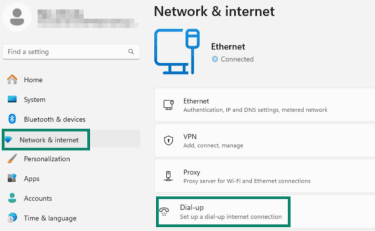
- Click Set up a new connection.
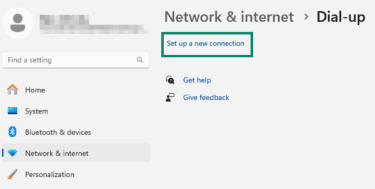
- Choose Connect to the Internet.
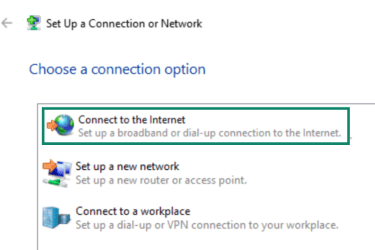
- Then select Broadband (PPPoE).
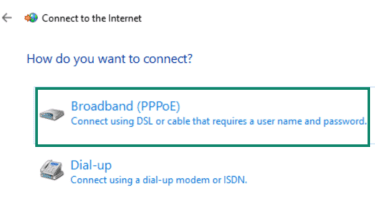
- Enter the username and password and click Connect.
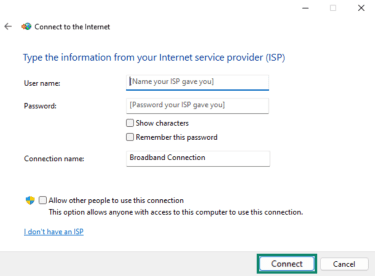
Steps to set up PPPoE on macOS
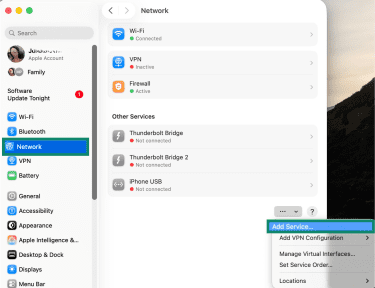
- In System Settings, select Network, click the three dots, and choose Add Service.
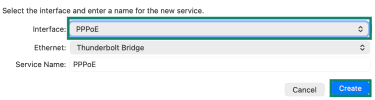
- Select PPPoE as the interface type and click Create.
- Enter the username and password provided by your ISP. Click Apply, then Connect.
Where is PPPoE used?
Today, PPPoE is most commonly found in:
- DSL broadband services, where it originated and is still widely used.
- Some fiber internet connections, particularly where ISPs have maintained legacy authentication systems.
- Residential broadband networks that prioritize per-user access control.
- Certain business or enterprise environments that need detailed session tracking and billing.
While newer technologies like Internet Protocol over Ethernet (IPoE) are increasingly used, PPPoE is still common on DSL and some fiber networks, especially where ISPs want granular control over individual user sessions for billing and support.
Because PPPoE creates individual sessions for each connection, it allows providers to manage access and assign IP addresses dynamically.
PPPoE vs. other connection types
The main difference between PPPoE and other connection types is how the connection is established, how users are identified, and how access is managed once the link is active.
These differences affect whether you need login details, how your router is configured, and how the connection behaves once it’s up and running.
PPPoE vs. DHCP
Dynamic Host Configuration Protocol (DHCP) automatically assigns an IP address when a device connects to a network. With PPPoE, however, the router must first authenticate using a username and password before receiving an IP address.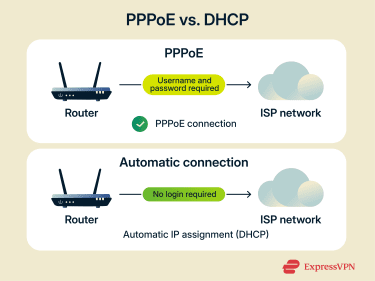
It’s important to note that DHCP-based networks can still enforce access control, but they don’t require a PPP-style login at the router level.
PPPoE also adds an 8-byte header to each data packet (it wraps your data in an extra layer of information), which reduces the standard maximum transmission unit (MTU) from 1,500 bytes to 1,492 bytes. DHCP connections don’t usually have this limitation.
PPPoE vs. IPoE
PPPoE is stateful. It requires your router to establish and maintain an active session with your ISP. Your router sends credentials, the ISP authenticates them, and only then does it assign an IP address. The session has to stay active for the connection to work. If it drops, the whole authentication process starts again.
IPoE is stateless. It doesn’t need to create a separate PPP session before traffic can flow. In most home networks, it uses DHCP to assign an IP address automatically without a login step. Access control (if used) happens through other mechanisms within the ISP’s network.
IPoE also doesn’t have the MTU reduction you get with PPPoE, resulting in better throughput and lower latency, especially on high-speed connections. Hence, IPoE is increasingly being used in modern fiber and cable setups where simplicity and performance matter more than session-based authentication.
PPPoE and static IP: What’s the difference?
PPPoE and static IP refer to different parts of how an internet connection works, which is why they’re often mentioned together, but they’re not alternatives to each other.
PPPoE describes how your device connects to your ISP. It handles login, authentication, and session management. In simple terms, PPPoE is the method used to establish and manage your internet connection.
A static IP describes how your IP address is assigned. With a static IP, your public IP address stays the same over time. With a dynamic IP, your address can change when you reconnect or when your ISP refreshes its network assignments.
These two things are independent:
- You can use PPPoE with a dynamic IP (common on residential plans).
- You can use PPPoE with a static IP (often available on business plans).
- Static and dynamic IPs can also be assigned over other connection methods, such as DHCP or IPoE.
In short, PPPoE affects how the connection is set up, while static or dynamic IP affects whether your IP address changes. Which combination you have depends on your ISP and service plan.
| Feature | PPPoE | DHCP | IPoE |
| Authentication | ISP credentials required | No PPP-style login | No separate session login |
| Ease of setup | Requires login details | Automatic | Automatic |
| Overhead | Slight packet overhead | No PPP overhead | No PPP overhead |
| Typical use | DSL and session-based broadband | Cable and home broadband | Many fiber broadband services |
Advantages of PPPoE
PPPoE is still used because it manages internet access through individual connection sessions. Here’s what that means for users.
Account-based authentication and access control
As PPPoE requires a username and password for authentication, only authorized users can access the internet service. This protects against unauthorized network access.
Individual session management
Because PPPoE creates separate sessions per user, ISPs can track usage and apply per-account policies (such as rate limits, billing, or access controls). Traffic isolation and bandwidth fairness, however, depend on the ISP’s network configuration rather than PPPoE alone.
Flexible IP address assignment
PPPoE supports both dynamic and static IP address assignment through the Network Control Protocol (NCP). This makes it versatile for users who need a consistent IP (for example, for hosting services) or a dynamic one.
Broad compatibility and support
PPPoE is widely supported across operating systems and almost all home routers, making it easy to configure.
The protocol also allows users to run multiple services, such as high-speed internet, Voice over IP (VoIP), and Internet Protocol Television (IPTV), over a single broadband connection.
Disadvantages of PPPoE
PPPoE introduces some trade-offs compared to fully automatic connection types.
Performance and CPU overhead
PPPoE encapsulates each packet (adds extra information), adding processing work (overhead) for the router. On modern routers, this overhead is usually negligible. However, older or low-powered routers may struggle on high-speed fiber or gigabit plans.
If speeds are significantly below the subscribed rate and CPU use is high, PPPoE could be a contributing factor.
Reduced MTU
As mentioned, PPPoE adds an 8-byte header to each packet, dropping the MTU from 1,500 bytes to 1,492 bytes.
If devices attempt to send packets larger than 1,492 bytes and the mismatch is not handled correctly, fragmentation or dropped packets can occur. This may lead to slower speeds, increased latency, or connectivity issues with certain services.
Manual configuration
Unlike automatic connection types such as DHCP or IPoE, PPPoE requires users to manually enter ISP-provided credentials into their router or modem settings.
This adds an extra step during setup and increases the chance of configuration errors if details are entered incorrectly, such as incorrect capitalization or formatting.
Session drops
PPPoE relies on establishing and maintaining an active session with the ISP.
If that session times out or drops due to line instability, the router must reconnect. Most routers handle this automatically, but brief disconnections can occur.
Fixing common PPPoE issues
When a PPPoE connection fails, it often comes down to authentication issues, configuration mismatches, or problems along the physical line.
| Problem | Likely cause | Solution |
| Connection timeout | Router cannot reach the ISP’s access equipment | Check cables, restart modem and router, confirm ISP service status |
| Authentication error | Incorrect username or password | Re-enter ISP credentials carefully (they are case-sensitive), confirm the account is active |
| Websites not loading or connections hanging | MTU mismatch causing packet fragmentation | Set the router’s MTU to 1,492 (or slightly lower if issues persist) |
| Slow speeds on high-speed plans | Router CPU limitations | Check router CPU usage |
| Frequent disconnects | PPPoE session drops or line instability | Restart equipment; contact ISP if sessions drop repeatedly |
PPPoE security considerations
When discussing PPPoE security, it’s important to separate two things: how the connection is authenticated and how data is protected once you’re online. PPPoE provides authentication and session management but does not provide confidentiality or integrity protection for user traffic.
Encryption capabilities (and their limits)
PPPoE establishes and manages a session between your router and the ISP, but it does not encrypt the data transmitted over the connection.
During login, PPP can use authentication methods such as Challenge Handshake Authentication Protocol (CHAP) that avoid sending passwords in plain text. However, once the session is active, the protocol itself does not encrypt the data being transmitted.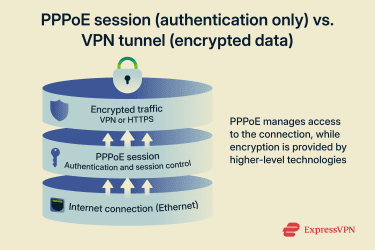
Encryption depends on higher-layer technologies such as HTTPS or a virtual private network (VPN).
VPN services operate on top of PPPoE, adding encryption after the session is established. Because both PPPoE and VPNs add packet overhead, incorrect MTU settings can affect performance in some setups. Most VPN applications handle this automatically.
Risks and vulnerabilities
Like any system that relies on login sessions, PPPoE has some built-in weaknesses. The connection process can be disrupted if the network receives false or misleading responses, which may stop legitimate connections from forming. Security also depends on how the ISP handles authentication; older or weaker methods can put login details at risk.
After a PPPoE session is established, the session ID becomes part of the connection state. In misconfigured or shared broadcast network environments, attackers on the same local access segment could attempt to spoof PPPoE discovery or session packets, potentially enabling session disruption, man-in-the-middle (MITM), or session hijacking attacks.
These risks mainly apply to poorly isolated Layer 2 networks and ISP access networks without proper customer segmentation. In typical home setups, customers are not placed on the same broadcast domain, making these attacks unlikely in practice.
Best practices for securing PPPoE connections
To reduce potential risks, consider the following steps:
- Use a VPN: This is particularly important when transmitting sensitive data on untrusted networks, since PPPoE does not encrypt traffic.
- Keep firmware updated: Install router updates regularly to patch known security vulnerabilities.
- Choose strong credentials: Create a unique, hard-to-guess password for your PPPoE account and don’t reuse it elsewhere.
- Enable Wi-Fi encryption: Turn on Wi-Fi Protected Access 3 (WPA3) or at least WPA2 to protect wireless traffic from interception.
- Limit remote access: Disable remote management unless it’s absolutely necessary.
- Monitor connection issues: Repeated session drops or authentication failures may signal configuration or line problems; contact your ISP if they persist.
FAQ: Common questions about PPPoE
Should I use DHCP or PPPoE?
Where do I find my PPPoE username and password?
Can I use PPPoE with a VPN?
Does PPPoE encrypt my data?
Encryption depends on higher-level technologies such as HTTPS or a VPN. Without those, traffic transmitted over the connection may be visible to intermediaries along the network path.
Take the first step to protect yourself online. Try ExpressVPN risk-free.
Get ExpressVPN