How to get rid of adware on Mac and prevent future infections



If your Mac suddenly floods you with pop-ups, redirects your searches, or keeps changing browser settings you just fixed, something is interfering with your system. These problems can continue even after you reset the browser or clear your data.
Adware is one possible cause. Depending on the variant, it may run as a background process, a standalone app, or a browser extension that alters how your Mac or browser behaves.
This guide explains what adware is, how it gets installed, and how to remove it safely. Plus, we share steps to prevent future infections.
What is adware on Mac?
Adware is software that displays unwanted advertisements on your device. On a Mac, it may run as a background process, a standalone app, or a browser extension. It can generate pop-ups, modify search results, or inject ads into websites you visit.
Adware doesn’t spread on its own. It runs only after installation, often bundled with other software or presented during setup. For that reason, it’s usually classified as a potentially unwanted program (PUP).
Not all adware behaves the same way. Some versions only display ads. Others change browser settings, such as the homepage or default search engine, without clear user intent, often through bundled installers or hidden setup options. That behavior is known as browser hijacking. Some also display fake security alerts that push unnecessary software, overlapping with scareware and fake antivirus tactics.
How does adware get on a Mac?
Software bundling is the most common method. A free app installer may include extra programs in the same package. If default setup options are used, those extras might install alongside the main app without a separate prompt.
Fake download pages are another frequent source. These sites display alerts claiming your Mac needs a security scan or a software update. The file behind the alert is often replaced with adware instead. Some of these pages mimic macOS dialogs closely enough to pass for real notifications.
Cracked or pirated apps may also contain bundled adware. Unofficial sites distribute modified installers that include additional programs. For example, the Shlayer Trojan, one of the most widespread macOS threats (according to research by security firm Kaspersky), used fake update pages and malicious ads to install adware on users’ Macs.
Browser extensions can also act as an entry point. An extension may start with normal features, then expand permissions or change behavior after an update. With broad access to browsing data, a single malicious extension can affect activity across websites.
Signs your Mac has adware
Adware usually reveals itself through changes in browser or system behavior.
Pop-ups, redirects, and new tabs
The most visible sign of adware is a sudden increase in pop-ups. These often appear outside the normal browsing experience, such as on pages that don't typically show ads. New browser tabs or windows may also open on their own, or clicking a link may send you to an unrelated page.
This is different from standard website pop-ups, which your browser's built-in blocker can handle. If pop-ups continue after adjusting your browser settings, the source is likely something installed on your system or inside the browser itself.
Homepage or search engine changed
If your homepage or default search engine changes to something you didn't set, adware may have modified your browser configuration. This is especially likely if resetting those options doesn't stick. Some variants install a macOS configuration profile that locks these settings and overrides manual changes. Others redirect search queries through an intermediary that injects ads into results.
Slowdowns and unknown processes
Adware uses CPU and memory while it runs in the background. If your Mac slows down, fans run more often, or apps take longer to open, you may notice unfamiliar processes in Activity Monitor using significant CPU or memory.
Note that not all adware uses obvious names. Some use generic labels to blend in with system processes. If something you don't recognize is using significant resources, look up the process name to see whether it's associated with legitimate software.
Apps you didn't install appearing in your Applications folder are another sign. Some adware installs additional software during or after its setup, so unfamiliar apps that show up without explanation are worth investigating.
How to remove adware from Mac
Before cleaning individual browsers, it’s a good idea to address adware at the system level using trusted security tools, since many threats install background processes or configuration changes that can reinfect browsers even after a reset.
Scan with trusted security software
The safest way to remove adware is with reputable security software. These tools detect known threats, including adware that installs background services or hides files in system directories.
macOS includes built-in protections. XProtect blocks known malicious files when they’re downloaded or opened. Apple also includes XProtect Remediator, which removes certain known malware families if they’re detected later.
But if you suspect adware has infected your device, a full scan with a reliable third-party tool can catch components that built-in protections might miss.
Why manual system-level removal isn’t recommended
Adware can leave behind files in system directories like /Library/LaunchAgents and /Library/LaunchDaemons, or run background processes visible in Activity Monitor. However, removing files from these locations requires familiarity with macOS internals and, in some cases, elevated privileges.
Deleting the wrong file can affect system stability or cause other applications to break. For most users, a full scan with trusted security software is the safer approach.
Note: If your Mac is managed by an organization or employer, it’s best to contact your IT department for specialized support.
Remove adware from Safari on Mac
Browser-level changes, such as injected extensions or altered settings, can persist after system cleanup. The steps below address what remains inside Safari.
Remove suspicious extensions
To check your installed extensions:
- Open Safari.
- In the menu bar at the top of the screen, click Safari > Settings.
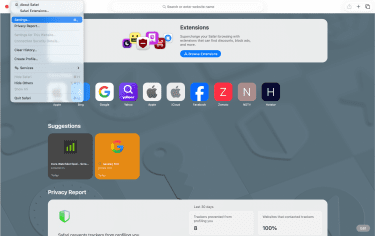
- Click the Extensions tab.
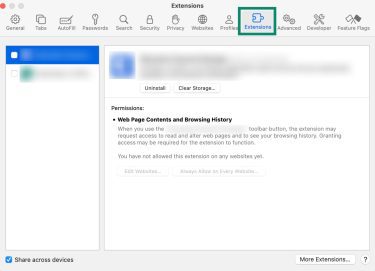
- Review the list for anything you didn't install or don't recognize.
- Select the suspicious extension and click Uninstall.
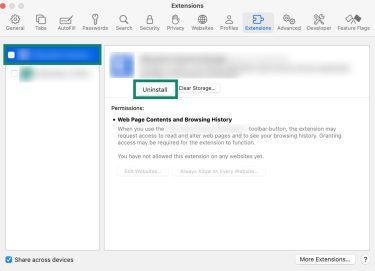
- If an extension is tied to an app in your Applications folder, a pop-up window will appear. If this happens, select Show in Finder.
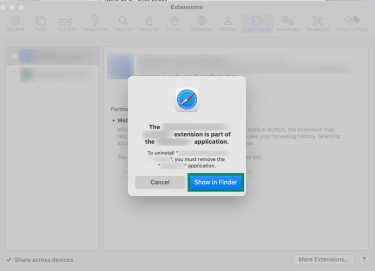
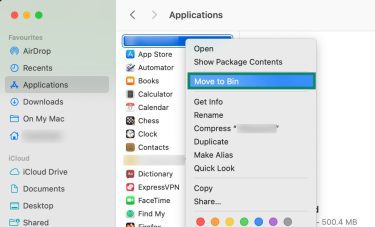
- In Finder, right-click the selected application and click Move to bin. This will remove both the app from your Mac and the extension from Safari.
Reset search and homepage settings
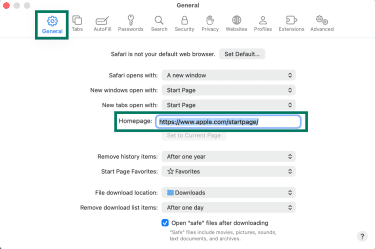
- In Safari > Settings, open the General tab and confirm the Homepage field shows the address you expect.
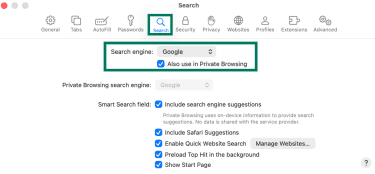
- Open the Search tab and confirm your preferred search engine is selected.
Clear website data and notifications
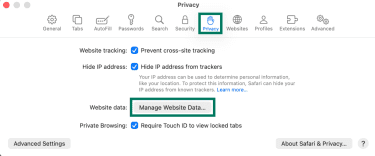
Cookies, cached scripts, and notification permissions can continue producing pop-ups after an extension is removed. Clearing stored website data helps remove these leftovers.
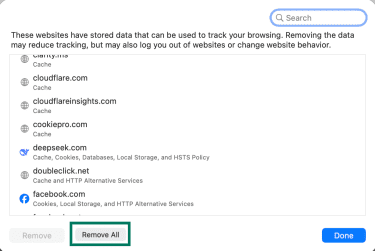
- In the Safari Settings window, open the Privacy tab and click Manage Website Data.
- In the window that appears, click Remove All, then confirm.
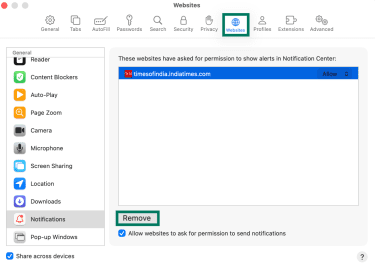
- Next, open the Websites tab, select Notifications, and remove any sites you didn’t intentionally allow.
Remove adware from Chrome on Mac
Chrome stores extensions, settings, and notification permissions separately from macOS. Adware changes inside Chrome may persist until you address them directly.
Remove suspicious extensions
- Open Chrome and type chrome://extensions in the address bar.
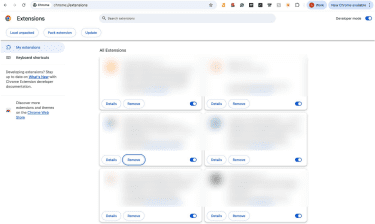
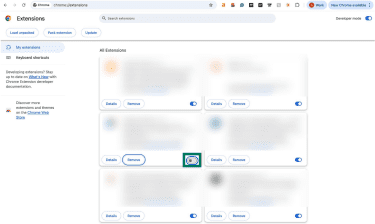
- Review the list for extensions you don’t recognize or didn’t intentionally install. If you’re confident an extension is unwanted, click Remove and Remove again to confirm.
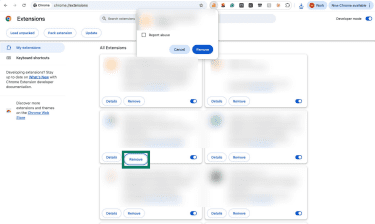
- If you’re unsure, toggle the extension off using the switch first. Check whether the pop-ups or redirects stop. If they do, return and permanently remove the extension.
Reset Chrome settings safely
If adware has changed multiple settings and you're not sure which ones, a full reset is more efficient than fixing each one individually.
To reset Chrome:
- Type chrome://settings/reset in the address bar.
- Click Restore settings to their original defaults, and confirm.
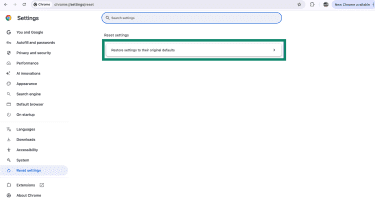
This resets your homepage, new tab page, search engine, and pinned tabs. It also disables all extensions but doesn't delete them. Bookmarks, history, and saved passwords aren't affected. If the settings revert after resetting, the browser may be managed by an organization or synced with another profile.
Disable spammy notifications
Some pop-ups that look like system alerts are actually website notifications you may have accidentally allowed. To review and remove them:
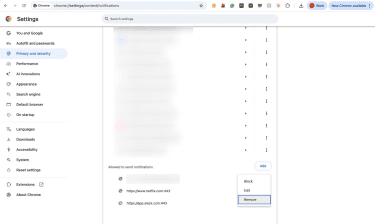
- Type chrome://settings/content/notifications in the address bar.
- Scroll to Allowed to send notifications, and click the three dots next to any site you don't recognize.
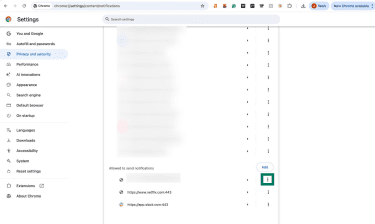
- Select Remove.
Remove adware from Firefox on Mac
Firefox stores add-ons, preferences, and notification permissions independently from macOS. Changes made by adware inside Firefox may remain until you address them directly.
Remove add-ons and themes
To review and remove extensions:
- Open Firefox.
- Click the menu button (three horizontal lines) and select Extensions and themes.
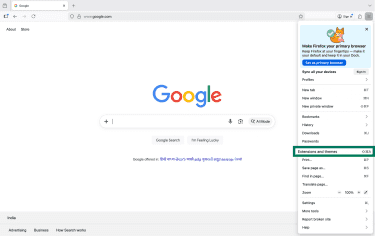
- Find any extension you didn't install or don't recognize.
- Click the three dots next to it and choose Remove.
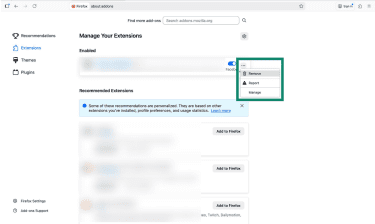
It's also worth checking the Themes section. While less common, some adware installs a custom Firefox theme during setup.
Refresh Firefox settings
Firefox has a built-in refresh feature that resets preferences, extensions, customizations, and notification permissions. It preserves bookmarks, browsing history, passwords, cookies, and open tabs. Because cookies are kept, some ad redirects may continue for a short time until the session ends or the cookies are cleared.
To refresh Firefox:
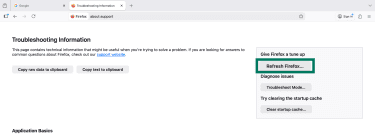
- Type about:support in the address bar.
- Click Refresh Firefox on the right side of the page, and confirm when prompted.
How to prevent adware on Mac
The steps below reduce the likelihood of adware affecting your Mac in the future.
Practice safe download habits
To reduce the risk of malware, only download software from the Mac App Store or directly from the developer's official website. Apps in the App Store go through Apple's review process and are generally considered safe to use.
Software downloaded outside the App Store is protected by Gatekeeper, a built-in macOS security feature. Gatekeeper checks that the app is signed by a registered developer and notarized by Apple, meaning it has been scanned for known malicious content. If macOS warns that an app isn’t notarized or the developer can’t be verified, investigate the source carefully before opening it.
Avoid cracked or pirated software. These installers frequently contain adware or more severe malware, such as infostealers. When installing any software, choose the Custom or Advanced option if available and deselect any bundled programs you didn't seek out.
Related: How to fix the “Apple couldn’t verify the app is free of malware” warning
Stick to trusted extensions and check permissions
Install extensions only from your browser's official store, such as the App Store, the Chrome Web Store, or Firefox Add-ons. Before installing, check the number of reviews, the developer's name, and the permissions the extension requests. Be cautious about extensions that request access to all websites without a clear reason.
Review your installed extensions regularly. Extensions can change ownership or update their behavior after installation. Remove any you no longer use.
When a site asks for notification permission, choose Block or Deny unless you have a specific reason to allow it. Unwanted notification permissions are among the most common reasons pop-ups persist after other cleanup steps.
Keep macOS and browsers updated
Apple regularly updates macOS security protections, including tools like XProtect. These updates help detect and block newly identified malware, even between major macOS releases.
Browsers receive their own security updates on a separate schedule. Chrome, Safari, and Firefox all patch vulnerabilities and improve protection against malicious extensions and scripts through regular updates. Enable automatic updates for macOS and for each browser individually.
FAQ: Common questions on getting rid of adware on Mac
How do I get rid of adware on my Mac?
Why do pop-ups keep appearing on my Mac?
What’s the fastest way to remove adware?
Is adware the same as malware?
How can I prevent adware from returning?
Take the first step to protect yourself online. Try ExpressVPN risk-free.
Get ExpressVPN