How to disable Firefox password manager: A simple guide to safer logins


Saving passwords in Firefox can be convenient on a private, well-secured device, but it’s not always the ideal solution, especially if you share a computer or want a password manager that works across multiple browsers, apps, and devices.
Whether you want to switch to another password manager or simply stop Firefox from saving new passwords, it's worth understanding what happens to your existing saved logins first.
How Firefox’s password manager works
When you visit a website and enter your username and password, Firefox can detect the login form and ask whether you want to save those credentials. If you agree, it stores them so it can fill them in the next time you visit that site.
On Firefox Desktop, saved logins are stored in your Firefox profile. According to Mozilla’s Firefox password security documentation, encrypted usernames and passwords are kept in logins.json, while key4.db stores the key used to protect them. Mozilla says Firefox now uses Advanced Encryption Standard (AES) 256 Cipher Block Chaining (CBC) for local saved-login encryption, replacing an older Triple Data Encryption Standard (3DES)-CBC method.
This local encryption helps protect saved-login files on disk, but it's not the same as using a separate password manager vault. Without a Primary Password, Firefox can decrypt saved logins locally when needed. If someone copies both relevant profile files, they may be able to read the saved logins. On Windows and macOS, Firefox may also require device sign-in before someone can view, copy, or edit saved passwords.
If you have a Mozilla account and enable Firefox Sync, your login data is uploaded to Mozilla’s Sync servers in encrypted form. According to Mozilla, Sync uses end-to-end encryption (E2EEE), so Mozilla cannot decrypt your saved passwords; only your devices can.
Firefox also offers a Primary Password for extra protection. If you set one, Firefox will prompt you for it before using any saved credentials, and Mozilla recommends doing so when you share a computer. Primary Passwords are set locally, so they don't sync across devices or profiles.
When Firefox's password manager may not be the best fit
Firefox’s password manager can be fine for one person using a private, well-secured device. But there are situations where relying on it can raise concerns, especially if others can access the same device, browser profile, or local files.
- Shared computers: If more than one person uses the same device, Windows or macOS user account, and Firefox profile, they may be able to use autofill for saved logins. Without a Primary Password, they may also be able to view saved passwords. A shared Firefox profile doesn't provide the same separation as separate OS accounts.
- Work or managed devices: On employer-managed machines, your organization may control browser settings, monitor or back up local data, or remotely wipe the device. Storing personal passwords on a work device could expose them through company policies, endpoint management tools, or routine device handling. For personal accounts, it’s safer to use a device and password manager you control.
- Devices without a screen lock or full disk encryption (FDE): If your computer doesn’t require a password to log in, someone with physical access may be able to open Firefox or copy your profile files.
How to turn off Firefox password manager on desktop
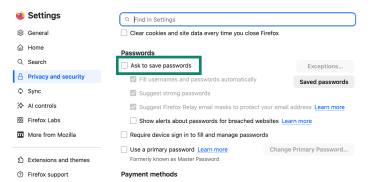
Firefox offers to save logins by default, but it doesn’t store a username or password unless you choose to save it. Turning off password saving stops Firefox from offering to save new logins, but it doesn’t delete passwords already saved in Firefox.
To stop Firefox from offering to save new logins, follow these steps:
- Open Firefox and click the three-line menu in the top right.

- Select Settings.
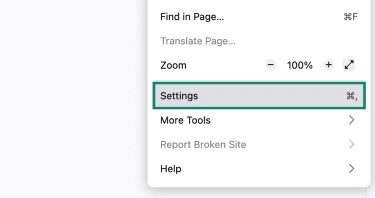
- Select Privacy and security or Passwords and autofill, depending on your Firefox version.
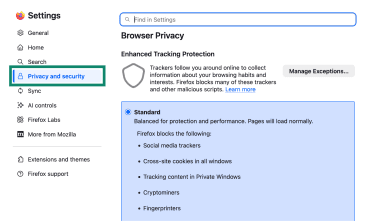
- Go to the Passwords section.
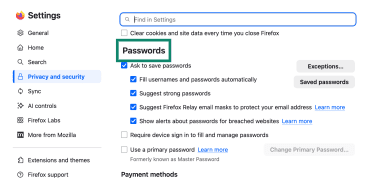
- Uncheck the box next to Ask to save passwords.
What the other password settings do
The other settings in the Passwords section don't need to be changed if your goal is only to prevent Firefox from prompting you to save new passwords. They're there if you want to keep the password manager on but limit what it does. Those settings include:
- Fill usernames and passwords automatically: Whether Firefox fills saved logins into sign-in forms.
- Suggest strong passwords: Whether Firefox offers a generated password when you create a new account.
- Suggest Firefox Relay email masks: Whether Firefox offers a disposable email address when you sign up for a site.
- Exceptions: Specific sites where Firefox should not offer to save passwords.
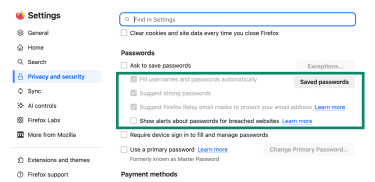
One setting that may still matter is Show alerts about passwords for breached websites. If you keep passwords already saved in Firefox, Firefox may continue to show alerts when a saved login appears in a known data breach.
How to turn off payment method autofill in Firefox
Firefox manages payment autofill separately from saved passwords, so turning off the password manager doesn’t necessarily affect saved card details. If you’re disabling Firefox’s password manager because you share a device or want to limit what the browser stores, you may also want to turn off payment autofill separately.
- Open Firefox and click the three-line menu in the top right.
- Select Settings and go to Privacy and security or Passwords and autofill, depending on your Firefox version.
- Scroll to Payment methods or Autofill.
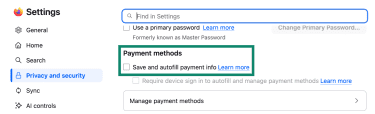
- Uncheck Save and autofill payment info or Save and fill payment methods.
This turns off payment autofill, but it may not remove cards already saved in Firefox. To delete saved cards, use Manage payment methods in the same section.
Turning off Firefox password manager on mobile
On mobile, Firefox's password settings are managed inside the app, but the controls look different on Android and iPhone.
Disable password saving on Android
Firefox's password settings on Android have two parts: password saving and autofill, and you need to turn off both to stop Firefox from saving new passwords and filling saved ones. This won’t delete passwords already saved in Firefox or synced from another device.
To disable password saving and autofill on Android:
- Open Firefox, tap the three-dot menu, and select Settings.
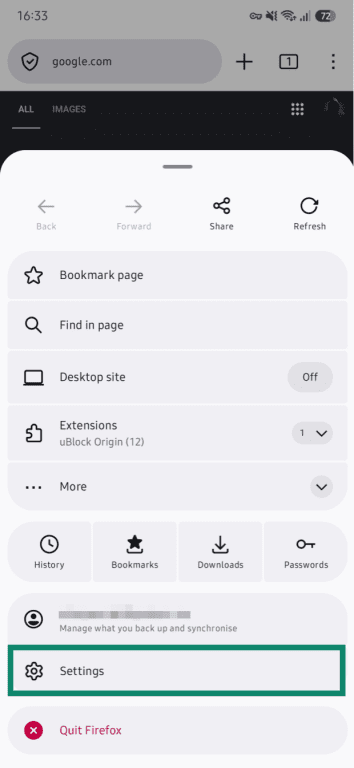
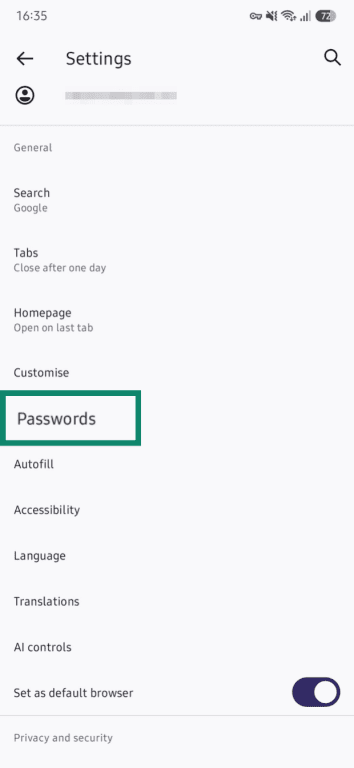
- Select Passwords or Logins and passwords.
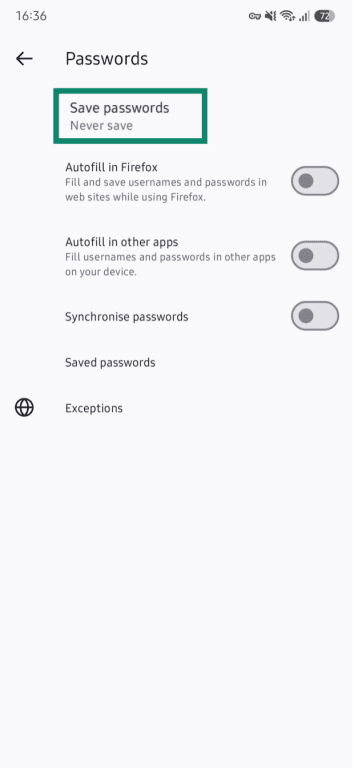
- Tap Save passwords or Save logins and passwords.
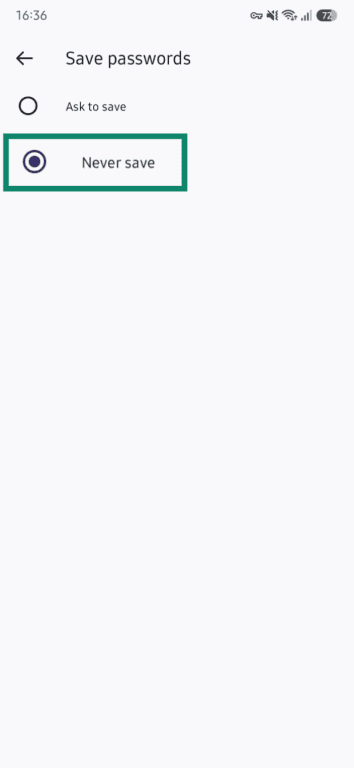
- Select Never save.
- Go back to the Passwords tab and toggle off Autofill in Firefox.
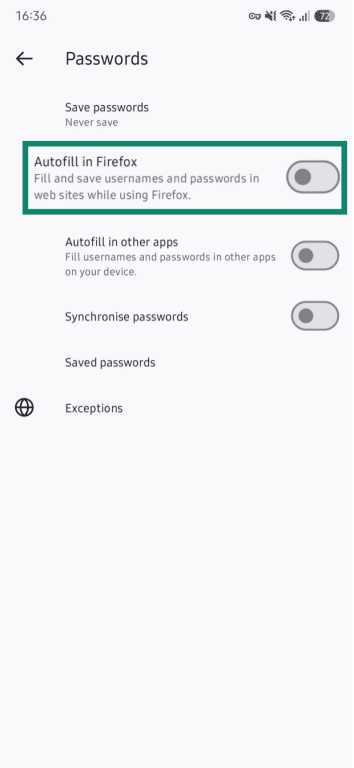
- Turn off Autofill in other apps if it’s enabled.
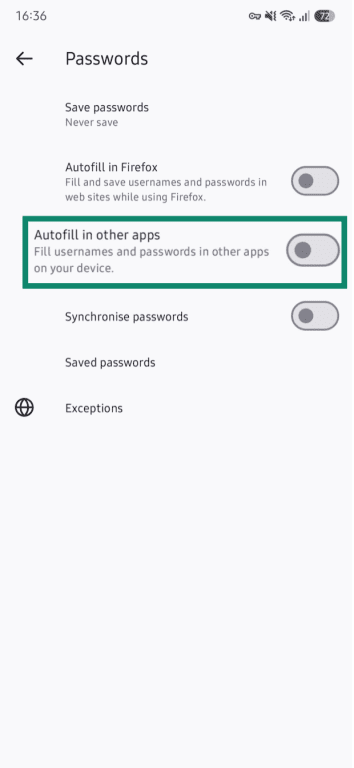
"Never save" stops Firefox from saving logins or prompting you, while "Autofill" in Firefox and "Autofill in other apps" control whether saved logins are filled in on websites or in apps.
Turn off payment autofill on Android
If you've saved card details in Firefox and want to disable payment autofill:
- Open Firefox and tap the menu button, then tap Settings > Autofill.
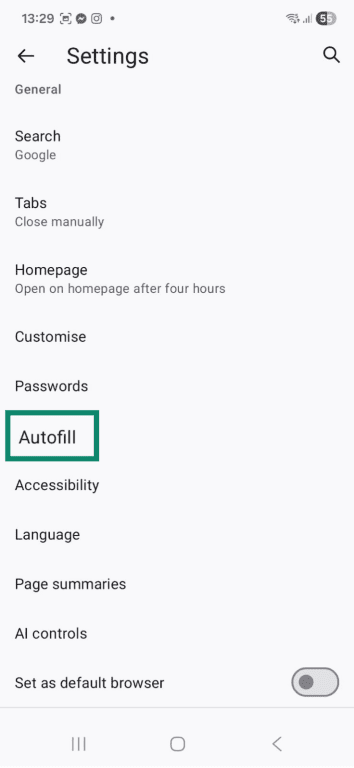
- Under Payment methods, turn off Save and fill payment methods.
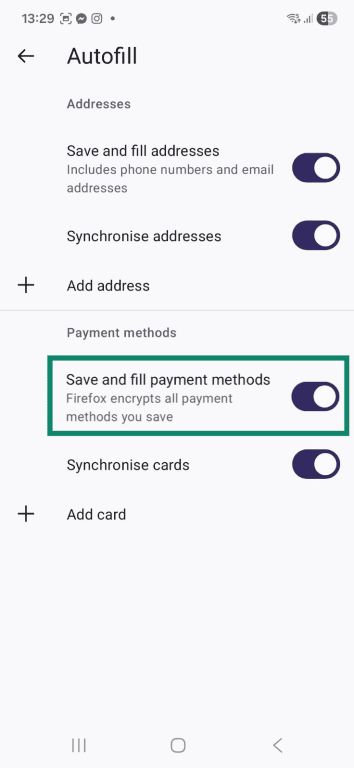
This stops Firefox from suggesting and filling saved payment details, but it doesn’t necessarily remove cards already saved in the app. To remove saved cards, go to Payment methods > Manage cards, unlock your device if prompted, and delete the card.
Disable password saving on iOS
- Open Firefox and tap the three-dot menu.
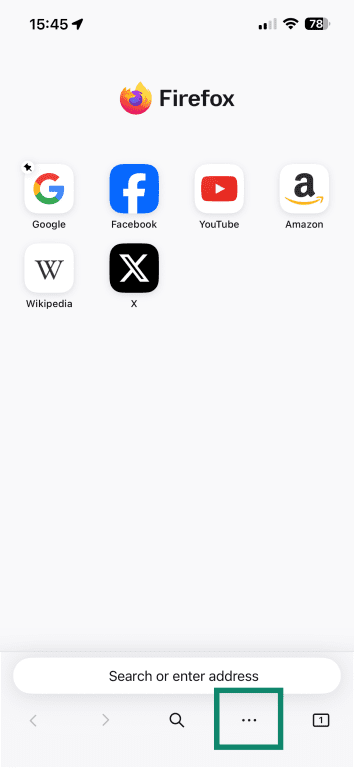
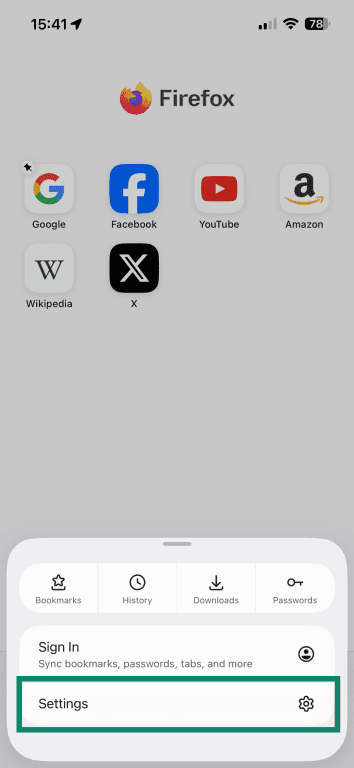
- Tap Settings.
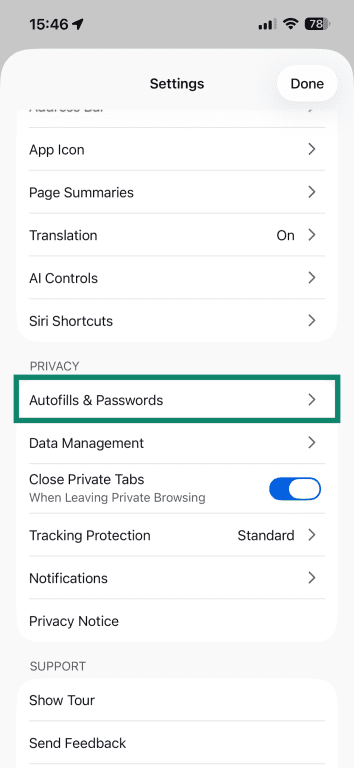
- Tap Autofills & Passwords.
- Select Passwords.
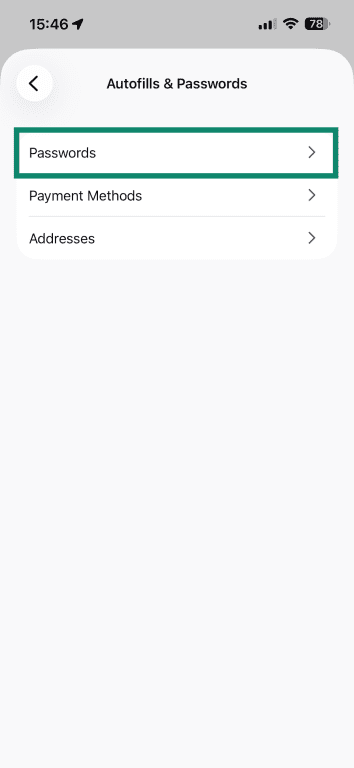
- Turn off Save Passwords.
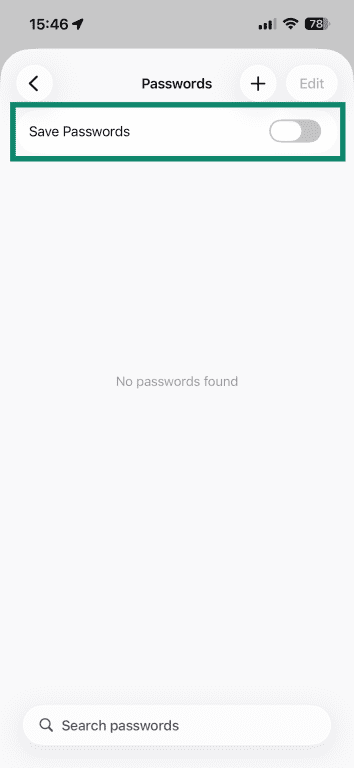
This stops Firefox from asking to save new passwords, but it doesn’t automatically delete passwords already saved in Firefox.
Turn off payment autofill on iPhone
If you've saved card details in Firefox and want to disable payment autofill too:
- In the Autofills & Passwords tab, tap Payment Methods.
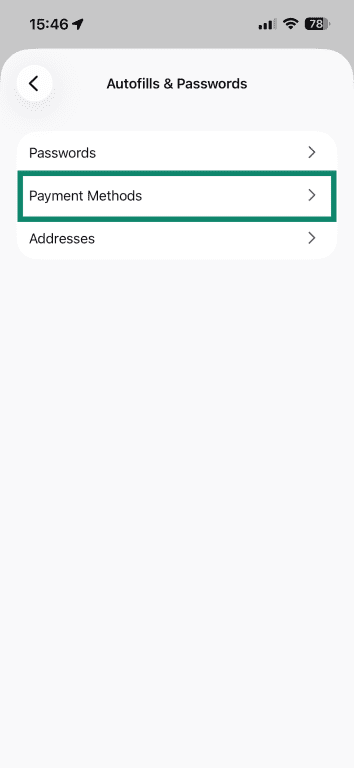
- Turn off Save and Fill Payment Methods.
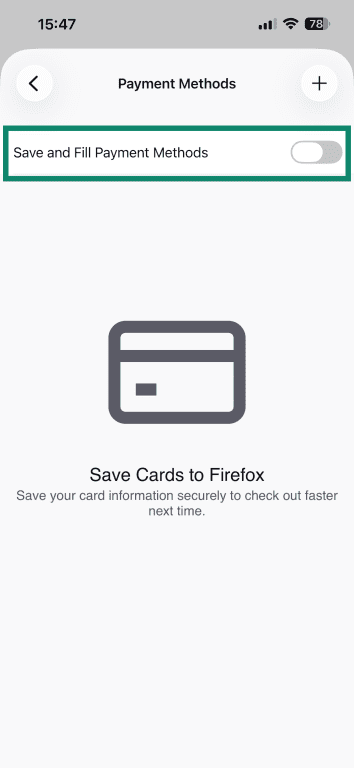
This turns off payment autofill, but it doesn’t necessarily delete saved cards. To remove a saved card, tap it on the Payment Methods page, tap Edit, then tap Remove Card.
How to disable password syncing in Firefox
If you want to keep using the password manager on one device but don't want those passwords to appear on your other devices, you can turn off password syncing without turning off saved passwords on that device. This stops password syncing going forward, but it doesn’t automatically remove passwords that have already synced to other devices.
Note: If you've never signed in to Firefox with a Mozilla account, Sync isn't enabled, and you can skip this section.
To stop Firefox from syncing saved passwords between devices:
On desktop
- Open Firefox, select the three-line menu in the top-right corner, and pick Settings.
- Select Sync or Account and sync.
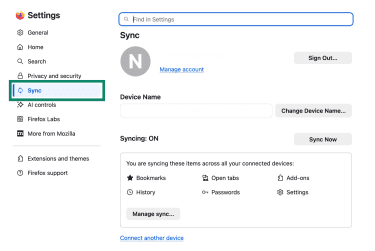
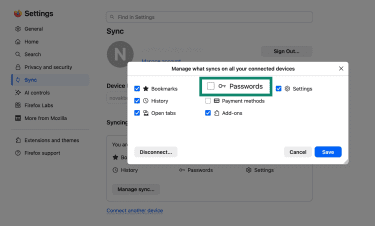
- If Sync is turned on, select Manage Sync or Manage synced data.
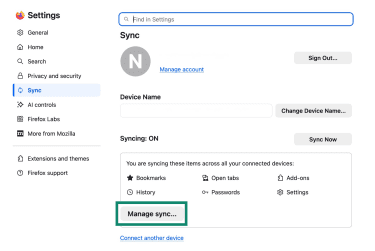
- Uncheck Passwords and select Save.
On Android
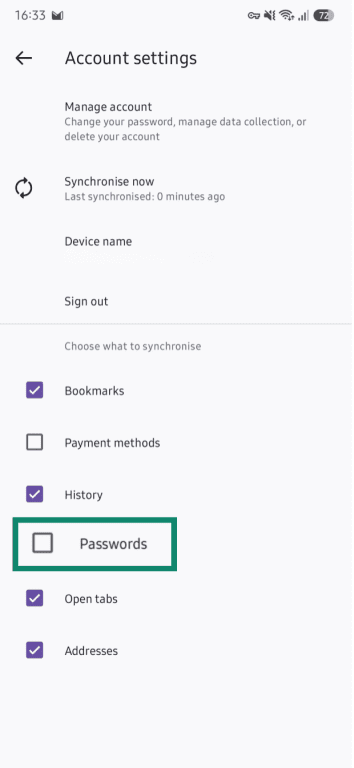
- Open Firefox, tap the three-dot menu, and tap your account name or email address.
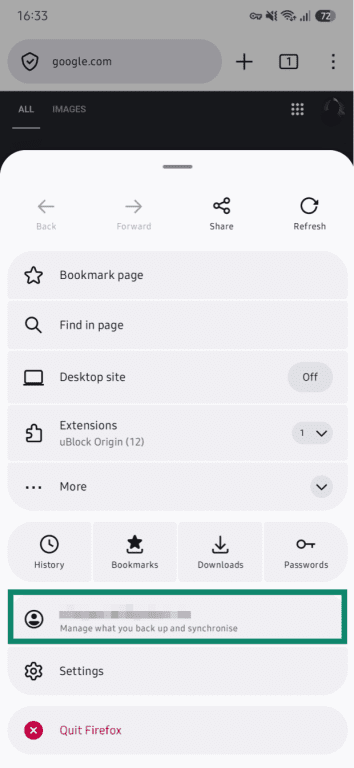
- Find the list of synced data types.
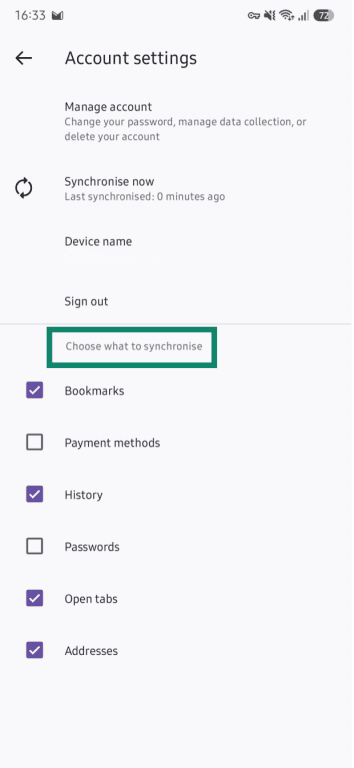
- Uncheck Passwords and exit settings. Your changes save automatically.
On iOS
- Open Firefox, tap the three-dot menu, then tap Settings.
- Under Account, tap Sync and Save Data.
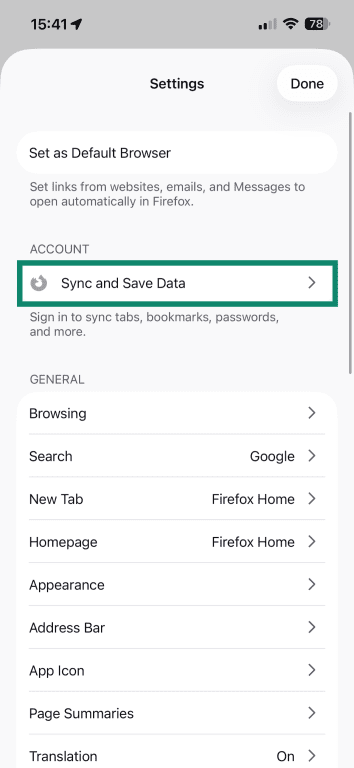
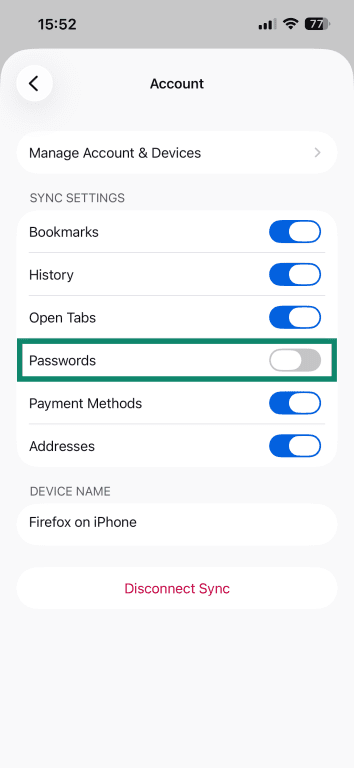
- You’ll see Sync data toggles. Turn off Passwords and exit settings. Your changes save automatically.
What happens when you turn off Firefox’s password manager
Turning off Firefox’s password-saving feature stops the browser from asking to store new usernames and passwords. It also stops Firefox from offering to save new login credentials. However, it doesn’t remove anything already stored in the password manager; your existing logins remain available unless you delete them manually.
Autofill behavior is closely tied to this setting, but it can vary slightly depending on the platform:
- Desktop: Turning off Ask to save passwords also disables Firefox’s built-in login autofill.
- Android: Saving and autofill are separate settings, so you need to turn off both. This is covered in the steps above.
- iOS: Turning off Save Passwords prevents Firefox from prompting to save new passwords. Existing saved passwords may still be available unless you delete them, and autofill behavior can also depend on saved credentials and iOS password/autofill settings.
What to do with saved passwords in the Firefox password manager
If you want to remove saved passwords completely, you can delete them from Firefox so they’re no longer stored on that device.
Note: If Sync is enabled, deleting a saved login may also remove it from synced devices.
If you haven’t moved your credentials yet, you should export them and import them into a different password manager to avoid losing access.
How to export your passwords from Firefox
Firefox lets you export saved logins as a CSV file. This is useful if you want to move your saved usernames and passwords into another password manager.
This option is only available on desktop. Firefox currently doesn’t offer a built-in password export option on Android, iPhone, or iPad. To move passwords saved on a mobile device, sync them to Firefox on desktop first, then export them from there.
- Open Firefox and click the three-line menu, then pick Passwords.
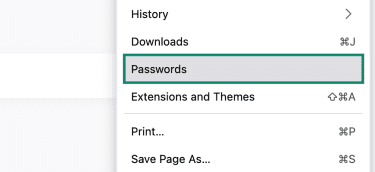
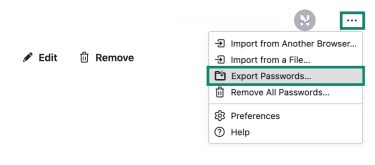
- Click the three-dot menu and select Export passwords or Export Logins.
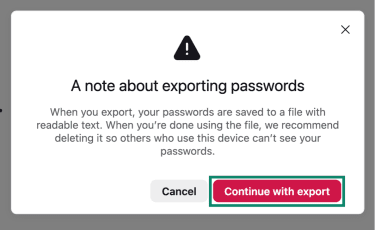
- Confirm the warning by clicking on Continue with export.
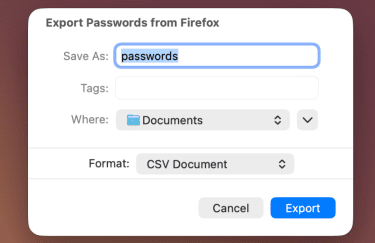
- Save the CSV file to a temporary secure location.
How to delete saved passwords in Firefox
Before deleting saved passwords, make sure they’re already stored somewhere safe, such as a dedicated password manager. Once a saved login is removed from Firefox, it may be difficult to recover unless it still exists on another device or in a separate backup.
Delete passwords in Firefox on desktop
- Open Firefox and click the three-line menu in the top-right corner and select Passwords.
- Use the search bar to find the saved login you want to remove.
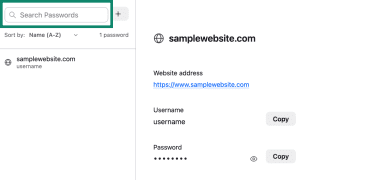
- Select the saved login from the list and click Remove.
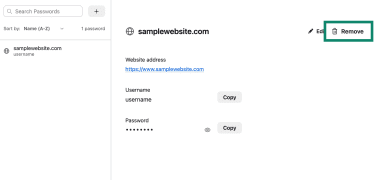
- Confirm the deletion by clicking the Remove button.
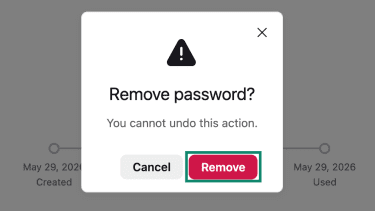
To delete all saved passwords at once:
- Open Passwords in Firefox.
- Click the three-dot menu in the top-right corner.
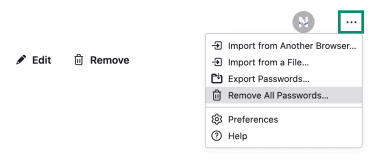
- Select Remove All Passwords and confirm the action.
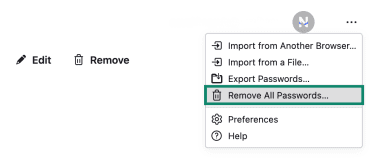
Delete passwords in Firefox on Android
- Open Firefox on Android and tap the three-dot menu.
- Select Settings, then Passwords or Logins and passwords.
- Tap Saved passwords or Saved logins. You may be asked to authenticate with your device unlock method, such as a fingerprint, face unlock, PIN, or password.
- Select the saved login you want to delete.
- Tap the three-dot menu or the trash can icon, depending on the Firefox version.
- Select Delete and confirm the action if prompted.
Note that the app doesn't allow screenshots on Android for these specific steps.
Delete passwords in Firefox on iPhone
- Open Firefox on your iPhone or iPad and tap the three-dot menu.
- Tap Settings and pick Autofills & Passwords.
- Under Saved Passwords, choose the website login you want to remove.
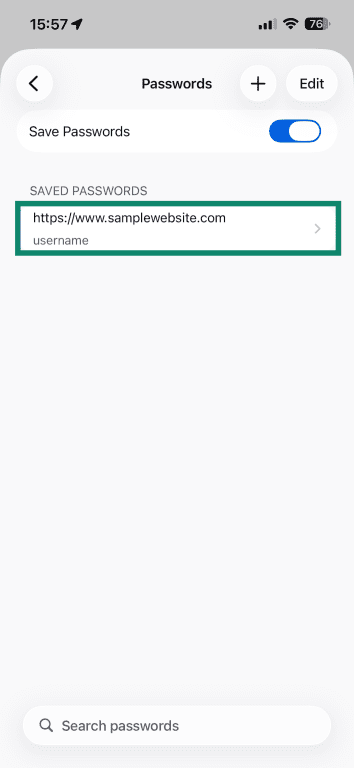
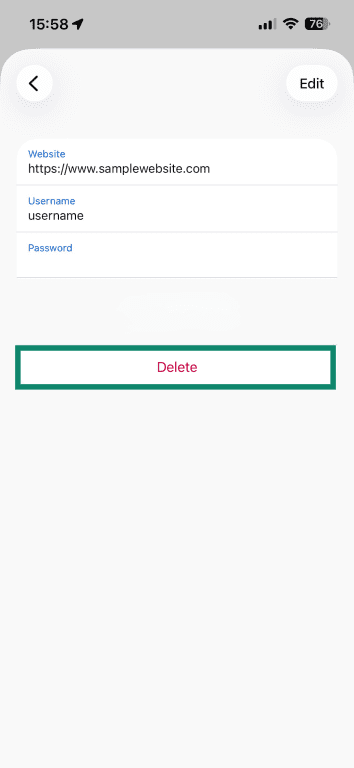
- Select Delete to remove the saved login.
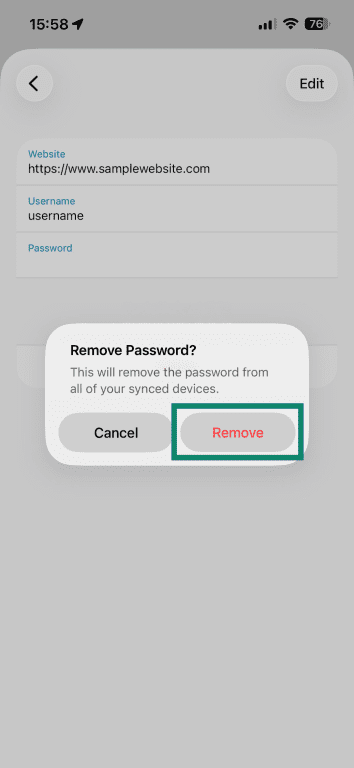
- Confirm the action by tapping Remove.
Best alternatives for keeping passwords private
After exporting passwords from Firefox, the next step is deciding where those logins should go.
Storing passwords securely offline
Offline storage can be useful after exporting passwords from Firefox, but it works best as a backup. Since Firefox exports passwords as a readable CSV file, any offline copy needs to be protected carefully.
One option is to print the exported CSV and store it in a physically secure location, such as a locked drawer or a fire-resistant safe. This keeps the list out of reach of online threats, but anyone who finds the printout can read the passwords, so this should only be used if you’re comfortable with that physical access risk.
A safer approach is to write down only essential recovery details, such as the primary password for a dedicated password manager, a recovery key, or backup codes. This avoids keeping every password on paper while still giving you a way back in if you lose access to your main vault.
You can also store a backup file on an encrypted USB drive. This gives you an offline copy without leaving all passwords readable in plain text, but the drive should still be kept somewhere secure and updated when important passwords change.
Read more: How to back up files and encrypt them.
Using a dedicated password manager
For everyday use, a dedicated password manager is often the better option after exporting passwords from Firefox, especially if you use multiple browsers or devices. Firefox’s password manager is useful for saving, autofill, sync, and password alerts, but a dedicated password manager can offer more control across browsers and devices.
Import the CSV file into a reputable password manager, then delete the unencrypted CSV once the transfer is complete. Remove any extra copies from Downloads, cloud-sync folders, backups, and the Recycle Bin or Trash.
The most useful privacy and security features to look for in a password manager are:
- A separate encrypted vault: Passwords are stored outside the Firefox browser profile, so they aren’t tied only to Firefox.
- E2EE: Your password data is encrypted before it syncs, so the provider shouldn't be able to read your saved passwords.
- Cross-browser support: A dedicated manager can work across different browsers instead of keeping passwords tied to a single browser.
- Secure autofill: Good autofill tools match saved logins to the correct websites, which can help reduce the risk of entering passwords on phishing pages.
- Password generation: Built-in generators make it easier to create strong, unique passwords for every account.
- Breach and password health alerts: These can flag weak, reused, or exposed passwords so you know what to update.
- Two-factor authentication (2FA) support: Some managers can store or generate authentication codes, which is convenient. For stronger separation, consider keeping 2FA codes in a separate authenticator app or using a security key where supported.
ExpressKeys for secure password management
ExpressKeys is ExpressVPN’s standalone password manager, available with ExpressVPN Advanced and Pro plans. It’s designed for storing passwords, passkeys, cards, and secure notes in an encrypted vault, rather than keeping login details only in a browser.
It can autofill usernames and passwords, sync items across devices, import data from supported browsers and password services, and help flag weak, reused, or compromised credentials. It also supports built-in one-time password (OTP) generation for compatible 2FA accounts and can store and manage passkeys for passwordless sign-ins.
If you want to move Firefox passwords into ExpressKeys, first export your saved Firefox logins as a CSV file. Then, use ExpressKeys’ import tool. Since Firefox isn’t currently listed by name among ExpressKeys’ supported import services, you may need to choose the Other import option and follow the on-screen instructions.
After the import, delete the exported CSV file from your device.
FAQ
Can I disable Firefox’s password manager without deleting saved passwords?
Will Firefox still autofill logins after I turn off password saving?
Is it safe to store passwords in Firefox?
Can I move Firefox passwords to another password manager?
What happens if I remove all saved logins from Firefox?